Your Practical Guide to AI for Excel

Remember all those hours spent wrestling with complex formulas or building clunky macros? Those days are numbered. AI for Excel isn't some far-off concept for data scientists; it's a set of practical tools you can use today to automate tedious work, eliminate errors, and uncover the stories hidden in your spreadsheets.
From Complicated Formulas to Simple Conversations

If you've ever stared at a broken VLOOKUP or wasted an afternoon cleaning up a messy dataset, you know the classic headaches of spreadsheet work. For a long time, performing any real analysis required you to be a pro at functions, pivot tables, and maybe even a bit of VBA. This created a barrier, keeping powerful insights out of reach for anyone who wasn't an Excel guru.
Vous passez trop de temps dans Excel ?
Elyx écrit vos formules et automatise vos tâches en quelques secondes.
Essayer gratuitementAI tools are changing the game entirely. Instead of memorizing exact syntax, you can now simply ask for what you need in plain English. This is more than a convenience—it's about making smart, data-driven decisions accessible to everyone on the team, not just the specialists.
Why Is This Shift Happening Now?
It may feel like this change happened overnight, but it's the result of a few key developments. First, AI models have become incredibly proficient at understanding human language and intent. Paired with the power of cloud computing, this allows for complex answers to be delivered directly into your spreadsheet almost instantly.
And this is just the beginning. The integration of AI into Excel is expected to completely reshape data analysis by 2025, with a significant push toward native AI features, natural language processing (NLP), and even predictive analytics. This trend levels the playing field, boosts productivity, and reduces human error. You can get a deeper dive into this market outlook and its effect on business productivity at sparkco.ai.
The biggest win here is simple: you get to spend more time thinking about what your data means and far less time fighting with the mechanics of how to analyze it. It's a huge time-saver that unlocks a much deeper level of strategic thinking.
What This Means for Your Day-to-Day Work
Bringing AI into your everyday Excel routine opens up countless new ways to be more efficient and accurate. Think of all the manual, repetitive tasks that you can now delegate to an AI assistant.
- Effortless Data Cleaning: Imagine standardizing formats, removing duplicates, and fixing typos across thousands of rows with a single, simple instruction. For example, telling the AI to "Format all dates in column C to MM/DD/YYYY and remove leading spaces in column A."
- Rapid Trend Spotting: Instead of building pivot tables, just ask the AI to "Identify the top 5 performing products by sales revenue from the selected data." It can generate summaries and even charts for you on the fly.
- Smarter Decision-Making: Move beyond simple calculations and into predictive analysis by asking for AI-powered suggestions to guide your next move.
In this guide, we’ll walk through how to use Elyx.AI, a straightforward tool built to give you all these benefits without needing a Ph.D. in data science.
Setting Up Your AI Assistant in Minutes
You don't need an IT department or a computer science degree to get AI working inside Excel. With an add-in like Elyx.AI, you can integrate serious analytical power directly into your spreadsheets with just a few clicks. The entire process takes less than five minutes.
Your first stop is the Microsoft AppSource marketplace. This is Microsoft's official app store for Office, ensuring that anything you download is vetted and secure. Simply search for "Elyx.AI" and click "Get it now."
Walking Through the Installation
Once you find the add-in, the rest is practically automatic. Excel will display a couple of confirmation prompts, and then a new Elyx.AI tab will appear in your Excel ribbon. It’s a seamless integration that makes the AI feel like a native part of Excel.
This is what the AppSource page looks like when you find Elyx.AI.
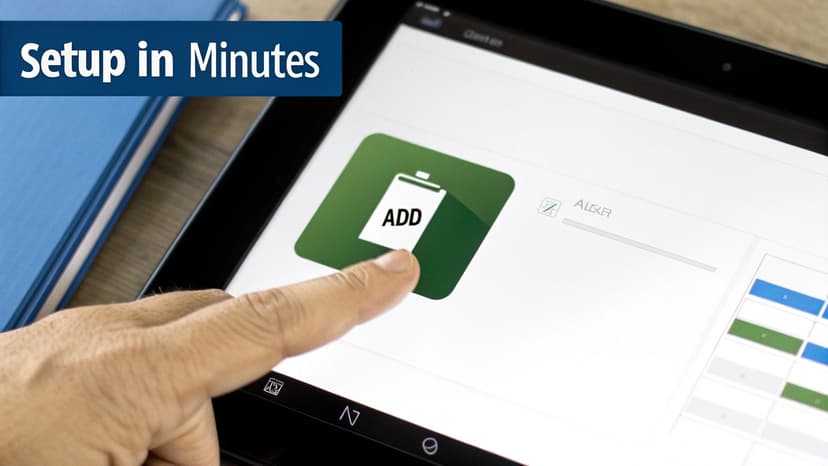
That big blue "Get it now" button is all it takes to get the ball rolling. No messy file downloads or complicated installers are necessary.
After the add-in is installed, you just have to complete a quick, one-time login. This activates your account and securely links it to Excel, keeping all your AI interactions private.
Your First Actions with the Add-In
With the Elyx.AI tab in your ribbon, you're ready to go. The setup is intentionally minimal—no confusing settings to tweak or configurations to manage. The goal is to get you using the features right away.
The point is to make AI feel like a natural part of your workflow, not another complex tool to learn. Since it lives right inside the Excel environment you already know, the learning curve is practically nonexistent. You’re simply getting a smarter way to do the things you already do every day.
If you want to dive deeper into how these tools can really boost your productivity, check out our guide on using an Excel add-in for data analysis. It offers a great look at how much faster you can get things done.
Now that you're all set up, you can jump right into the core features:
- Chat with AI: Open the chat panel to ask for help with a tricky formula or for insights about your data.
- Use AI Formulas: Type
=ELYX.AI()into any cell to perform tasks like translating text or summarizing a paragraph. - Select Built-in Tools: Use the one-click tools to clean up messy data, run an analysis, or create a chart from a selected range.
Just like that, you've unlocked a powerful toolkit that will save you time and help you find insights you might have missed—all without ever leaving your spreadsheet.
How to Write Prompts That Deliver Results
While using an AI for Excel like Elyx.AI can feel like magic, the results you get are based on clear, specific instructions. Although the AI understands plain English, the quality of its output directly reflects the quality of your input.
A vague prompt will almost certainly yield a vague or incorrect result.
Think of the AI as a new, incredibly fast but very literal assistant. If you handed them a spreadsheet and said, "fix this data," they would have several follow-up questions. Fix it how? Which columns are we talking about? What are the rules? The AI works the same way; it needs the details to do the job right the first time.
From Vague Ideas to Actionable Commands
The key is to shift your mindset from describing a general problem to defining a precise task. Instead of just stating your goal, you need to break it down into the individual actions the AI needs to perform. This small change in how you frame your request makes all the difference.
For instance, a classic data problem is dealing with inconsistent formatting and duplicates. A weak prompt would be something generic like "clean up my sales report." The AI has no idea what "clean up" means to you in this context.
A much more effective approach is to be explicit. A powerful prompt would sound more like this: "In the selected range, remove all duplicate rows based on the 'Order ID' column. Then, format the 'Sale Date' column to MM/DD/YYYY and capitalize the first letter of each word in the 'Customer Name' column."
See the difference? There's no room for guessing. The AI knows exactly what to do.
The core principle is simple: Be specific, be direct, and provide context. Always tell the AI what to do, where to do it, and how you want the final result to look. This clarity is the secret to unlocking its real power.
Crafting Prompts for Different Tasks
Different goals require different types of prompts. A request for data analysis will look very different from a request to generate new content. Let's look at how to structure your language for a few common scenarios.
- For Data Cleaning: Start with a strong action verb like
Remove,Format,Replace, orStandardize. Clearly name the column you're targeting and spell out the exact criteria for the change. - For Data Analysis: Use words like
Summarize,Calculate,Identify, orCompare. Be sure to specify the metrics you're interested in (e.g., "average sales," "total revenue") and how you want the results grouped (e.g., "by region," "per month"). - For Content Generation: You need to be descriptive. Instead of "write a description," try something like: "Generate a 15-word product description for each row using the 'Product Name' and 'Features' columns, focusing on a professional tone."
To illustrate this, here’s a quick comparison showing how small tweaks in your wording can lead to dramatically better outcomes.
From Vague Requests to Actionable AI Prompts
| Task Goal | Ineffective Prompt (Vague) | Effective Prompt (Specific) |
|---|---|---|
| Data Cleaning | Clean this data. | Remove all duplicate rows based on the Email column, then format the Date column to MM/DD/YYYY. |
| Data Analysis | Analyze my sales. | Create a summary table that shows the total sales revenue for each product category in Q4. |
| Content Generation | Write some marketing text. | Generate a 5-word SEO-friendly headline for each blog post title listed in column A. |
| Data Extraction | Find the important info. | Extract all email addresses from the text in column C and place them in column D. |
Mastering the art of the prompt is the single most important skill for getting the most out of an AI for Excel tool. When you provide clear, detailed instructions, you transform a clever piece of software into a powerful, reliable assistant that will save you countless hours of manual work.
Bringing AI Formulas Directly Into Your Cells
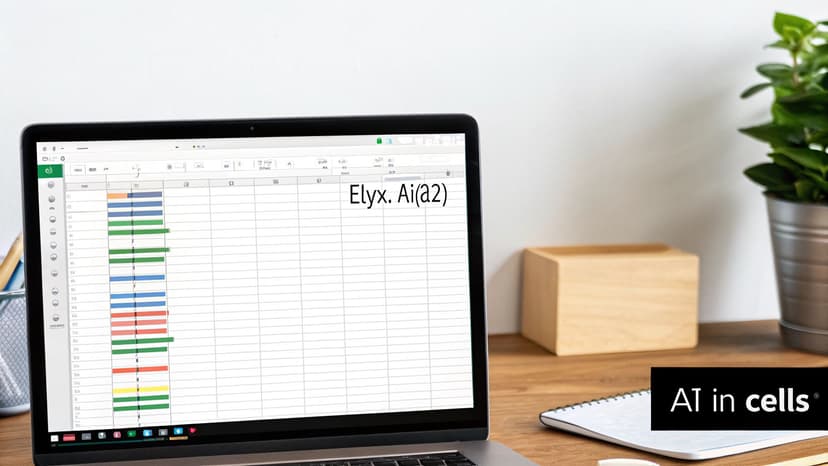
While the chat panel is great for quick questions and one-off tasks, the real power is unleashed when you embed AI directly into your worksheet's logic. This is where the custom formula, =ELYX.AI(), becomes your new best friend. It lets you build dynamic spreadsheets that don't just hold data—they think and react as your data changes.
You're used to formulas that add numbers or look up values. Now, imagine a formula that can summarize long blocks of text, classify customer feedback, or even generate creative marketing copy.
That’s exactly what =ELYX.AI() brings to the table. You type it into a cell just like any other Excel function, give it instructions in plain English, and it delivers the AI's response right where you need it. This single function unlocks a level of automation that previously required complex scripts or expensive external tools.
Generating Content and Classifying Data on the Fly
Let's walk through a couple of real-world examples to show you how this works.
Scenario 1: Generating Product Descriptions
Imagine you’re managing an e-commerce inventory list. You have a column for product names (Column A) and another for key features (Column B). Manually writing a compelling description for every item would take days. With an AI formula, it’s done in seconds.
Just enter this into cell C2:=ELYX.AI("Write a short, engaging product description based on the product name in cell " & A2 & " and its features in " & B2)
Drag that formula down the column, and you’ll get a unique, well-written description for every product. The best part? If you update the features in Column B, the description in Column C will automatically refresh to match.
Scenario 2: Analyzing Customer Feedback
You've just exported customer feedback into Column D and need to quickly gauge the overall sentiment.
In cell E2, you could write:=ELYX.AI("Classify the feedback in cell " & D2 & " as 'Positive', 'Negative', or 'Neutral'.")
Instantly, you have a new column that neatly categorizes every comment. From there, you can easily build charts or pivot tables to analyze customer sentiment. If you want to dive deeper into automating formula writing itself, our guide on using an Excel formula builder has some great tips.
The
=ELYX.AI()formula transforms your spreadsheet from a static grid into a responsive, intelligent system. Because it’s a native formula, any change to a source cell automatically prompts the AI to generate a fresh result, keeping your analysis perfectly in sync.
Tips for Nailing Your AI Formulas
To get the best results from =ELYX.AI(), remember that the quality of your prompt is just as important here as it is in the chat panel.
- Be Direct and Clear: Don’t be vague. Tell the AI exactly what you want it to do.
- Reference Cells Dynamically: Always use the
&operator to connect your instructions with cell references (e.g.,"Summarize the text in " & A2). This is what makes your formula reusable for the entire column. - Specify the Output Format: Need a bulleted list, a single sentence, or a result under 50 words? Just include that requirement in your prompt.
Embedding AI in Excel is more than just a time-saver; it fundamentally changes how you approach analysis. By automating tedious tasks, you free yourself up to focus on what the data actually means. This shift is happening across the industry, with tools like Microsoft 365 Copilot leading the charge, helping people spend less time wrangling data and more time interpreting it. For a broader look at this trend, you can see how fast the market is growing in recent AI market research on precedenceresearch.com.
Go Beyond Formulas: Automating Tasks with Built-In AI Tools
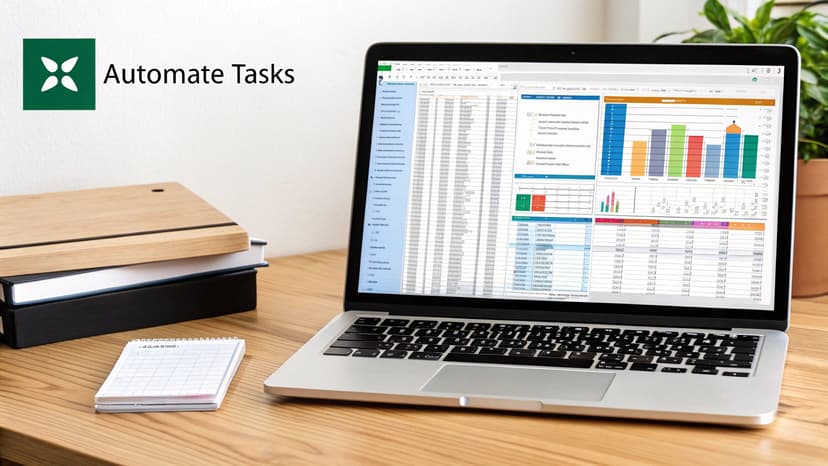
While writing your own prompts and formulas provides incredible control, sometimes you just need to get a common task done quickly. This is where Elyx.AI’s built-in tools shine, turning what used to be hours of tedious work into just a few clicks. These features are perfectly tuned for the most common data headaches, no writing required.
For instance, instead of trying to craft the perfect prompt to fix messy data, you can use the automated cleaning tool. Simply highlight the problematic data range, click the "Clean" button, and let the AI do the heavy lifting. It will fix formatting inconsistencies, intelligently fill gaps based on context, and flag potential errors for your review.
One-Click Data Analysis and Insights
Once your data is clean, the real magic begins with the built-in analysis tool. This is where you truly see the power of AI for Excel. Imagine you've just been handed a massive sales report and need to pull out the key takeaways for a meeting that starts in ten minutes.
The old method involved a frantic rush of building pivot tables, double-checking calculations, and trying to spot trends under pressure. With an automated tool, you just select your data and ask for an analysis.
In moments, you can get a full breakdown:
- An Executive Summary: A simple, plain-English paragraph outlining the main trends and any surprising outliers.
- Key Insights: A clean, bulleted list of the most important findings, such as which product is selling best or what region is driving the most profit.
- Suggested Pivot Tables: Pre-built pivot tables that answer the most likely business questions your team will have about the data.
This kind of automation is rapidly becoming a standard for data work. AI tools for Excel simplify complex jobs by cleaning data, spotting trends, and even suggesting the best charts to use. While North America currently leads in adoption, this technology is gaining traction globally.
This one-click approach isn't about replacing your analytical skills; it’s about amplifying them. It handles the monotonous, mechanical parts of the job so you can focus on what really matters: strategy and making smart decisions.
Get Presentation-Ready Visualizations in an Instant
Creating effective charts is often the final—and most frustrating—step in data analysis. You have to select the right data, choose the best chart type, and then spend time adjusting labels, colors, and titles to make it look professional.
The automated visualization feature eliminates this headache. Once your data is selected, you can simply tell the AI something like, "Create a bar chart showing sales by quarter" or "Generate a line graph of website traffic." Elyx.AI understands your request, builds the chart, and places it directly onto your worksheet.
These AI-powered functions represent a huge step forward in making data more accessible to everyone. If you're looking at automation beyond just spreadsheets, some companies even offer professional automation services that can help across your entire business.
Your Questions Answered: AI in Excel
It's natural to have questions when bringing a new tool into your workflow, especially one as powerful as AI. Getting clear answers is the best way to start using AI for Excel with confidence.
Let's address some of the most common questions people ask.
Are these AI tools really free?
Most quality AI add-ins, including Elyx.AI, operate on a freemium model. You'll typically get a certain number of AI actions per month at no cost, which is often sufficient for light tasks or for evaluating how the tool fits into your workflow. It's an excellent way to test the features without any commitment.
If you find yourself relying on it heavily—for processing large datasets or as a core part of your daily analysis—you may want to upgrade to a paid plan for higher usage limits. The official listing on the Microsoft AppSource page is always the best place for the latest pricing details.
What happens to my data? Is it private?
This is a critical question. When working with sensitive company or personal information, you need assurance that it's secure.
Reputable tools vetted for the Microsoft AppSource marketplace, like Elyx.AI, are built with security as a priority. When you send a request to the AI, your data is transmitted over a secure, encrypted connection. The AI processes your request, and your information is not stored long-term or used to train models.
My personal rule of thumb is to always review the privacy policy before installing any add-in. A trustworthy company will be transparent about how they handle data. It's a simple step that provides significant peace of mind.
What are the limitations of AI in Excel?
While AI is a game-changer, it isn't perfect. The most important thing to remember is that its output is only as good as your input. Vague instructions will lead to vague results. The "garbage in, garbage out" principle applies.
You should also be aware that AI can sometimes "hallucinate"—it might generate information that looks plausible but is incorrect. Performance can also slow down with extremely large datasets, and your plan may have usage limits. The bottom line? Always perform a quick sanity check on critical outputs.
Can it really create a complex chart from a single sentence?
Yes, and this is one of the most significant time-saving features. Instead of navigating through Excel's chart menus, you can simply state what you want in plain English.
For example, you can type commands like:
- "Create a bar chart showing total sales by region for Q4."
- "Generate a line graph of website traffic from January to June."
The AI interprets your request, identifies the relevant data in your selection, and builds the chart directly on your sheet. It’s a feature that will make you wonder how you ever managed without it.
Ready to stop wrestling with complicated formulas and start saving hours? Elyx.AI puts artificial intelligence right inside the spreadsheets you already use every day. Clean data, find insights, and build charts with simple commands. See for yourself how much faster your work can be.
Get Started with Elyx.AI for Free
Vous lisez des tutoriels Excel pour gagner du temps ?
Et si une IA faisait le travail à votre place ?
Décrivez ce dont vous avez besoin. Elyx l'exécute dans Excel.
Essayer gratuitement