11 Strategic Ways AI in Excel Can Supercharge Your Workflow

Think of it like having a data expert sitting right next to you, ready to tackle any Excel challenge you throw at them. That’s the real magic behind AI in Excel. This technology is essentially a smart assistant living inside your spreadsheets, turning your plain-English requests into finished work.
What Is AI in Excel and How Does It Work?

At its core, AI in Excel closes the gap between how we talk and how spreadsheets work. Instead of you having to learn Excel's complex language—think VLOOKUP or SUMIFS—the AI learns yours. It does this using a powerful technology called Natural Language Processing (NLP), which lets it understand your typed commands.
Vous passez trop de temps dans Excel ?
Elyx écrit vos formules et automatise vos tâches en quelques secondes.
Essayer gratuitementThis means you can forget about hunting for the right formula and just say what you want. A simple prompt like, "Find all duplicate entries in this column and highlight them," is all it takes. The AI figures out your intent and performs the right steps, saving you a ton of time and frustration.
The 2 Main Paths to AI Integration
You have two main ways to bring this AI power into your daily workflow. Each one offers different capabilities, so you can choose what best fits your needs.
- Built-in AI Features: Microsoft is weaving AI directly into Excel with tools like Copilot. These are handy for suggesting formulas or handling simple, one-off tasks without ever leaving the Excel environment.
- Third-Party AI Add-Ins: Specialized tools like Excel AI take it to the next level. They act more like autonomous agents, capable of managing complex, multi-step projects from a single instruction. Think of them as your dedicated data specialists for the heavy lifting.
The demand for this kind of efficiency is booming. The U.S. AI market was valued at an incredible USD 173.56 billion in 2025 and is expected to climb to USD 976.23 billion by 2035. This growth is all about businesses wanting to cut down on repetitive work—exactly the kind of data cleaning and analysis that eats up so much time in Excel.
From Instructions to Autonomous Action
The real game-changer is what happens after you give a command. A basic AI might point you to the right formula, but you still have to apply it. An advanced AI agent, on the other hand, takes over the entire process from start to finish.
By understanding both the context of your data and your ultimate goal, an AI agent can independently clean, analyze, pivot, chart, and format a complete report. It’s the difference between being handed a recipe and having a chef prepare the entire meal for you.
This ability to run a whole sequence of tasks is what sets the new generation of AI Excel tools apart. It frees you up to focus on what the data actually means, not the manual steps to get there. The table below breaks down exactly what these AI tools can do for you, making it clear how they can transform your work in Excel.
4 Core AI Capabilities in Excel at a Glance
| AI Capability | What It Does for You | Example Task |
|---|---|---|
| Data Cleaning | Automatically finds and fixes errors, removes duplicates, and standardizes formatting. | "Remove all duplicate rows based on the 'Email' column." |
| Data Analysis | Identifies trends, patterns, and outliers in your data without manual formula writing. | "What are the top 5 selling products by revenue this quarter?" |
| Report Generation | Creates summaries, pivot tables, and visualizations from raw data. | "Create a pivot table showing sales by region and month." |
| Task Automation | Executes multi-step workflows based on a single command. | "Clean this data, create a summary chart, and email it to my manager." |
As you can see, the goal isn't just to make you faster at individual tasks—it's to automate entire workflows so you can focus on the bigger picture.
7 Core AI Features That Will Transform Your Spreadsheets

The idea of an "AI assistant" for Excel sounds impressive, but what does it actually do in the real world? It's not about flashy gimmicks. The true power of an AI Excel tool is how it tackles the specific, high-impact tasks that eat up most of your day. These aren't just minor tweaks; they fundamentally change how you work, turning hours of tedious clicking and formula-writing into seconds of automated action.
Let's dig into the seven core capabilities that deliver the biggest wins for professionals in marketing, finance, and operations. Each one solves a common, frustrating problem with a simple, plain-English command.
1. Automated Data Cleaning
Every good analysis starts with clean data, but getting it clean is often the most painful part of the job. AI tools can instantly standardize formats, fix typos, hunt down duplicates, and even intelligently fill in missing values based on your instructions.
Think about a messy customer list where names are all over the place ("John Smith," "smith, john"). Instead of wrestling with complex formulas, you can just tell the AI, "Standardize all names in Column B to a 'First Name Last Name' format and get rid of any duplicate rows." The AI just handles it. Done.
2. Intelligent Data Analysis
Once your data is clean, the next challenge is finding the story hidden inside. AI can scan your datasets to spot trends, flag unusual outliers, and pull out key insights you might have otherwise missed.
For example, a marketing manager could drop in some campaign data and ask, "Which ad campaign gave us the highest ROI last month, and who was our key demographic?" The AI does the heavy lifting, giving you a clear answer without you ever having to build a single pivot table or filter.
3. Instant Pivot Table and Report Generation
Pivot tables are one of Excel's most powerful features, but they can be a real headache to set up correctly. With an AI tool, you just describe the summary you need, and it builds the entire pivot table for you.
A finance professional can simply type, "Create a pivot table showing quarterly revenue broken down by product category and region." That single sentence produces a perfectly structured report that would normally take a dozen clicks and drags to get right.
This is a massive time-saver for anyone who builds reports regularly. It also explains why the AI data solutions market, valued at USD 4.47 billion in 2025, is expected to skyrocket to USD 32.11 billion by 2034. This growth is all about giving teams automated insights to build client-ready reports without the manual grunt work. You can read more about the research driving these AI data solutions.
4. Dynamic Chart and Visualization Creation
A good chart makes complex data instantly understandable. AI takes the guesswork out of creating visuals that actually work. Just tell it what story you want to show, and it will pick and generate the right chart for your data.
- Before AI: You’d select your data, click through menus to find a chart type, and then spend ages fiddling with the axes, labels, and colors.
- After AI: You type, "Generate a bar chart comparing sales for our top five products this quarter." Seconds later, you have a clean, presentation-ready chart.
5. Complex Formula Writing and Explanation
We’ve all been there—staring at a spreadsheet, knowing there's a formula that can solve our problem but having no idea what it is. An AI tool can write that complex formula for you based on a simple description of your goal. Even better, it can look at an existing formula and explain what it's doing in plain English.
Practical Example: Using VLOOKUP with AI
Imagine you have two sheets: 'Sales' and 'Products'. You need to pull the price for each item from the 'Products' sheet into your 'Sales' sheet. Instead of trying to remember the syntax, you can ask the AI:
"Write a VLOOKUP formula to find the price for the item in cell A2 of the 'Sales' sheet, using the product list on the 'Products' sheet in range A:B, and pull the price from the second column."
The AI will generate the correct formula: =VLOOKUP(A2, Products!A:B, 2, FALSE)
VLOOKUP(A2, ...): This tells Excel to look for the value in cell A2....Products!A:B, ...): This is the lookup table on the 'Products' sheet where it will search...., 2, ...): This specifies that the price is in the 2nd column of that table...., FALSE): This ensures an exact match.
You can learn more about how an AI formula generator works and how it can make your life easier.
6. Professional Report Formatting
A consistently formatted report looks more credible and is far easier to read. An AI agent can apply your company's brand colors, standardize fonts, adjust column widths, and create a polished layout with a single command. It’s the end of manually formatting every single sheet.
For instance, a consultant could simply say, "Format this entire workbook using our corporate style guide: blue headers, grey accents, and Arial 10pt font."
7. Multi-Step Workflow Execution
This is where AI really starts to feel like magic. Instead of asking for one thing at a time, you can chain together a series of instructions in a single prompt. The AI will then execute that entire workflow from start to finish on its own.
A sales operations manager could give a single, multi-part command like this:
- Clean the attached sales data by removing duplicates.
- Create a pivot table summarizing sales by region.
- Generate a bar chart for the top 5 regions.
- Format the entire report using our blue and grey brand colors.
The AI will perform all four steps in order, delivering a finished report in minutes. The ability to handle these complex, multi-step jobs is what elevates an AI Excel tool from a simple helper to an essential member of your team.
Choosing Your AI Tool: A 2-Way Comparison of Built-In vs. Third-Party Add-Ins

So, you're ready to bring AI into your spreadsheets. The big question is: do you stick with the tools Microsoft builds right into Excel, or do you grab a specialized add-in from a third party? There's no single right answer. It all comes down to what you actually need to get done.
Think of it like the GPS in your car versus an app like Waze on your phone. The built-in navigation is handy and gets the basic job done. But Waze gives you a whole other level of real-time info and functionality.
Let's look at the real differences between a built-in helper like Microsoft Copilot and a dedicated AI agent like Elyx.AI. Figuring this out will help you pick the right tool for your workflow, whether you just need a quick suggestion or a powerful partner for your most complex tasks.
The Role of a Co-pilot vs. an Autonomous Agent
The most important distinction is how these tools actually help you. A tool like Microsoft Copilot is designed to be your sidekick. It works alongside you, suggesting formulas and handling one-off, clearly defined tasks. It's fantastic for those "what's the formula for…?" moments or for summarizing a small table.
An autonomous agent, however, is built to take the wheel. You give it a high-level goal, and it handles all the tedious steps to get there—cleaning data, running analysis, building charts, and formatting the output—without you needing to micromanage every single action.
Think of it this way: a co-pilot might hand you the recipe and help chop the onions. An autonomous agent cooks the entire meal, sets the table, and calls you when dinner is served.
This is a game-changer. If you just need a nudge in the right direction for a formula, a built-in tool is great. But if your goal is to automate a 10-step reporting process with a single request, you're going to need an autonomous agent.
AI in Excel Showdown: Microsoft Copilot vs. Elyx.AI
To really see the difference, let’s compare how each tool handles a common request. This side-by-side look makes it clear what "suggestion" versus "execution" really means in practice.
| Feature | Microsoft Copilot | Elyx.AI (Autonomous Agent) |
|---|---|---|
| Best For | Quick formula suggestions, simple data summaries, single-step tasks. | Automating complex, multi-step workflows from a single command. |
| Autonomy | Acts as an assistant, providing suggestions and performing basic actions. | Acts as an agent, executing entire sequences of tasks independently. |
| Data Privacy | Data may be processed in the cloud as part of the broader Microsoft 365 ecosystem. | Data remains on your local machine; only text instructions are sent. |
| Use Case | "What's the formula to find the average of this column?" | "Clean, analyze, chart, and format this entire sales report for me." |
As you can see, the scope is completely different. One is a helper for individual steps, while the other is a solution for the entire project.
Capability and Autonomy: A Head-to-Head Look
Let's ground this with a real-world example: creating a sales report.
With Microsoft Copilot, you'd work step-by-step. You might ask it to "suggest a formula to sum sales for the North region." It gives you the
SUMIFformula, and then you put it where it needs to go. It's great at handling these kinds of specific, single-shot requests.With an autonomous agent like Elyx.AI, you can think bigger. You could give it a single, broad command: "Clean this sales data, create a pivot table showing sales by region, generate a bar chart for the top 3 regions, and format the report with our brand colors."
The agent then executes all four of those tasks in order, delivering a finished report without any more input from you. That multi-step capability is what really sets an autonomous agent apart—it understands the entire workflow, not just one piece of the puzzle.
Data Privacy and Security Considerations
Let's be honest: security is a huge deal, especially when you're working with sensitive company data. The way an AI tool is built directly impacts how your information is handled. Many native solutions process data in the cloud, which can be a red flag for organizations with strict compliance or privacy rules.
This is where specialized add-ins often take a different, more secure path. For instance, a major benefit of a dedicated Excel AI add-in like Elyx.AI is that it was designed with privacy as a top priority.
With Elyx.AI, your actual spreadsheet data never leaves your computer. Only your plain-text instructions are sent to the AI model. The AI then sends back the list of steps, which are carried out locally on your machine. This keeps your confidential information exactly where it belongs: with you.
For anyone working in finance, consulting, healthcare, or any field where data privacy is paramount, this local-first approach is a critical feature.
Making the Right Choice for Your Needs
At the end of the day, the best tool is the one that solves your biggest headaches. There isn't one "best" option, just the best fit for the work you do.
If your main frustration is forgetting formulas or doing simple summaries, a built-in co-pilot is a perfect place to start. But if your goal is to slash the hours you spend manually building reports and repeating the same tedious processes, a specialized autonomous agent will give you a much bigger return on your time.
A 4-Step Guide to Automating Your First Sales Report with Elyx.AI
Alright, enough with the theory. The best way to really get what an AI Excel agent can do is to see it tackle a real-world job. We're going to walk through turning a messy sales spreadsheet into a clean, insightful report using Elyx.AI.
We'll start with a jumble of raw data and end up with a polished, finished product—all from a single, clear command. This is where you see how complex workflows that used to eat up your afternoon can now be knocked out in just a few minutes.
Step 1: Getting Elyx.AI into Excel
First things first, you need the tool for the job. Installing Elyx.AI is simple and happens right inside Excel through the official Microsoft marketplace, so you know it's secure and has been vetted.
- Pop open Excel and head to the Insert tab.
- Click on Get Add-ins to open the Microsoft AppSource store.
- In the search bar, just type "Elyx.AI" and hit Enter.
- Find the Elyx.AI listing and click the Add button.
Once it's installed, a new Elyx.AI tab will appear in your Excel ribbon, and you're ready to go.
Here’s what you’ll see on the official Elyx.AI page in Microsoft AppSource, where the installation kicks off.
Seeing it listed here is your peace of mind—it means the add-in has passed all of Microsoft's security and performance checks.
Step 2: Writing a Single, Powerful Prompt
With Elyx.AI ready, the next move is to open its chat panel and simply tell it what you need. This is where the real magic begins. Instead of clicking through dozens of manual steps, you're going to describe your entire goal in one go.
Let's say you're looking at a spreadsheet of raw sales data. It’s a mess—duplicates, sloppy formatting, and zero analysis. Your goal is to clean it up, summarize the key numbers, create a chart, and make it look professional.
You could type a single, detailed instruction like this right into the chat panel:
"Clean this sales data by removing all duplicate rows based on the Order ID. On a new sheet, create a pivot table that shows total sales by region. Then, make a bar chart of the top 5 regions. Finally, format the report with blue headers and grey accents to match our company's colors."
See what we did there? That one command bundles four completely different tasks into a single, clear request. You're not asking for help; you're delegating the entire job.
Step 3: Watching the AI Agent Do the Work
Hit send, and the AI agent gets to work. Honestly, this is the most impressive part. You can sit back and watch as Elyx.AI carries out every step you asked for, right there in your spreadsheet.
You'll see it:
- Instantly find and delete the duplicate rows.
- Create a fresh worksheet for the report.
- Build the pivot table from scratch, just as you described.
- Generate a clean bar chart with proper labels.
- Apply the blue and grey formatting across the report.
No clicking, no dragging, no formula writing. The agent understands the sequence and context of your request and just executes. This is what separates a simple helper from a true autonomous agent. If you're curious about the tech behind this, our guide on AI automation in Excel dives deeper.
Step 4: Reviewing Your Polished Report
In a matter of minutes, the job is done. What started as a messy dataset is now a clean, organized, and professionally formatted sales report. The final spreadsheet has your cleaned data, the summary pivot table, and a chart that’s ready for any presentation.
From here, you can give it a quick once-over or even ask for tweaks. For example, you could follow up with, "Now change the chart to a pie chart," and the agent will update it instantly.
This simple example shows how a powerful AI Excel tool can manage not just a single task, but an entire project from start to finish. It frees you from the tedious, mechanical work of report building so you can focus your time on what really matters—thinking strategically and making smart decisions.
3 Strategic Benefits of Adopting AI in Excel
Moving beyond just cool features, bringing a true AI agent into your Excel workflow gives you some serious strategic advantages. We're not just talking about doing things faster; we're talking about fundamentally changing how you work with your data. This is about shifting your focus from mind-numbing manual tasks to actual strategic thinking.
The three biggest perks professionals see are massive time savings, better data accuracy, and rock-solid security. Each one solves a major headache that comes with managing data today.
1. Massive Time Savings
The first thing you'll notice with an AI Excel tool is getting back all those hours you used to lose to repetitive tasks. If you're a financial analyst or consultant, you know how much of your week can disappear just prepping data—cleaning, formatting, and structuring it—before you can even start analyzing anything.
An AI agent takes all that grunt work off your plate. Instead of spending an hour manually hunting for duplicate entries or fixing date formats, you can give the AI a single instruction and let it handle the entire job. This frees you up to focus on what actually matters: interpreting trends, building strategy, and sharing your findings with others.
This simple diagram shows just how quickly you can automate a report, turning a long, manual process into a quick, hands-off operation.
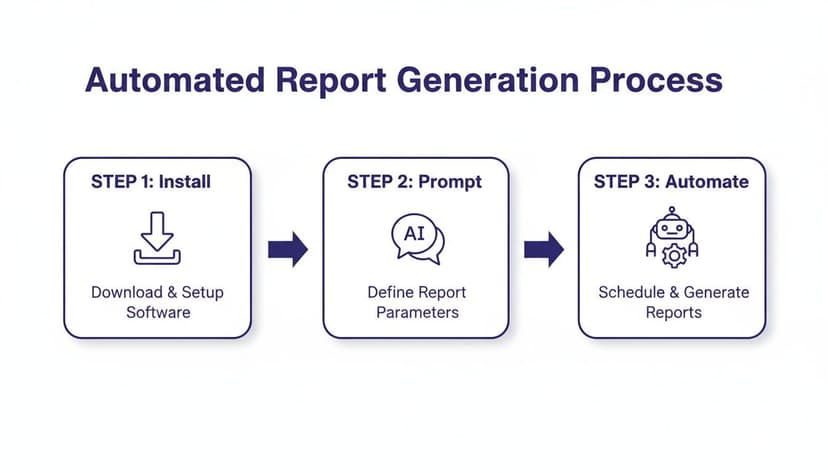
As you can see, a complex reporting task is boiled down to three simple steps: install the tool, write a prompt telling it what to do, and let the AI handle the rest.
2. Enhanced Accuracy and Consistency
Let's face it, human error is a real risk when you're working with data manually. One misplaced decimal or a slightly off formula can throw off an entire report and lead to bad decisions. AI agents pretty much eliminate this risk by performing tasks with perfect precision, every single time.
When an AI cleans your data, applies formulas, or formats a report, the result is consistent and dependable. This consistency builds trust in your numbers and the insights you pull from them.
By taking human error out of the equation, AI ensures your analysis is built on a foundation of clean, accurate data. This gives decision-makers the confidence to act, knowing the numbers are sound.
The demand for this kind of efficiency is why the global generative AI market is expected to skyrocket from USD 22.21 billion in 2025 to USD 324.68 billion by 2033. With 71% of organizations already using intelligent systems, it's clear that the future isn't about manual formatting; it's about using AI to get professional results, securely.
3. Uncompromised Data Security
For anyone handling sensitive financial data, customer details, or internal metrics, security is everything. The problem with many cloud-based AI tools is they make you upload your files, which can open up all sorts of privacy risks.
A privacy-focused AI agent like Elyx.AI was built to solve exactly this problem. Its security model is simple: your Excel file and all its data never leave your computer. Only the text-based instructions you type are sent to the AI, which then sends back the steps for your local machine to execute. This is a game-changer for staying compliant and keeping sensitive information safe.
- Your data stays local: Your spreadsheet is never uploaded or stored on an external server.
- Encrypted communication: Your instructions are sent securely using enterprise-grade encryption.
- Vetted by Microsoft: The add-in has passed Microsoft's tough security reviews.
This security-first design gives you peace of mind, letting you tap into powerful AI without putting your data at risk. To see the bigger picture, check out this article on how AI tools can revolutionize business productivity, which offers a broader look at the strategic lift AI can bring to a company.
4 Frequently Asked Questions About AI in Excel
Jumping into a new tool, especially one that works with your data, naturally comes with a few questions. It’s a smart move to get all the facts before you change up your workflow. Let's tackle some of the most common concerns people have about security, skills, and what makes these new AI tools different from the ones you already know.
Think of this as a straightforward chat to clear things up. We want you to feel confident about how an AI Excel agent like Elyx.AI can be a secure, easy-to-use, and genuinely powerful part of your toolkit.
1. Is My Data Secure When I Use an AI Add-in?
This is usually the first question people ask, and it’s the most important one. The short answer is: it all depends on the tool you pick.
With Elyx.AI, your data’s privacy was the top priority from day one. Here’s the key difference: your Excel file and all the information inside it never leave your computer. The only thing sent to the cloud is the text of your request—your plain-English instructions. The AI figures out the steps needed and sends that plan back to your machine, where all the work happens locally.
This privacy-first design means you can work on sensitive financial reports, private customer lists, or internal company data without a second thought. The entire process uses enterprise-grade encryption and has passed Microsoft's tough security reviews, so your information is never stored, shared, or used for training AI models.
This is a world away from some cloud-based tools that ask you to upload your entire file, which can open up potential security risks.
2. Do I Need to Be an Excel Whiz to Use These AI Tools?
Not at all. Actually, it’s the complete opposite. One of the best things about an AI Excel tool like Elyx.AI is that it makes complex tasks simple enough for anyone to do. It’s a great equalizer.
You can forget about memorizing tricky formulas or digging through endless menus. Just say what you want in plain English. For instance, instead of fumbling with the CONCATENATE function, you can just tell the AI, "Combine the first name in column A and the last name in column B to create a full name in column C."
This simple approach lets everyone on your team handle data like a pro, turning what used to be an expert-level task into a quick request. It flattens the learning curve and helps everyone become more productive on their own.
3. How Is an AI Agent Different from ChatGPT or Copilot?
This is a great question because it gets to the core of what makes an autonomous agent so special. While tools like ChatGPT and even Microsoft Copilot are fantastic, they play different roles.
- ChatGPT is like a knowledgeable consultant. You can ask it for a formula or an explanation, but you still have to copy, paste, and implement it yourself.
- Copilot acts more like an assistant. It’s built into Excel and can suggest formulas or handle simple, one-step actions for you. It’s a solid time-saver for individual tasks.
- An autonomous AI agent like Elyx.AI is a true doer. It's built to take a single, complex instruction and see it through from start to finish, handling multiple steps along the way.
It’s the difference between asking for driving directions and having a chauffeur take you to your destination. You don't just get a suggestion; you get the finished product. You can give it a big-picture command like, "Clean this data, build three pivot tables from it, create a chart for each one, and then format the whole report," and the agent just does it—all in one go. It’s about delegating the entire job, not just getting help with one piece of it.
4. How Can I Get Started and What’s the Cost?
Getting started is designed to be completely risk-free and simple. For example, Elyx.AI offers a 7-day free trial that gives you full access to every feature without asking for a credit card. It’s the best way to see how it works with your own data and measure the impact for yourself.
Installation is fast and secure, taking just a few minutes right from the official Microsoft AppSource store. If you decide it's a fit after the trial, there are flexible plans starting at €19 per month for professionals. There are also custom enterprise plans for larger teams needing unlimited use and extra support. The goal is to deliver a return on your investment almost immediately by saving you hours of work every week.
Ready to stop wrestling with manual tasks and let an AI agent handle the heavy lifting? With Elyx AI, you can transform your raw data into polished reports with a single command. Save hours every week, eliminate human error, and keep your sensitive data secure on your own machine.
Start your free 7-day trial of Elyx AI today and see what an autonomous AI agent can do for your workflow.
Vous lisez des tutoriels Excel pour gagner du temps ?
Et si une IA faisait le travail à votre place ?
Décrivez ce dont vous avez besoin. Elyx l'exécute dans Excel.
Essayer gratuitement