A Guide to Add Ons for Excel

Think of your standard Microsoft Excel as a brand-new smartphone. It's an incredibly powerful tool right out of the box, but the real magic begins when you start installing apps that add new capabilities. That’s exactly what Excel add-ons are—specialized programs that plug directly into Excel to solve specific problems.
They can add custom functions, automate complex and repetitive tasks, and help you analyze data more effectively. This guide will walk you through what they are, how they work, and how you can use them—especially AI-powered ones—to solve real-world problems.
What Are Excel Add-Ins and Why Do They Matter?

Spending too much time on Excel?
Elyx AI generates your formulas and automates your tasks in seconds.
Sign up →Just like an app store for your phone, there's a whole world of add-ons for Excel. These tools integrate directly into your spreadsheet, bridging the gap between what Excel can do natively and what you need it to do for your specific job.
An add-on might be as simple as a single new custom function or as complex as an entire new ribbon tab packed with advanced charting tools. Their goal is always the same: to solve problems that are either too time-consuming or flat-out impossible with Excel’s built-in features. Whether you're a financial analyst, data scientist, or project manager, there's an add-on that can solve a concrete problem for you.
The True Power of Specialization
The real value of an add-on comes from its focus. Excel is a jack-of-all-trades, but add-ons are masters of one, built to perform very specific tasks exceptionally well. This focus is what allows them to automate repetitive work, cut down on manual errors, and save you a massive amount of time.
For example, professionals in finance and accounting have long relied on specialized add-ons to handle complex tasks like financial modeling, risk assessments, and detailed forecasting that native Excel struggles with. These tools essentially supercharge Excel for niche, industry-specific demands.
This targeted approach turns Excel from a generic spreadsheet tool into a customized powerhouse for practical data analysis. Instead of spending hours cleaning data by hand or wrestling with complex formulas, you can let an add-on handle the heavy lifting.
How Add-Ins Are Different From Other Tools
It's useful to know where add-ons fit in the software world. They are designed to work inside a host program like Excel, extending its capabilities from within. For a deeper dive, it helps to understand the distinction between a software plugin and an API service, which clarifies how different types of software connect and communicate.
By using add-ons for Excel, you open the door to a whole new level of productivity. You can:
- Automate Tedious Tasks: Stop wasting time on repetitive work. Add-ons can format reports, clean messy data, and more with a single click.
- Access Advanced Analytics: Run complex statistical analyses, build interactive dashboards, or even bring artificial intelligence right into your worksheets.
- Reduce Human Error: When you automate tasks, you eliminate the risk of typos and calculation mistakes, which means more accurate and reliable results.
Ultimately, these tools let you focus on what really matters—analyzing your data and making smart decisions—instead of getting bogged down in the mechanics of managing a spreadsheet.
Exploring The Different Types Of Excel Add Ons
Not all add-ons are built the same. Understanding the main categories of add ons for Excel is the first step to finding the right tool for the job you need to do. It’s like picking the right vehicle: you wouldn't take a sports car on a camping trip or a big truck for a quick run to the store. Each type of add-on has its own purpose and technical foundation.
Office Add-ins: The Modern, Web-Based Solution
The most common type you'll encounter today are Office Add-ins. At their core, these are secure web apps that run inside a panel within Excel. Since they're built with standard web technologies like HTML and JavaScript, they work consistently across Windows, Mac, and Excel on the web.
You can get them directly from the Microsoft Store by going to the Insert tab and clicking Get Add-ins. This built-in marketplace makes finding and installing them simple and secure, which is why they're a great starting point for most users.
These add-ins are perfect for:
- Cross-platform use: Use the same tool on your work desktop and home laptop without compatibility issues.
- Simple, one-click installation: Forget messy setup files; install directly from a trusted source.
- Cloud connectivity: Many can pull in live data from online services or send information out.
COM Add-ins: The Heavy-Duty Powerhouses
Next up are Component Object Model (COM) Add-ins. These are robust programs that hook directly into Excel's core, written in high-performance languages like C++ or .NET. A COM add-in can introduce its own custom ribbons, create sophisticated user interfaces, and process massive datasets at high speeds.
These are often enterprise-level tools used in fields like finance, engineering, and data science where performance is critical. They install like any other desktop software and require more trust because they have deeper access to your system. Many modern AI tools are built this way to handle complex data processing without slowing Excel down.
To see this in action, check out our guide on how to supercharge your data analysis with an Excel add-in.
VBA Add-ins: The Customizable Classic
Finally, there are Visual Basic for Applications (VBA) Add-ins. These are collections of custom macros and functions that you can build yourself (or download from others) and save as .xlam files. They are the ultimate solution for personal automation and creating functions perfectly suited to your specific workflow.
VBA add-ins are all about personal productivity. If you find yourself repeating the same sequence of clicks over and over, you can record a macro, save it as an add-in, and have that shortcut ready to go in any workbook you open, solving a concrete, repetitive problem.
You load them through Excel's options menu, and they are fantastic for automating your most frequent tasks. Fundamentally, Excel add-ons are integrations that give the software new skills. If you're curious about how this concept works beyond Excel, you can explore various software integrations to see how different tools connect and work together across the digital world.
A Quick Comparison of Excel Add On Types
To make the differences clear, here’s a simple breakdown of the three main types of Excel add-ons.
| Add On Type | Best For | How It Works | Installation Source |
|---|---|---|---|
| Office Add-in | Cross-platform use, cloud services, and ease of access. | A web application running inside an Excel pane. | Microsoft AppSource (via the "Get Add-ins" button). |
| COM Add-in | High-performance, complex tasks, and deep integration. | A compiled program that extends Excel's core features. | A standalone installer file (like any desktop software). |
| VBA Add-in | Personal automation, custom functions, and simple task recording. | A file containing macros and VBA code (.xlam). |
Loaded manually through Excel's Add-ins options. |
Each type has its place. Your choice comes down to what you need to accomplish—whether it's a simple, universal tool or a specialized powerhouse for a specific industry.
How to Safely Install and Manage Your Add-Ons
https://www.youtube.com/embed/P07tke8nMds
Adding new tools to your Excel setup should be empowering, not complicated. The key is knowing how to find, install, and manage add-ons for Excel without creating security headaches. Luckily, the process is straightforward once you know where to look and what to watch out for.
This section provides actionable tips for safely expanding Excel's capabilities. Whether you're grabbing a tool from the official Microsoft Store or loading a custom solution, following these steps ensures you can add powerful new features with confidence.
Installing Add-Ons From the Microsoft Store
The safest and easiest way to get started is through the built-in Microsoft Store, which you can open right from Excel. This route is highly recommended because every add-on listed has been vetted by Microsoft, dramatically reducing security risks. It’s just like downloading an app from the official app store on your phone.
Here’s the simple process:
- Navigate to the Insert tab on the Excel ribbon.
- Click the Get Add-ins button to open the Office Add-ins store.
- Use the search bar to find a specific tool or browse categories to discover new ones.
- Once you find an add-on that solves your problem, click the Add button to install it.
In moments, the add-on will appear in your ribbon—usually on the Home or Insert tab—ready to use. The process is designed to be quick and secure.
Loading COM and VBA Add-Ins Manually
Sometimes, you'll need more specialized or custom-built tools that must be loaded manually. These are typically COM or VBA add-ins that come as separate files, like an installer for a COM add-in or a .xlam file for a VBA one. While powerful, they require more caution since they haven't gone through the official store's vetting process.
To load these types of add-ons for Excel, follow these steps:
- Go to File > Options > Add-ins.
- At the bottom of the window, use the "Manage" dropdown menu to select either COM Add-ins or Excel Add-ins and click Go.
- In the new window, check the box next to an add-in you've already added or click Browse to locate the .xlam or other add-in file on your computer.
For a more detailed walkthrough, our article on how to add add-ins in Excel provides clear visuals for each method.
This flowchart shows the different paths for installing add-ons, from the secure Office Store to the more technical COM and VBA methods.
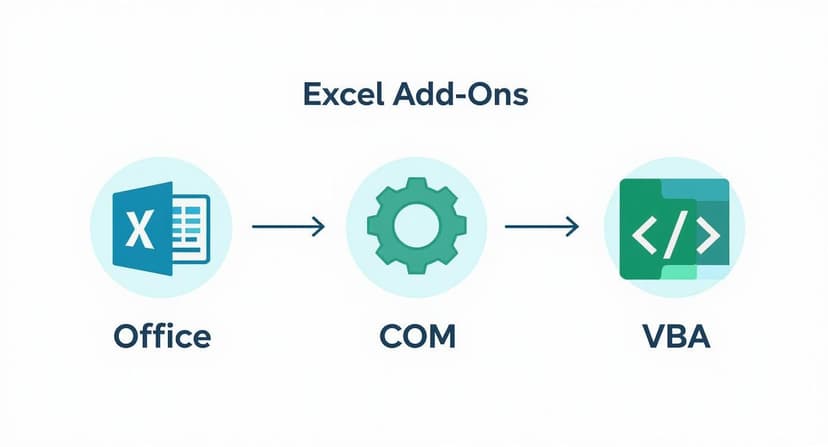
As you can see, all paths lead to new capabilities, but the source and installation method change the level of security and technical know-how required.
Best Practices for Security and Management
Managing your add-ons is just as important as installing them. Security should always be a top concern, especially since some tools might request access to your data. An add-in that wants to read and write to your entire workbook requires more trust than one that just performs calculations.
Actionable Tip: Always review the permissions an add-on requests before you install it. A reputable publisher will be transparent about what data they need and why. If a simple charting tool asks for permission to send data to an external service, you should question its motives.
Finally, keep your digital workspace tidy. Periodically review your installed add-ons. If you no longer use one, disable or remove it from the File > Options > Add-ins menu. This helps ensure Excel runs smoothly and securely.
Unlocking New Powers with AI Add Ons for Excel

Artificial intelligence isn't just a buzzword; it's a practical tool that is actively changing how we work in Excel. AI-powered add ons for Excel are like having a data expert built directly into your spreadsheets, offering real solutions that go far beyond hype.
Imagine cleaning thousands of messy rows of data with a single instruction or generating a complex formula just by describing what you need in plain English. This is what modern AI add-ons make possible today, transforming Excel into an even more powerful tool for data professionals. They can automate report generation, write VBA scripts on demand, and even spot trends in your data you might have missed.
From Manual Drudgery to Automated Insight
The most immediate benefit of AI in Excel is its ability to automate the tedious, repetitive tasks that consume so much time. Data cleaning is a perfect example. An AI add-on can instantly fix formatting, correct typos, and fill in missing values across your entire dataset.
This automation not only saves you from mind-numbing work but also drastically reduces human error. Instead of spending hours preparing your data, you can move directly to the high-value task of analyzing it and making informed decisions.
This is a key reason why Microsoft Excel remains a global standard. As of 2024, over 1.3 million companies in the US alone still rely on Excel. The platform continues to evolve with AI add-ons that offer smart automation, such as tools that can write VBA scripts or optimize formulas based on your goals.
Practical Examples of AI in Action
Here are a few real-world examples of how an AI add-on can solve common Excel challenges. These are practical applications that address the everyday headaches Excel users face.
- Formula Generation: Forget hunting through forums for the right syntax. You can simply type, "Calculate the year-over-year sales growth for column D, grouped by the regions in column A." The AI will generate the correct formula instantly.
- Data Summarization: Have a massive table of sales data? Select it and ask the AI to "summarize the key trends." It can extract the top-selling products, regional performance, and notable patterns in seconds.
- Automated Charting: Instead of clicking through menus, describe the visualization you need. For example, "Create a bar chart showing our monthly revenue for the last quarter." The add-on will build and insert the chart for you.
To explore more examples, our guide on using AI for Excel offers additional tips and use cases.
An AI add-on is like having a seasoned data analyst sitting beside you. It understands your intent, translates it into Excel’s language, and executes the task instantly. It allows you to work at the speed of thought.
This conversational approach to data analysis makes sophisticated tasks accessible to everyone, not just Excel experts. You can get the insights you need without getting bogged down by technical details. Some tools, like Elyx.AI, even include a chat feature where you can ask questions, create pivot tables, and fix errors just by having a conversation.
How AI Add Ons Streamline Common Excel Tasks
To see the difference, let's compare the traditional method with the AI-powered solution for common tasks. The improvement in speed and simplicity is significant.
This table shows how much easier common tasks become with an AI assistant.
How AI Add Ons Streamline Common Excel Tasks
| Excel Task | Traditional Method (Manual) | AI Add On Solution (Automated) |
|---|---|---|
| Complex Formula Creation | Researching functions, trial-and-error syntax, and nesting multiple formulas. | Describing the goal in natural language to get an instant, accurate formula. |
| Data Cleaning | Using Find/Replace, Text to Columns, and writing custom formulas to fix inconsistencies. | A single command to standardize formats, remove duplicates, and correct errors. |
| Report Generation | Manually creating PivotTables, building charts, and writing summary text. | Automatically generating PivotTables, charts, and narrative summaries from raw data. |
| Writing VBA Scripts | Learning VBA programming, debugging code, and writing scripts from scratch. | Describing the automation needed; the AI writes the complete VBA script for you. |
Ultimately, these add ons for Excel are here to augment your skills, not replace them. They handle the mechanical, repetitive parts of the job, freeing you to focus on what humans do best: interpreting data, making strategic decisions, and planning for the future.
How to Pick the Right Excel Add-In: A Practical Checklist
With so many add-ons for Excel available, choosing the right one can be overwhelming. However, by asking a few key questions, you can confidently select a tool that genuinely solves your problems and makes your work easier.
Think of it like hiring an assistant. You'd check their skills, ensure they fit your needs, and verify their trustworthiness. Apply that same practical mindset when choosing your next add-on.
Does It Solve Your Specific Problem?
This is the most critical question. It’s easy to get distracted by flashy features, but a powerful tool is useless if it doesn't fix the exact headache you're dealing with.
Before you start looking, pinpoint a concrete problem. For instance, instead of a vague goal like "I need help with data," define it as, "I need to consolidate weekly sales data from three different worksheets into one master report." A clear goal like this acts as a filter, helping you instantly ignore add-ons that aren't relevant.
Check for Compatibility and Performance
An add-on is only useful if it works smoothly with your version of Excel. A few quick technical checks can prevent future frustration.
- Excel Version: Is the add-on compatible with your version of Excel (e.g., Microsoft 365, Excel 2019) and your operating system (Windows or macOS)?
- Performance Impact: An add-on shouldn't make Excel grind to a halt. Scan user reviews for comments about lag, crashes, or noticeable slowdowns.
- Update Frequency: Check the developer's update history. Frequent updates are a strong indicator of active support, with bug fixes and improvements to maintain compatibility with the latest Excel releases.
A good add-on should feel like a natural part of Excel, not a clunky attachment.
Evaluate Reliability and User Feedback
Real-world user reviews are an invaluable resource. They offer an unfiltered look at an add-on's daily performance and the quality of customer support. Don’t just look at the star rating; read the comments.
Actionable Tip: Pay close attention to how developers respond to negative feedback. A company that actively and helpfully addresses problems shows they are committed to their users and is often a better choice than one with a suspiciously perfect but small number of reviews.
Look for trends in what users are saying. If dozens of people praise a specific feature or complain about the same bug, you can likely trust their collective judgment.
Prioritize Data Privacy and Security
When you install an add-on for Excel, you are potentially giving it access to your data. If you work with sensitive or confidential information, security is non-negotiable.
Always read the privacy policy before installing. Look for clear answers to these questions: Does the tool process your data locally on your computer, or is it sent to an external server? If it goes to a server, is the data encrypted? Reputable developers are transparent about their data handling practices. For instance, an add-on like Elyx.AI is built with end-to-end encryption to ensure your data remains private.
Understand the Pricing Model
Finally, consider the cost. Add-ons typically fall into one of these categories, and the right choice depends on your budget and usage frequency.
- Free: Great for simple tasks or trying a tool out. Be aware they may have limited features or lack dedicated support.
- One-Time Purchase: Pay once and own it forever. This can be cost-effective for a tool you'll use for years, but you might need to pay again for major upgrades.
- Subscription (Monthly/Annually): Standard for powerful tools with ongoing updates and support. This model ensures you always have the latest version.
Think about the value provided. If an add-on saves you several hours of tedious work each month, a subscription can easily pay for itself. By following this checklist, you can move beyond guesswork and find the perfect tool to make Excel work better for you.
Troubleshooting Common Add On Problems

Even the best add ons for Excel can encounter issues. One moment your workflow is seamless, and the next, a tool you rely on stops working. Don't worry—most of these problems are common and have simple solutions.
This section is your go-to first-aid guide. We'll cover the most frequent issues, from add-ons that disappear to a mysteriously slow spreadsheet, and provide clear, actionable steps to get you back on track.
When Your Add On Disappears
It’s a common problem: you go to use your favorite add-on, and it's missing from the ribbon. This usually happens when Excel crashes or has an issue during an update; as a safety measure, it may automatically disable add-ins. The tool is still installed, just inactive.
Here’s the simple fix:
- Go to File > Options > Add-ins.
- At the bottom, find the "Manage" dropdown menu, select Disabled Items, and click "Go."
- If your missing add-on is in that list, select it and click "Enable."
This quick check will restore your add-on to the ribbon in most cases.
Diagnosing Performance Issues and Conflicts
If Excel started running slowly right after you installed a new tool, it could be a sign of a performance-heavy add-on or a conflict with another one. The easiest way to confirm this is by running Excel in Safe Mode, which loads the program without any add-ins.
Pro Tip: To open Excel in Safe Mode, hold down the Ctrl key while you click the Excel application icon.
If Excel runs smoothly in Safe Mode, you've confirmed that an add-on is the cause. From there, it's a simple process of elimination: disable your add-ins one by one until you identify the one causing the slowdown.
Verifying Compatibility After an Update
Microsoft Office updates can sometimes cause compatibility issues. Developers work to keep their add-ins up-to-date, but occasionally an update can break something. If a reliable add-on starts misbehaving after an Office update, your first step should be to check the developer's website for announcements or a new version.
It's also worth noting that Microsoft is continuously integrating its own AI features into Office as part of its strategy to blend Excel's classic power with new, intelligent tools. As the platform evolves, all add ons for Excel must adapt. If you're interested in the future of productivity software, you can learn more about Microsoft's productivity strategy and see how the market is changing.
Common Questions About Excel Add-Ins
When exploring the world of Excel add-ins, a few questions often come up regarding safety, accessibility, and daily use. Here are clear answers to some of the most common ones to help you use these tools with confidence.
Are Excel Add-Ins Safe to Use?
This is a critical question. The short answer is: yes, provided you source them from reputable places.
The safest option is always the official Microsoft Store, accessible via Excel’s "Get Add-ins" button. Every add-in in the store has been vetted by Microsoft, which significantly reduces security risks.
If you are considering an add-in from another source, such as a custom tool built with VBA or COM, it's important to do your due diligence. Stick to developers with a solid reputation, positive user reviews, and a transparent privacy policy. A major red flag is any add-in that requests permissions that don't align with its stated function.
Can I Use an Add-In on Multiple Computers?
This depends on the specific add-in and its licensing model.
Most modern Office Add-ins from the Microsoft Store are linked to your Microsoft account. This is a major advantage, as it means once you add it, the tool is available wherever you sign into Excel—your work PC, your home Mac, or even Excel on the web.
For add-ins purchased directly from a developer's website, you'll need to check the license terms. Some licenses are for a single computer, while others may permit installation on multiple devices. Always review the terms before purchasing to ensure it aligns with your needs.
Why Did My Add-In Disappear?
It can be frustrating when an add-in you use daily suddenly vanishes from the ribbon. Fortunately, this is usually a simple fix. Excel sometimes disables add-ins automatically if it crashes, as a protective measure.
Here’s a quick checklist to restore it:
- Check the "Disabled" list: Go to
File>Options>Add-ins. In the "Manage" dropdown at the bottom, select Disabled Items, and click "Go." If your add-in is listed, select it and click "Enable." - Ensure it’s active: In the same
Add-insmenu, check both the COM Add-ins and Excel Add-ins lists by clicking "Go" on each. Make sure the checkbox next to your tool is ticked. - Try a simple restart: Sometimes, closing and reopening Excel is all it takes to resolve the issue.
Following these steps will bring back your missing add-in in most cases, allowing you to get back to work quickly.
Ready to see what AI can do for your spreadsheets? Elyx.AI plugs right into Excel, letting you generate complex formulas, instantly clean up messy data, and build pivot tables just by typing what you need. It’s the fastest way to get your work done and find smarter insights. See how it works at getelyxai.com.
Reading Excel tutorials to save time?
What if an AI did the work for you?
Describe what you need, Elyx executes it in Excel.
Sign up