7 Accounts Payable Best Practices for Excel in 2025

The accounts payable (AP) department is the financial engine of any business, but it's often bogged down by manual data entry, complex approval chains, and the constant risk of errors. If you're managing AP in Excel, you know these challenges intimately. Spreadsheets become cluttered, formulas break, and tracking payments feels like a full-time job. But what if you could implement proven strategies to not just manage, but master your accounts payable process directly within the tool you use every day?
This article outlines seven essential accounts payable best practices, designed for the modern finance professional using Excel. We'll move beyond generic advice and provide actionable steps, showing you how to leverage the power of Excel, supercharged with AI tools like Elyx.AI, to automate tasks, strengthen controls, and turn your AP department into a model of efficiency. For a holistic approach to overcoming AP headaches and truly transforming your workflow, an ultimate document management workflow guide can provide comprehensive strategies. Get ready to leave manual drudgery behind and unlock a new level of financial precision by implementing these practical and impactful techniques.
1. Implement Three-Way Matching in Excel
One of the most foundational accounts payable best practices is implementing a three-way matching process. This verification system acts as a powerful gatekeeper, ensuring your company only pays for what it has ordered and received. It is a critical control mechanism designed to prevent overpayments, unauthorized purchases, and invoice fraud before any money leaves your account.
Spending too much time on Excel?
Elyx AI generates your formulas and automates your tasks in seconds.
Sign up →The process involves meticulously comparing three key documents:
- The Purchase Order (PO): The official document confirming the order details, including item descriptions, quantities, and agreed-upon prices.
- The Goods Receipt/Receiving Report: Internal proof that the ordered goods or services were physically received or rendered.
- The Vendor Invoice: The bill from the supplier requesting payment for the delivered items.
A payment is only approved when the details across all three documents align. This simple cross-check confirms the validity and accuracy of every transaction.
How to Perform Three-Way Matching in Excel
When an invoice arrives, your AP team can use Excel to match its line items against the corresponding PO and receiving report data. You can structure a worksheet with columns for PO Number, Invoice Number, Receipt Number, and key details like Item, Quantity, and Price from each document.
Excel Tip: Use VLOOKUP or XLOOKUP functions to pull data from separate tabs (e.g., a "PO Data" tab and a "Receipt Data" tab) into a central matching sheet. Then, use an IF statement to flag discrepancies. For example: =IF(AND(VLOOKUP(...)_Qty = Invoice_Qty, VLOOKUP(...)_Price = Invoice_Price), "Match", "Mismatch"). This formula automatically identifies invoices that require investigation.
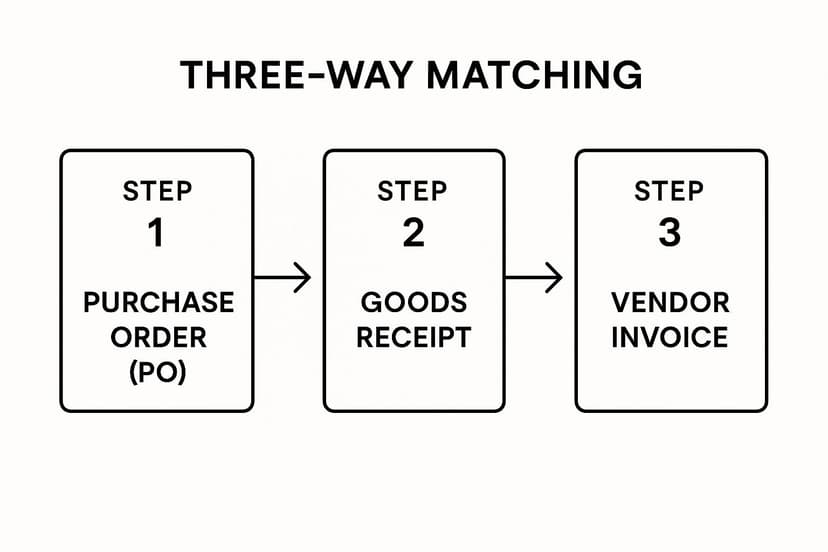
This visual representation highlights the sequential verification that ensures each payment is fully validated against both the initial order and the final delivery.
Tips for Successful Implementation
To make this process effective in Excel, refine your approach.
- Set Tolerance Levels: In your Excel formula, build in an acceptable variance. For example,
=IF(ABS(PO_Price - Invoice_Price) <= (PO_Price * 0.05), "OK", "Flag")checks for price differences within a 5% tolerance. - Establish Exception Workflows: Create clear, documented procedures for handling mismatches. This ensures that discrepancies are resolved efficiently without causing payment delays.
- Train Your Team: Ensure the purchasing department creates accurate and detailed POs from the start, as this is the foundation for a smooth matching process.
- Automate with AI in Excel: Use an AI assistant like Elyx.AI to automate the data extraction and matching process. Instead of writing formulas, you can simply ask, "Compare the invoice data in Sheet1 with the PO data in Sheet2 and flag any mismatches in quantity or price."
2. Automate Invoice Processing with AI in Excel
Embracing invoice processing automation is one of the most impactful accounts payable best practices for modern finance departments. This approach uses technology to automatically capture, process, and route invoices without manual intervention. It's a transformative step that moves your AP team from data entry clerks to strategic financial operators by eliminating tedious, repetitive tasks.
The core of this practice involves leveraging tools like Optical Character Recognition (OCR), Artificial Intelligence (AI), and Robotic Process Automation (RPA). These technologies work together to read invoice data, validate it against your internal systems, and direct it through the approval workflow, significantly reducing manual effort and processing time.
How to Automate Invoice Processing in Excel
While Excel doesn't have native OCR, you can integrate it with powerful AI tools to create an automated workflow. When a PDF invoice arrives, an AI tool can extract key information—invoice number, date, amount, line items—and populate it directly into a designated Excel template.
Excel Tip: Once the data is in Excel, you can use Power Automate (a Microsoft tool that integrates with Excel) to create rules-based workflows. For example, you can set up a flow that automatically sends an email to the relevant department head for approval when a new invoice is added to the spreadsheet and its value exceeds a certain threshold.
AI in Action: With an integrated AI assistant, you can skip the manual setup. Simply upload a batch of invoices and instruct the AI: "Extract the data from these invoices and organize it into an Excel table with columns for Vendor, Invoice #, Date, and Amount. Then, validate the totals."
Tips for Successful Implementation
To ensure a smooth transition to an automated system, a strategic approach is essential.
- Start with High-Volume Vendors: Begin your automation journey by targeting high-volume, standardized invoices first. This allows your team to achieve quick wins and learn the system with predictable formats.
- Establish Vendor Invoice Standards: Work with your suppliers to encourage electronic invoicing and the use of standardized templates. This simplifies data capture and reduces exceptions.
- Implement a Gradual Rollout: Instead of a company-wide launch, deploy the automation solution department by department or by specific vendor types to manage the change effectively.
- Monitor and Train AI Systems: Continuously monitor the accuracy rates of your AI tool. Use exceptions as learning opportunities to train the system, improving its performance over time.
3. Optimize Early Payment Discounts in Excel
Transforming your accounts payable department from a cost center into a profit generator is a key goal, and early payment discount optimization is one of the most effective accounts payable best practices to achieve it. This strategic approach involves systematically identifying, tracking, and capturing discounts offered by vendors for paying invoices ahead of their due date. It’s a proactive method for reducing costs and improving your company’s bottom line.
Many suppliers offer terms like "2/10 net 30," which means a 2% discount can be taken if the invoice is paid within 10 days, with the full amount otherwise due in 30 days. Capturing these discounts consistently requires efficient invoice processing and strategic cash flow management.

How to Track Early Payment Discounts in Excel
Create an AP aging report in Excel that includes columns for "Invoice Date," "Payment Terms," "Discount Deadline," and "Discount Amount." This central tracker provides clear visibility into upcoming discount opportunities.
Excel Tip: Use conditional formatting to highlight rows where the discount deadline is approaching. For example, you can create a rule to turn a cell yellow when the deadline is 3-5 days away and red when it's 1-2 days away. Use the formula =TODAY() - [Discount_Deadline_Cell] <= 5 to trigger the formatting. This visual cue ensures no opportunity is missed.
AI in Action: To make this even easier, you can ask an AI assistant like Elyx.AI: "Based on the invoice dates and payment terms in this table, calculate the discount deadline and potential savings for each invoice. Then, create a summary of total available discounts for this week."
Tips for Successful Implementation
To build a successful discount capture program, focus on process and strategy.
- Negotiate Standard Terms: Proactively negotiate standard 2/10 net 30 terms across your vendor base to make discount opportunities a regular part of your AP process.
- Automate Alerts: Set up automated alerts in Excel using Power Automate or a similar tool to send email reminders 5-7 days before discount deadlines, ensuring opportunities are not missed.
- Prioritize High-Value Invoices: Use Excel's sorting and filtering features to focus your initial efforts on high-value invoices where the discount savings are most significant.
- Monitor Capture Rates: Track your discount capture rate as a KPI in your Excel dashboard. This metric helps you measure success and identify areas for process improvement.
- Explore Advanced Solutions: Beyond traditional terms, consider leveraging modern dynamic discounting solutions that offer flexible, sliding-scale discounts based on how early a payment is made.
4. Manage Vendor Master Data in Excel
Maintaining a clean and accurate vendor master file is a cornerstone of effective accounts payable best practices. Vendor Master Data Management is the comprehensive system for maintaining standardized, complete, and up-to-date vendor information. This disciplined approach prevents duplicate payments, reduces the risk of fraud, and ensures regulatory compliance.
A well-managed vendor file in Excel serves as the single source of truth for all supplier information, including:
- Official Vendor Names and Addresses: Ensuring payments are sent to the correct legal entity and location.
- Tax Information: Storing critical data like Tax IDs to meet reporting requirements.
- Payment Terms and Banking Details: Accurately reflecting negotiated terms and secure payment information to avoid delays and errors.
Without strong governance, this data can quickly become outdated, duplicated, or inaccurate, leading to significant operational and financial risks.
How to Manage Vendor Master Data in Excel
Designate a single, access-controlled Excel workbook as your vendor master file. Use features like Data Validation to enforce standardized inputs (e.g., using a dropdown list for payment terms) and prevent entry errors.
Excel Tip: Use Excel's "Remove Duplicates" feature to perform a quick cleanup of your existing vendor list. To prevent future duplicates, create a helper column that concatenates key identifiers like Vendor Name and Tax ID (=CONCAT(A2, B2)). Before adding a new vendor, you can search this column to ensure they don't already exist.
AI in Action: An AI assistant can supercharge this process. Ask it to "Analyze my vendor list in Sheet1 for potential duplicates based on similar names and addresses, and highlight them for review." You can also instruct it to "Validate the format of all Tax IDs and flag any that do not match the standard format."
Tips for Successful Implementation
To build a robust vendor master data management system in Excel, consider these actionable steps:
- Establish Clear Governance: Define roles and responsibilities for who can add, edit, and deactivate vendors. Use Excel's "Protect Sheet" feature with password-protected ranges to control who can modify data.
- Automate Duplicate Detection: Regularly use Excel's duplicate removal tools or AI-powered analysis to scan for duplicates.
- Require Tax Forms Upfront: Mandate the submission and verification of a W-9 or W-8 form before a vendor is activated in your Excel master file to ensure tax compliance from day one.
- Standardize Data Entry: Use dropdown lists and data validation rules in your Excel template to keep data consistent and easily reportable.
- Conduct Regular Audits: Schedule periodic reviews of your Excel vendor file to remove inactive suppliers, correct outdated information, and merge duplicates.
5. Implement Segregation of Duties (SOD) Controls
Implementing a robust Segregation of Duties (SOD) framework is a cornerstone of accounts payable best practices. This internal control principle is designed to prevent fraud and significant errors by distributing critical AP tasks among different individuals. It ensures no single person has end-to-end control over the payment lifecycle, creating an essential system of checks and balances.
This practice works by separating incompatible functions, such as:
- Vendor Management: Adding, removing, or updating vendor master file information.
- Invoice Processing: Entering and approving invoices for payment.
- Payment Authorization: Approving and executing the final payment to the vendor.
When these duties are separated, it becomes significantly more difficult for a single individual to perpetrate and conceal fraudulent activities, such as creating a fake vendor and paying fictitious invoices.
How to Enforce Segregation of Duties with Excel
While Excel is a flexible tool, you can implement SOD by structuring your workflow across different, access-controlled files or using a shared platform like SharePoint or OneDrive, which offers more granular permissions.
Practical Tip: Create separate Excel workbooks for different functions. For example:
- Vendor Master File: Access is restricted to the person responsible for vendor onboarding.
- Invoice Log: The AP clerk enters invoice data here but cannot modify the vendor file.
- Payment Approval Sheet: A manager reviews the Invoice Log and marks invoices as "Approved" in a separate, locked column.
This separation, managed through file permissions, ensures that no single user can control the entire process from vendor setup to payment.
Tips for Successful Implementation
To build an effective SOD model, focus on creating clear roles and responsibilities.
- Separate Vendor Maintenance: The employee responsible for managing the vendor master file should not be involved in processing invoices or payments.
- Implement Approval Hierarchies: Establish dollar-based approval limits. For example, an invoice over $5,000 in your Excel log might require an additional approval signature (or digital confirmation) from a senior manager.
- Rotate Staff Responsibilities: Periodically rotate AP duties among team members to deter long-term fraudulent schemes and encourage cross-training.
- System-Enforced Controls: When possible, leverage shared drive permissions or cloud-based Excel versions to restrict access to specific files based on an individual’s role, creating a digital barrier that cannot be easily bypassed.
6. Centralize Accounts Payable Operations in a Shared Workbook
For companies with multiple locations or divisions, one of the most impactful accounts payable best practices is to centralize operations. This strategic approach involves consolidating disparate AP functions into a single, standardized process, often managed within a shared environment. Centralization transforms a fragmented, inconsistent process into a streamlined, cost-effective, and highly controlled financial engine.
By bringing all invoice processing, vendor management, and payment activities into a central system, companies can:
- Standardize Processes: Enforce uniform workflows and policies across the entire organization.
- Leverage Economies of Scale: Reduce redundant effort by consolidating AP tasks.
- Enhance Visibility and Control: Gain a complete, real-time view of company-wide liabilities and spending patterns.
This model is particularly effective for businesses seeking to optimize costs and improve governance without investing in a large ERP system.
How to Centralize AP Operations in Excel
Use a cloud-based Excel workbook (via Office 365 or Google Sheets) as a central hub for all AP activities. Different departments or locations can enter their invoice data into a standardized template within this shared file.
Excel Tip: Create a master "AP Ledger" sheet that consolidates data from all other sheets using formulas like VSTACK or Power Query. This gives the central AP team a real-time, unified view of all outstanding invoices across the company. You can then build a summary dashboard with PivotTables to analyze spending by department, vendor, or category. This approach provides enterprise-level visibility using a familiar tool. For more on this, explore the key benefits of accounts payable automation.
Tips for Successful Implementation
Shifting to a centralized model requires careful planning and execution.
- Start with a Pilot Program: Test the shared workbook model with a single department to identify challenges and refine the template before a full-scale rollout.
- Establish Service Level Agreements (SLAs): Clearly define expectations for data entry timeliness and accuracy between the central AP team and the business units it serves.
- Invest in Change Management: Communicate the benefits of the new process clearly. Provide comprehensive training on how to use the shared Excel template correctly.
- Standardize Before You Centralize: Document and streamline your AP processes first. Create a locked Excel template with data validation and clear instructions to ensure everyone enters information consistently.
7. Build a KPI Dashboard in Excel
You cannot improve what you do not measure. This principle is at the heart of another crucial accounts payable best practice: establishing a robust system for monitoring Key Performance Indicators (KPIs). This practice involves systematically tracking specific metrics in an Excel dashboard to gauge the efficiency, accuracy, and strategic value of your AP department. It transforms AP from a cost center into a data-driven function that drives continuous improvement.
This process involves identifying critical metrics, establishing benchmarks, and using Excel's analytical tools to understand performance trends. The insights gained help pinpoint bottlenecks, optimize workflows, and demonstrate the AP team's contribution.
How to Monitor KPIs in Excel
Dedicate a tab in your AP workbook to a KPI dashboard. This dashboard should pull data from your invoice and payment logs to automatically calculate and display key metrics.
Excel Tip: Use PivotTables and PivotCharts to create a dynamic and interactive dashboard. You can easily visualize trends for metrics like:
- Days Payable Outstanding (DPO):
(Average Accounts Payable / COGS) * Number of Days - Invoice Processing Cost:
Total AP Department Costs / Number of Invoices Processed - On-Time Payment Rate:
(Number of Invoices Paid on Time / Total Invoices) * 100
Link slicers to your PivotCharts to allow for easy filtering by vendor, department, or time period.
AI in Action: Speed up your analysis by asking an AI assistant to do the heavy lifting. "From my invoice data, create a bar chart showing the average invoice processing time by month for the last quarter." Or, "Calculate the on-time payment rate for our top 10 vendors and display it in a table."
Tips for Successful Implementation
To make your AP analytics in Excel effective, focus on a targeted and strategic approach.
- Focus on Key Metrics: Select 5-7 core KPIs that align with business objectives, such as DPO, invoice processing cost, and on-time payment rate.
- Establish a Baseline: Before launching new initiatives, measure your current performance to create a baseline. This allows you to accurately track progress and quantify the impact of process changes.
- Use Visualization Tools: Present data in clear, visual formats like charts and graphs. A well-designed Excel dashboard makes it easier for stakeholders to understand performance at a glance.
- Benchmark Your Performance: Compare your KPIs against industry standards. This provides context and helps you set realistic but ambitious improvement targets.
Accounts Payable Best Practices Comparison
| Item | Implementation Complexity 🔄 | Resource Requirements ⚡ | Expected Outcomes 📊 | Ideal Use Cases 💡 | Key Advantages ⭐ |
|---|---|---|---|---|---|
| Three-Way Matching Process | High setup and configuration, moderate workflow complexity | Requires AP software, exception handling staff | Strong fraud and error control, audit compliance, reduces duplicates | Organizations needing stringent payment verification | Reduces payment errors, improves vendor management, strong audit trail |
| Invoice Processing Automation | High initial cost and system integration complexity | Requires OCR, AI technologies, IT support, training | Large reduction in processing time and manual errors | Companies with high invoice volume, seeking process automation | Speeds up invoice processing, reduces data entry errors, improves visibility |
| Early Payment Discount Optimization | Moderate process discipline and cash flow management | Cash availability, discount tracking systems | Direct cost savings, improved cash flow forecasting | Businesses prioritizing vendor discount capture for savings | Cost savings, better vendor relations, enhanced cash flow management |
| Vendor Master Data Management | Significant initial data cleanup and governance setup | Data quality tools, cross-department coordination | Improved data accuracy, reduced fraud risk, compliance adherence | Companies needing standardized, clean vendor data | Removes duplicates, ensures compliance, improves reporting accuracy |
| Segregation of Duties (SOD) Controls | Moderate to high (needs role design, system enforcement) | Requires larger staff, role-based access controls | Reduced fraud risk, regulatory compliance, clear audit trail | Organizations with compliance needs, fraud risk concerns | Reduces fraud, ensures accountability, compliance with regulations |
| Centralized Accounts Payable Operations | High (change management, process standardization) | Shared services infrastructure, specialized staff | Cost reduction, process standardization, better control | Large enterprises consolidating AP functions | Lowers processing costs, improves controls, enhances visibility |
| KPI Monitoring and Performance Analytics | Moderate (analytics tool setup, data integration) | Analytics platforms, data analysts | Data-driven decisions, performance improvement | Businesses seeking continuous improvement and reporting | Enables strategic insights, identifies bottlenecks, improves accountability |
From Best Practices to Best-in-Class Performance
Navigating the complexities of accounts payable in Excel can feel like a constant battle against manual errors, tedious workflows, and hidden inefficiencies. However, transforming your AP department from a reactive cost center into a proactive strategic asset is entirely possible. The journey is paved with the consistent application of a few core principles: standardization, automation, and data-driven decision-making.
The accounts payable best practices detailed in this article are interconnected components of a resilient financial ecosystem. Implementing a three-way matching process in Excel isn't just a verification step; it's a fundamental safeguard. Similarly, tracking early payment discounts with conditional formatting isn't just about saving a few dollars; it's about strategically managing cash flow and strengthening supplier relationships.
Turning Knowledge into Action
The key to success lies in moving from understanding these concepts to actively implementing them in Excel. True, sustainable change comes from incremental improvements.
- Start Small: Choose one area to focus on first. Is your vendor master file cluttered with duplicates? Use Excel's "Remove Duplicates" tool and set up data validation rules. A clean vendor database is the foundation for almost every other AP improvement.
- Embrace Technology: You don't need a massive ERP implementation to see the benefits of automation. Start by leveraging the tools you already use, like Excel, supercharged with an AI assistant. Instead of manually cross-referencing invoices or building complex KPI dashboards from scratch, you can use simple text prompts to get the job done in seconds.
- Measure What Matters: Begin tracking two or three critical KPIs in an Excel dashboard. Use PivotTables to create a simple report for Days Payable Outstanding (DPO) or Invoice Processing Cost. Establishing a baseline is the first step toward demonstrating improvement and building momentum for broader changes.
The Strategic Value of a Modern AP Department
By embracing these accounts payable best practices in Excel, you empower your finance team to shift their focus from mundane data entry to high-value strategic analysis. When your processes are streamlined and your data is reliable, your team can spend more time identifying cost-saving opportunities, negotiating better vendor terms, and providing the critical insights that drive business growth. An efficient AP department doesn't just pay the bills; it actively contributes to the bottom line, enhances financial control, and fortifies your organization against risk. This evolution is the ultimate goal, turning a necessary business function into a competitive advantage.
Ready to supercharge your accounts payable process directly within Excel? Discover how Elyx.AI can help you automate data reconciliation, generate insightful KPI reports, and implement these best practices with the power of AI. Transform your spreadsheets into intelligent financial command centers by visiting Elyx.AI to get started today.
Reading Excel tutorials to save time?
What if an AI did the work for you?
Describe what you need, Elyx executes it in Excel.
Sign up