7 Essential Steps to Master Optimization with Excel Solver

Ever found yourself staring at an Excel sheet, trying to figure out the best possible outcome from a dozen different variables? Maybe you're trying to maximize profit, minimize shipping costs, or just allocate a budget perfectly. This is exactly where Excel's Solver add-in comes in.
Think of Solver as your personal optimization guru. It's a powerful AI-driven tool that takes a complex problem with a bunch of moving parts and finds the absolute best solution for you.
What Is Solver in Excel

Spending too much time on Excel?
Elyx AI generates your formulas and automates your tasks in seconds.
Sign up →Imagine you're trying to create the most effective marketing campaign with a limited budget. You have different channels—social media, email, PPC—and each has a different cost and potential return. You could spend hours tweaking the numbers, guessing and checking to see what works. Or, you could let Solver do it for you.
Solver automates that entire "what-if" process. You tell it what your goal is (like maximizing leads), what numbers it can change (the budget for each channel), and what rules it has to follow (the total budget can't exceed $10,000). Then, its intelligent algorithm runs through the possibilities and presents you with the optimal plan.
It turns a headache of manual calculations into a simple, automated task. You can see how this applies to all sorts of business challenges in these practical https://getelyxai.com/en/excel-use-cases.
The 3 Core Components of a Solver Problem
To get Solver to work its magic, you need to give it three key pieces of information. Once you understand these, you can set up almost any kind of optimization problem.
The Objective Cell: This is your finish line. It’s the single cell in your spreadsheet that you want to push to its maximum, shrink to its minimum, or hit a specific target value. For example, this could be a cell named "Total Profit."
The Variable Cells: These are the levers Solver can pull. They're the cells containing the numbers you're willing to change to reach your objective. This might be the number of units to produce for three different products or the amount of money to invest in different stocks.
The Constraints: These are the ground rules. Every problem has limitations, and constraints are where you define them. Examples include "The marketing budget must not exceed $50,000," or "We must produce at least 100 units of Product A."
To make this crystal clear, here’s a quick breakdown of how these components fit together.
Excel Solver's 3 Core Components at a Glance
| Component | Role in Solver | Simple Analogy |
|---|---|---|
| Objective Cell | Your ultimate goal. | The destination you enter into your GPS. |
| Variable Cells | The inputs Solver can adjust. | The different roads the GPS can choose from. |
| Constraints | The rules the solution must follow. | Roadblocks, speed limits, and one-way streets. |
By setting these three elements, you create a clear roadmap for Solver to follow.
In short, Solver works by tweaking your Variable Cells to achieve the goal in your Objective Cell, all while playing by the rules you set in your Constraints.
This methodical approach is the foundation of resource optimization and is what makes Solver such a valuable tool for making smarter, data-driven decisions. Instead of guessing, you get a mathematically proven best answer.
7 Steps to Activate the Solver Add-In
Before you can tackle your first optimization puzzle, you'll need to wake up the Solver add-in. It's already built into Excel, but it ships in the "off" position by default. The good news? Turning it on takes less than a minute.
Think of it as unlocking a secret AI weapon for your spreadsheets. Once enabled, it’s always there, ready to find the best possible answer to your most complex problems.
Enabling the Add-In on Windows
Let's walk through how to get the Solver button to appear on your Data tab in Excel for Windows. It's a simple, one-time setup—no tech wizardry required.
- First, open Excel and click on File in the top-left corner. From there, find and click Options at the very bottom of the menu on the left.
- In the new window that pops up (the Excel Options window), select Add-ins from the side panel.
- Look down at the bottom where it says "Manage." Make sure the dropdown menu is set to Excel Add-ins, then click the Go… button.
- Another small "Add-ins" box will appear. Just check the box next to Solver Add-in.
- Click OK to confirm your choice.
- Excel might take a few moments to install and configure it.
- Now, head back to your main spreadsheet and click on the Data tab. You'll see a brand new Solver button on the far right, typically in the "Analyze" group.

That's all it takes! Excel has now added this powerful tool directly to your ribbon. If you run into any trouble, you can always check out the official help resources for more guidance.
With Solver now active and ready, you're all set to build your first optimization model.
3 Steps to Solving Your First Problem with a Practical Example
Theory is one thing, but seeing Solver in action is where the magic really happens. Let's walk through a common business problem to see how this tool can take a tricky question and give you a clear, data-driven answer. We'll build a solution from the ground up.
Imagine you run a small bakery. The goal is simple: make as much profit as possible each day. The catch? You've only got so much flour and sugar on hand. So, what's the perfect mix of cakes and cookies to bake? This is a classic optimization puzzle, and it's precisely what Solver was made for.
Step 1: Setting Up the Bakery Problem in Excel
First things first, we need to get our data organized in a simple table. This layout makes it easy for us to tell Solver what's what. You can follow along and build this in a blank Excel sheet.
Here’s what we know about our bakery:
- A cake brings in a $25 profit. A cookie brings in a $4 profit.
- Each cake needs 500g of flour and 250g of sugar.
- Each cookie needs 50g of flour and 40g of sugar.
- In the pantry today, we have 10,000g of flour and 5,000g of sugar available.
With this info, we'll create a small model in Excel. A key part of this is calculating our total potential profit and how many ingredients we're using. The SUMPRODUCT function is an absolute powerhouse for this. If you want to dive deeper into functions like this, check out our guide on essential Excel formulas.
To calculate our total profit, we'll use this formula:=SUMPRODUCT(B2:C2,B3:C3)
Here’s a detailed explanation of what that means:
SUMPRODUCT: This function multiplies corresponding components in the given arrays (ranges) and returns the sum of those products.B2:C2: This is the range containing the profit per item ($25 for cakes, $4 for cookies).B3:C3: These are the cells that Solver will fill with its answer—the number of cakes and cookies to bake. The formula multiplies the profit of a cake by the number of cakes, does the same for cookies, and then adds them together.
Step 2: Defining the 3 Core Components in Solver
Once our sheet is set up, it's time to open the Solver window (you'll find it under the Data tab) and translate our bakery problem into its language. This comes down to defining our objective, variables, and constraints.
- Set Objective: Our goal is to maximize profit. We'll click on the cell with our total profit formula (let's say it's D4) and select the Max option. This tells Solver what we're trying to achieve.
- By Changing Variable Cells: These are the numbers we can change to reach our goal. For the bakery, it's the number of cakes and cookies we decide to produce. We just need to select the cells where those quantities will go (e.g., B3:C3).
- Subject to the Constraints: These are the real-world limits we have to work with. We can't use more ingredients than we have. So, we add a few rules:
- The total flour used must be less than or equal to 10,000g.
- The total sugar used must be less than or equal to 5,000g.
- We also need to ensure the number of cakes and cookies isn't negative!
By clearly defining these three elements, you give Solver a complete roadmap. It knows the destination (maximum profit), the roads it can take (production quantities), and the traffic laws it has to follow (ingredient limits).
Solver is fantastic for tackling problems like optimizing resource allocation in any business, which is just a formal way of saying "making the most of what you've got." Our bakery example is a perfect, tangible illustration of that principle.
Step 3: Running Solver and Interpreting the Results
With everything set, all that's left is the fun part: click the Solve button. In a flash, Solver's AI runs through countless possibilities and a dialog box pops up to tell you it found a solution.
You’ll see that Solver has updated your "Changing Variable Cells" with the best possible numbers. For our bakery, it might say the optimal plan is to bake 11 cakes and 90 cookies. This specific mix uses your ingredients in the most profitable way possible, giving you a clear, actionable plan for the day—all backed by data.
Understanding the 3 Solving Methods in Solver
Choosing the right tool for the job is crucial, and that’s especially true with Excel's Solver. It’s not just one magic button; it's a powerful AI toolkit with three distinct solving methods. Each one is engineered for a specific kind of problem, and picking the right one is the secret to getting a fast, accurate, and reliable answer.
Think of it like trying to find the highest point in a landscape. The approach you take depends entirely on the terrain you're exploring. Is it a perfectly smooth pyramid, a rolling hill, or a rugged mountain range?
This simple diagram breaks down the core pieces you need to define before you even think about which method to use.
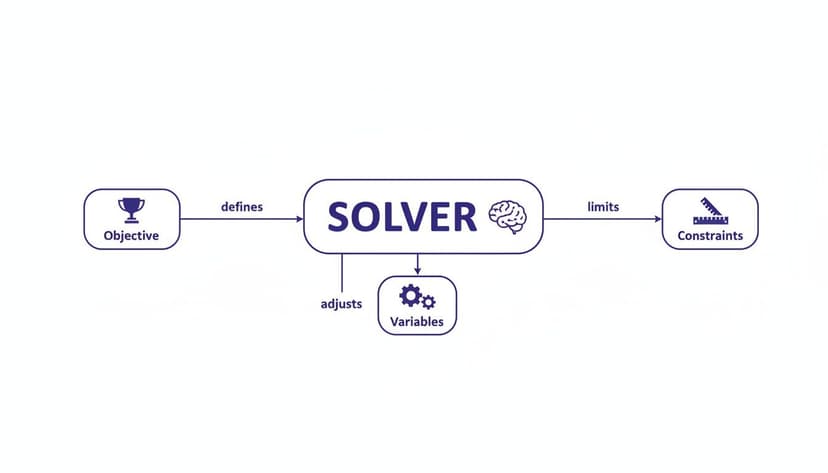
It shows how your goal (the Objective) is reached by tweaking your inputs (the Variables) while staying within a set of rules (the Constraints). Once you've set that up, it's time to choose your method.
1. Simplex LP for Linear Problems
The Simplex LP (Linear Programming) method is your workhorse for the most straightforward optimization puzzles. It's designed for problems where the relationships between your variables are perfectly linear. In other words, if you were to graph them, you’d see nothing but straight lines.
Imagine trying to find the very top of a perfectly smooth, evenly sloped pyramid. The path is direct and predictable. The Simplex LP method is incredibly fast and efficient for these types of problems—like our bakery example—because there's only one, single best answer. No tricks, no surprises.
2. GRG Nonlinear for Smooth Curves
Next up is the GRG (Generalized Reduced Gradient) Nonlinear method. This engine tackles problems that are smooth but not linear. Here, the relationships between your variables form curves, meaning the rate of change isn't constant.
Think of climbing a single, large, smoothly curved hill. You know the peak is up there somewhere, but the slope gets steeper or gentler as you go. GRG Nonlinear is great at navigating these curves to find the summit (the maximum) or the bottom of a valley (the minimum). It's perfect for modeling things like economies of scale, where your returns might start to level off after a certain point.
One thing to watch out for with GRG Nonlinear is that it can sometimes get stuck on a "local" peak. It might find the top of a small hill and tell you it's the best solution, completely missing a much taller mountain nearby. If you run into odd results, you might need to learn more about how to fix common Excel errors.
3. Evolutionary for Complex, Non-Smooth Problems
Finally, we have the Evolutionary method. This is the most powerful and versatile of the three, built for the toughest, most unpredictable problems. You’ll need this when your model isn't smooth—for instance, when your formulas use functions like IF, VLOOKUP, or ROUND, which can cause sudden jumps or flat spots in your data.
This is like searching for the highest point in a massive, rugged mountain range full of jagged peaks, deep valleys, and plateaus. The Simplex and GRG methods would get hopelessly lost. The Evolutionary method, however, works by testing a whole population of possible solutions, keeping the best ones, and combining them to create even better "offspring." It slowly but surely closes in on the globally optimal answer. It takes longer, but it's essential for complex, real-world models where the path to the best solution is anything but simple.
Choosing the Right Solver Method
To make it even clearer, here’s a quick guide to help you decide which solving method is the best fit for your specific optimization problem.
| Solving Method | Best For… | Key Characteristic |
|---|---|---|
| Simplex LP | Straightforward problems with direct, proportional relationships (e.g., resource allocation). | Extremely fast and reliable. Always finds the one true optimal solution for linear problems. |
| GRG Nonlinear | Problems with smooth, curved relationships (e.g., non-linear pricing models). | Efficient for smooth curves but can get stuck on local optima instead of finding the global one. |
| Evolutionary | Complex, messy problems with non-smooth formulas (e.g., scheduling with IF statements). |
Slower but far more robust. Designed to find the global optimum in the most difficult models. |
Ultimately, understanding the "shape" of your problem is the key. Once you can visualize whether you're climbing a pyramid, a hill, or a mountain range, picking the right Solver method becomes second nature.
How AI Takes Excel Optimization to the Next Level
While Excel's Solver is a fantastic AI-powered tool for finding the best possible answer, it has one major hurdle: the setup. You still have to manually and meticulously define every single objective, variable, and constraint. But what if you could skip all that and just ask for what you need in plain English?
That’s exactly where the next leap in data analysis is taking us: AI agents for Excel.
Think about it. Instead of building a complex model, you could simply tell your spreadsheet, "Find the best way to split our $50,000 marketing budget across three channels to get the most leads." An AI agent can understand that request, organize the data, and set up the entire optimization problem for you, all without you touching a single setting.
The Power of a Simple Conversation
This AI-powered approach completely flips the script on how optimization works. You’re no longer stuck translating a business problem into a rigid mathematical formula. Instead, you're having a conversation with your data.
The AI takes care of all the complex, behind-the-scenes work, which also drastically cuts down on the potential for human error.
In essence, an AI agent becomes your personal data expert, building and running the optimization for you. This opens up advanced analysis to anyone, not just the power users who live and breathe technical models.
This new way of working saves an incredible amount of time and tears down the technical walls that often keep people from using powerful tools like Solver in the first place. If you're curious about what else AI can do beyond optimization, it's worth exploring the capabilities of Excel AI agents for everything from cleaning data to generating reports.
2 Common Questions (and Answers) About Using Solver
Even with a solid plan, hitting a few snags is normal when you're getting started with Excel's Solver. Let's walk through some of the most common questions and how to troubleshoot them.
1. "Why Can't Solver Find a Solution?"
Ever get the message that Solver "could not find a feasible solution"? It's a common roadblock, and it almost always means your rules are fighting each other.
Think of it this way: you can't satisfy two contradictory demands. For instance, you might have one constraint that requires producing at least 100 units, but another rule limits your resources to only making 50. Solver can't magically do both, so it stops and tells you there's no answer.
The fix is usually to go back and double-check every single constraint. Make sure they're all logical and don't create an impossible situation.
2. What Are Solver's Limits?
It's helpful to know what Solver can and can't do. Keeping these limitations in mind can save you a lot of headaches down the road.
It only speaks numbers: Solver needs numerical data to do its job. Your target cell, changing cells, and all constraints have to be numbers or formulas that result in a number.
There's a cap on variables and constraints: The standard version of Solver that comes with Excel can handle up to 200 variable cells and 100 constraints. For massive, industrial-scale problems, you'd likely need to look into a more powerful, premium version.
This free, built-in version is incredibly widespread. Since 1990, more than 500 million copies have shipped with Microsoft Office, making it one of the most accessible optimization tools on the planet. Its impact, especially on things like supply chain optimization, is huge.
While Solver is a fantastic tool to have in your back pocket, building a model from scratch still requires time and careful attention to detail. For those who need to get to the answer faster, Elyx AI works like an autonomous data expert right inside your spreadsheet.
You can simply describe your goal in plain English. Our AI agent will then build the model, run the analysis, and give you the optimized solution without the manual setup.
Start your free Elyx AI trial today and automate your most complex Excel tasks.
Reading Excel tutorials to save time?
What if an AI did the work for you?
Describe what you need, Elyx executes it in Excel.
Sign up