How to Convert Numbers to Text in Excel: 7 Methods

You open a CSV, check the SKU column, and Excel has already “helped” you. 00789 becomes 789. A long account number turns into scientific notation. A phone number loses its leading zero. None of that feels like formatting. It feels like damage.
That’s why knowing how to convert numbers to text in Excel matters more than most users think. This isn’t just about appearance. It’s about preserving identifiers, protecting imports, and keeping Excel from treating codes like values it should calculate.
I handle this in layers. For one-off fixes, formulas are fine. For imported files, bulk methods are safer. For check amounts or invoice wording, you need a different approach entirely. And if this work shows up every week, AI can automate the whole flow so you stop repairing the same spreadsheet over and over.
Spending too much time on Excel?
Elyx AI generates your formulas and automates your tasks in seconds.
Sign up →Why Excel Incorrectly Handles Your Numbers
A lot of Excel problems start with one assumption: Excel thinks a number-looking value should behave like a number.
That works for revenue, quantities, and percentages. It fails for product codes, ZIP codes, account numbers, employee IDs, and phone numbers. Those may contain only digits, but in practice they are labels, not values you want Excel to add, round, or reformat.
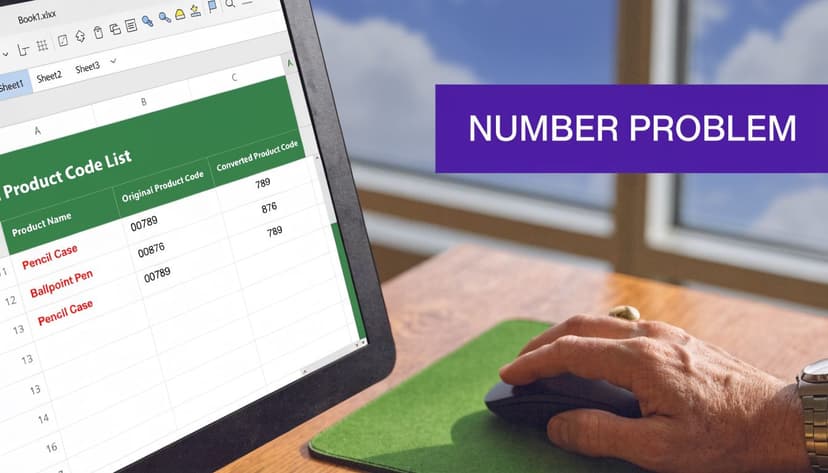
What Excel is actually doing
If you import a CSV with codes like 001245, Excel often reads them as numeric values. The visible result is simple: the leading zeros disappear. The underlying issue is deeper. Excel has changed the data type, so the value no longer matches the original source.
Microsoft also notes that Excel automatically converts long numeric strings such as 16-digit values into scientific notation, for example 1234567890123456 becoming 1.23E+15, which causes precision loss and data corruption in 100% of cases without text formatting. The same verified dataset notes that leading zeros are dropped in 25% to 30% of imports per user reports. You can see Microsoft’s guidance in its documentation on the TEXT function and long-number behavior.
Practical rule: If a field identifies something, treat it like text before you treat it like data.
That distinction is easy to miss when you’re moving fast. It’s also one reason broader data preprocessing in Excel workflows matters so much. Small type errors early in a file turn into lookup failures, duplicate mismatches, and reporting errors later.
Why this matters in real work
The users most affected are usually the ones handling imported data every day: finance teams, operations managers, analysts, and anyone reconciling exports from other systems. They don’t lose data because they typed the wrong formula. They lose it because Excel made a default choice before they had a chance to intervene.
Here’s the useful mindset: conversion is not cosmetic. It’s a data integrity task.
Once you see it that way, the right method becomes much clearer. For a single value, use a quick conversion. For a reusable pattern, use a formula. For imports, use a bulk workflow that protects the column before analysis begins.
3 Quick Formula-Based Conversion Methods
When the dataset is small or you need control over the final display, formula-based methods are the fastest place to start.
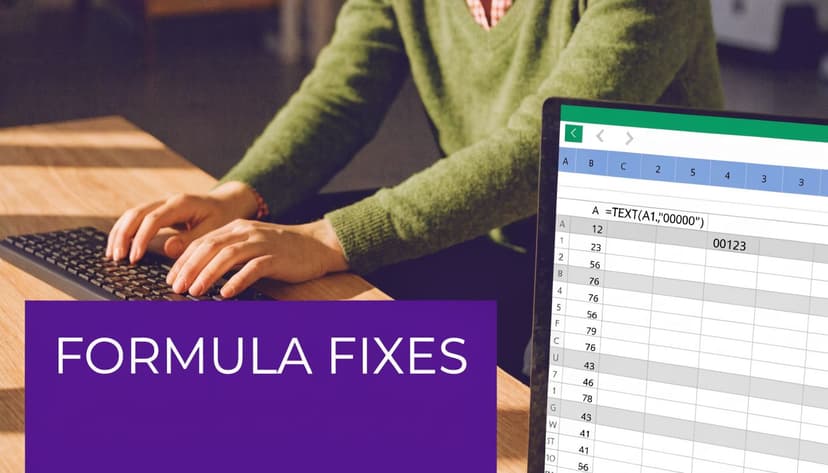
Use TEXT when format matters
The TEXT function is the cleanest formula method because it converts a numeric value into a text string while letting you control the format.
The syntax is:
=TEXT(value, format_text)
Examples:
=TEXT(A2,"0")=TEXT(A2,"00000")=TEXT(A2,"#,##0.00")
Here’s what those do:
| Formula | Result | Best use |
|---|---|---|
=TEXT(A2,"0") |
Plain integer as text | Basic conversion |
=TEXT(A2,"00000") |
Preserves fixed-width IDs | SKUs, codes, ZIP-like fields |
=TEXT(A2,"#,##0.00") |
Formatted number as text | Reports and labels |
A verified tutorial notes that a format_text value of "0" gives you a plain integer, while formats like "0000" preserve leading zeros, and the result is typically left-aligned by default, which is a quick sign Excel now sees it as text. That same behavior is illustrated in this TEXT formula walkthrough.
This is also the right method when you want to keep formatting inside a sentence. For example:
="Sales increased by " & TEXT(0.15,"0%")
That returns:
Sales increased by 15%
Without TEXT, Excel would concatenate the raw decimal value instead of the formatted percentage.
Use concatenation for simple coercion
If you don’t care about custom formatting and just need Excel to stop treating the value as numeric, concatenation works.
Two easy options are:
=A2&""=CONCAT(A2)
The first is more common. Appending an empty string forces Excel to return text. It’s a practical shortcut when you only need conversion, not display control.
This method is fine for helper columns, especially when you’re preparing keys for joins or exports. It’s less useful when the final string needs padding or currency formatting. In those cases, TEXT is still better.
A short walkthrough can help if you want to see the behavior in action:
Use an apostrophe for manual entries
For a single cell, the fastest option is often just typing an apostrophe before the value:
'123456
Excel displays 123456 as text, not as a number. This is a manual entry trick, not a scalable workflow, but it’s excellent for one-off corrections.
If I’m fixing one identifier in front of someone on a call, I use the apostrophe. If I’m fixing a column, I don’t.
Three quick rules keep these methods straight:
- Choose TEXT when the final appearance matters.
- Choose concatenation when you only need a text data type.
- Choose the apostrophe when you’re editing one cell by hand.
If you need to convert a formula result into permanent values, copy the helper column and use Paste Special > Values. That removes the formula while keeping the text output.
2 Ways to Bulk-Convert Columns After Import
Most conversion issues don’t happen one cell at a time. They happen right after import.
A verified analysis of 500+ Excel threads found that 65% of “number to text” queries came from import errors, and the same source says Text to Columns can convert columns of 10,000+ rows in under 10 seconds, which is about 3x faster than a helper-column formula for one-off bulk fixes. That’s why this is the first place I look after opening a messy CSV, especially when I’m exporting data to Excel from ad platforms, CRMs, or reporting tools where IDs must stay untouched. The reference details are in this Ablebits guide on converting numbers to text.
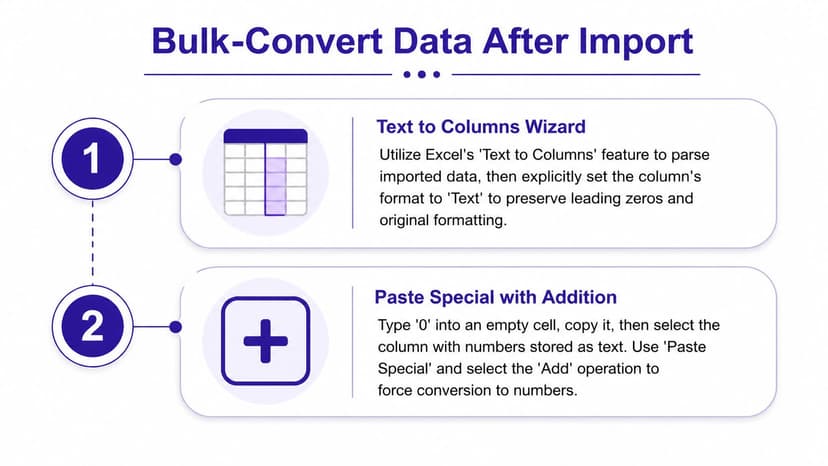
Text to Columns for one-time cleanup
This is the fastest built-in fix for an already imported column.
Use this path:
- Select the column.
- Go to Data > Text to Columns.
- Click through Steps 1 and 2 without changing anything.
- In Step 3, choose Text.
- Click Finish.
That forces Excel to treat the selected values as text. It’s ideal when a file is already open and the damage is limited to formatting rather than irreversible precision loss.
What I like about this method is speed. There’s no helper column to maintain, no formulas to fill down, and no cleanup afterward. For analysts doing repetitive import work, it’s one of those tools that pays off immediately once you remember it exists.
Power Query for repeatable imports
When the same file structure arrives every day or every week, I stop fixing the worksheet and move the task upstream with Power Query.
The goal is simple: set the problematic columns to Text inside the query so every refresh keeps the same data type. That turns conversion from a repair task into a repeatable import rule.
A practical workflow looks like this:
- Import through Power Query instead of opening the file directly.
- Select the identifier columns early in the query editor.
- Change data type to Text before downstream cleanup.
- Refresh the query when new files arrive instead of redoing manual steps.
This is the better choice for ongoing reporting, shared workbooks, and any process where multiple people touch the same file. If your team is already investing in Excel automation workflows, Power Query is usually the first upgrade worth making.
Text to Columns fixes today’s file. Power Query protects tomorrow’s file.
Which one should you use
Here’s the practical split:
| Situation | Better method |
|---|---|
| One imported file, quick cleanup | Text to Columns |
| Recurring files from the same source | Power Query |
| Need to inspect values manually before conversion | Text to Columns |
| Need a refreshable pipeline | Power Query |
If the job is urgent, use Text to Columns. If the job repeats, build the query once and stop doing the same cleanup by hand.
The Special Case Converting Numbers to Words
Converting numbers to text is one thing. Converting numbers to words is a different category entirely.
If you need 1250.75 to become something like a spelled-out amount for a check, invoice, or legal document, Excel doesn’t give you a standard built-in worksheet function for that. That’s where many users hit a wall.
The traditional route with VBA
For years, the common answer has been VBA, usually through a custom function such as SpellNumber. You add the code to the workbook, save it as a macro-enabled file, and then call the custom function like any other formula.
That approach still works. It’s useful when you need a reliable workbook-specific tool and your environment allows macros. But it comes with trade-offs:
- Setup overhead is higher than normal formulas.
- Macro-enabled files can create governance issues in some organizations.
- Maintenance becomes your problem if the function needs adjustment.
For users handling invoices or payment documents in Thai contexts, related text-formatting approaches such as BAHTTEXT examples in Excel show how specialized these word-based conversions can become.
The newer option with AI
A verified source notes that newer AI tools in Excel, including Microsoft’s AI integrations available since mid-2025, have shown over 95% accuracy in demos for converting numbers to words, including different currencies and languages, which gives them flexibility older VBA scripts often lack. That finding comes from this video demonstration of AI-based Excel conversions.
That matters because real-world wording is rarely uniform. A rigid VBA function may work well for one format and struggle when the wording, currency, or language shifts. AI handles those requests more naturally, especially when users ask for the result in plain language instead of writing custom code.
For checks and invoice wording, VBA is stable. AI is more flexible.
If your workbooks live in a tightly controlled finance environment, VBA still has a place. If your requests vary by language, currency, or phrasing, AI is becoming the more practical option.
4 Common Pitfalls That Corrupt Your Data
Most Excel conversion mistakes don’t look dramatic at first. The file still opens. The cells still show values. The formulas still recalculate. The problem is that the underlying content has already changed.
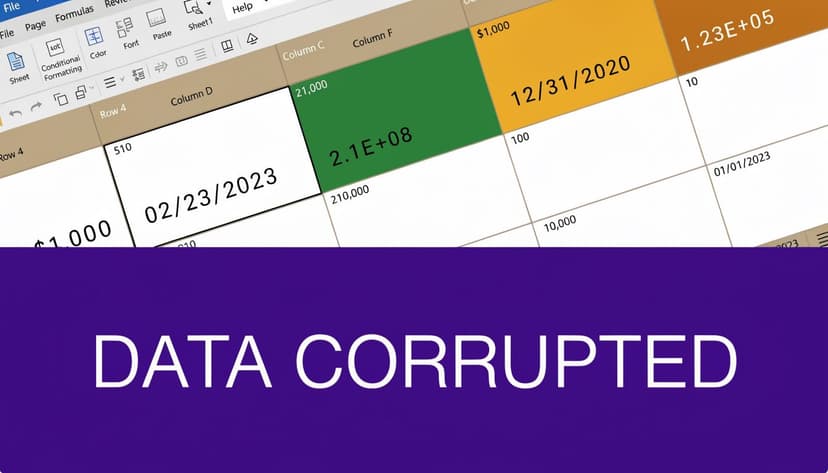
Entering long numbers before formatting the cells
This is the most damaging mistake.
Microsoft’s guidance is explicit: for any value containing 16 or more digits, you must format the cells as Text before entering the numbers. If you enter the value first, Excel’s 15-digit precision limit permanently changes the trailing digits to zeros, and the original value is lost. That instruction appears in Microsoft’s page on formatting numbers as text before entry.
This is not optional for credit card numbers, account codes, long barcodes, or any identifier where every digit matters.
Assuming formatting can undo corruption
Users often try this sequence:
- Paste long numbers into Excel.
- Notice something looks wrong.
- Change the cell format to Text.
- Expect the original value to return.
It won’t. Formatting changes how Excel treats the current value. It doesn’t restore digits that were already altered on entry.
That’s why prevention matters more than cleanup for long identifiers.
Non-negotiable check: If the source contains long numeric IDs, set the destination column to Text before the paste or import.
Ignoring what the green triangle means
The green triangle usually means Number stored as text. That warning isn’t always bad.
If the column contains invoice IDs, serial numbers, phone numbers, or SKUs, storing them as text is often exactly what you want. The warning becomes a problem only when you intended to calculate with those cells.
A simple test helps:
- If you plan to sum, average, or multiply it, it should stay numeric.
- If you plan to match, export, concatenate, or preserve exact digits, text is usually correct.
If you later need to reverse the process, a separate workflow for converting text back to numbers in Excel is the safer move than forcing mixed behavior into one column.
Forgetting that text won’t behave like numbers
After conversion, Excel treats the result as text. That means functions like SUM won’t use those values the way you expect.
This is a feature, not a bug. It protects identifiers from being treated as measures. But it trips people up when they convert a reporting column to text and then try to run numeric calculations against it.
A good working pattern is:
| Keep as number | Convert to text |
|---|---|
| Revenue | Invoice ID |
| Quantity | Product code |
| Discount rate | Phone number |
| Unit price | Postal code or account code |
When the same column needs both roles, keep the original numeric field and create a helper column for the text version. That avoids broken formulas and preserves auditability.
The Final Method Automate All Conversions with ElyxAI
Manual Excel techniques are still worth knowing. They teach you what’s happening in the file and help you diagnose bad imports quickly.
But once the same conversion work starts repeating, the bottleneck isn’t Excel. It’s the person doing the same clicks, fills, checks, and formatting steps every week.
That’s where automation becomes more useful than another formula trick. Instead of remembering whether this file needs TEXT, Text to Columns, or a Power Query edit, you define the outcome in plain language and let the tool execute the workflow. For teams already thinking about how to implement AI in business, spreadsheet cleanup is one of the easiest places to start because the pain is repetitive and the result is easy to verify.
A practical prompt might look like this:
Clean this imported sales file. Keep the SKU and account columns as text so leading zeros are preserved. Standardize the date column. Then format the final report for review.
That kind of request reflects how analysts work. The job is rarely just “convert one number to text.” It’s usually a chain of tasks tied to imports, reporting, and cleanup. AI works best when it handles the chain instead of giving you one isolated formula.
If you want that kind of workflow directly inside Excel, the setup process for installing an AI assistant in Excel is straightforward. A key advantage isn’t novelty. It’s consistency. Automation reduces the chance that someone forgets to protect an ID column, skips a helper step, or pastes values into the wrong format.
Knowing how to convert numbers to text in Excel is still the foundation. Automating it is how you stop solving the same problem twice.
If you want an AI agent that executes the Excel work for you, not just explains the steps, try Elyx AI. It works inside Excel, handles multi-step cleanup and reporting tasks from a plain-language prompt, and is a practical next step if you’re tired of fixing the same import issues by hand.
Reading Excel tutorials to save time?
What if an AI did the work for you?
Describe what you need, Elyx executes it in Excel.
Sign up