How to Calculate Percentage in Excel The Right Way

Calculating a percentage in Excel is a fundamental skill, and the basic formula is straightforward: =part/total. For example, to find what percentage 25 is of 100, you would type =25/100 into a cell. After hitting Enter and applying the Percentage format, Excel correctly displays 25%.
This guide will walk you through the essential formulas and practical applications, providing actionable tips to solve real-world problems. By the end, you'll be able to calculate percentages confidently for any scenario, from financial reports to performance tracking.
Getting to Grips with Core Percentage Formulas
Mastering percentage calculations in Excel begins with understanding a simple division formula. Once you grasp this concept, you can tackle anything from complex financial reports to sales performance dashboards. This foundational skill ensures your data is not only accurate but also communicates a clear and compelling story.
Spending too much time on Excel?
Elyx AI generates your formulas and automates your tasks in seconds.
Sign up →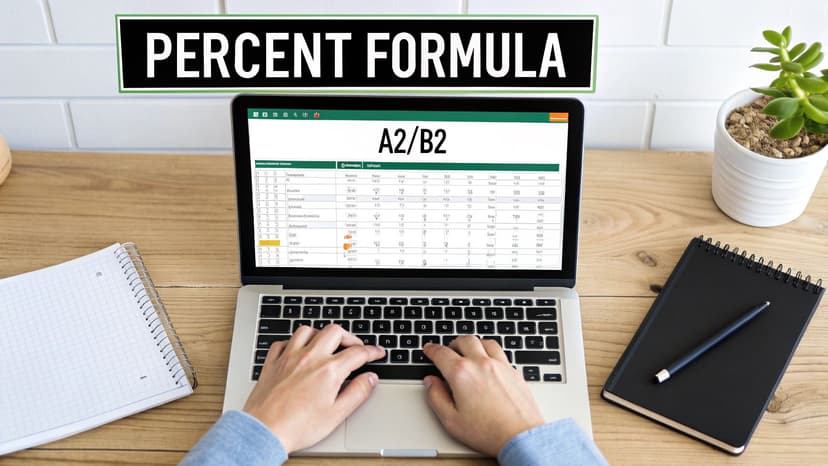
This isn't just theory; it's a critical business function. A global survey of 1,200 mid-sized companies by the International Data Corporation (IDC) revealed that 78% of finance and operations teams depend on Excel for this exact task—calculating individual contributions as a percentage of total revenue.
To give you a practical reference, here is a table with the most common percentage formulas you'll need for various tasks.
Essential Excel Percentage Formulas at a Glance
| Calculation Type | Excel Formula | Practical Example |
|---|---|---|
| Percent of Total | =Part/Total |
Finding a product's sales as a percentage of total company revenue. |
| Percentage Change | =(New_Value - Old_Value)/Old_Value |
Calculating the quarter-over-quarter growth in website traffic. |
| Finding the Total | =Part/Percentage |
If you know a product generated $5,000 in sales, which was 20% of the total, you can find the total sales. |
| Finding the Part | =Total*Percentage |
Calculating a 15% commission on a $10,000 sale. |
This table is an excellent starting point. Now, let's dive into the most common one you'll use daily: calculating a part as a percentage of a total.
The Go-To Formula: Part-Over-Total
The most frequent task you'll face is determining what percentage one number represents of a larger whole. A common real-world example is analyzing a list of product sales to see how much each one contributed to the grand total.
For this, you will always use the formula:=part/total
Let's say an individual product's sales are in cell B2, and your total sales figure is in cell B10. The formula would be =B2/B10.
A common pitfall occurs when you drag this formula down to apply it to other products. Excel’s relative references will automatically shift B10 to B11, B12, and so on, which will disrupt your calculations.
Pro Tip: To solve this, use an absolute reference. By changing the formula to
=B2/$B$10, the dollar signs "lock" the reference to the total in cell B10. Now, when you drag the formula down, B2 will correctly update to B3, B4, etc., while your total remains locked on $B$10.
Don't Forget to Apply the Percentage Format
After you enter a percentage formula, Excel displays the result as a decimal, such as 0.25. To make this readable and professional, you need to format it as a percentage.
Simply select the cell (or cells) and click the Percent Style (%) button on the Home tab. This single click multiplies the decimal by 100 and adds the "%" sign. A common mistake is to multiply by 100 within the formula itself—let Excel's formatting tool do that work for you.
Getting comfortable with these basics is key. You can explore more foundational functions in our guide to essential Excel formulas for beginners. For a real-world example of how these percentage formulas are used in finance, check out this excellent breakdown of how to calculate self-employment tax.
Calculating Percentage Change to Track Performance
While static totals are useful, the real insights in your data often emerge from tracking trends over time. Is your website traffic growing? Are sales figures declining? Calculating percentage change is one of the most fundamental ways to measure performance, and Excel makes this process incredibly efficient.

This is a cornerstone of business analysis. Financial reports consistently feature year-over-year growth or quarter-over-quarter change. In fact, a report from the Association for Financial Professionals (AFP) found that 89% of corporate finance professionals rely on Excel for this exact task. You can dive deeper into the formulas they use in this fantastic financial analysis resource.
The Universal Formula for Percentage Change
The great thing about calculating percentage change in Excel is that a single, simple formula handles both increases and decreases. You don't need to adjust it if the numbers go down.
The universally recognized formula is:=(new_value - old_value) / old_value
Let’s apply this to a practical example. Imagine you're tracking monthly sales. Last month's sales figure is in cell B2 (the old value), and this month's figure is in C2 (the new value).
In a new cell, such as D2, you would type:=(C2-B2)/B2
After you hit Enter, Excel will return a decimal like 0.15. To make it easily understandable, click on the cell and apply the Percent Style (%) format from the Home tab. Now, it clearly displays as 15%.
Key Takeaway: A positive result (like 15%) instantly signals growth. A negative one (like -5%) indicates a decline. This simple visual cue is what makes dashboards and reports so effective for quick analysis.
Applying the Formula to a Full Dataset
Typing this formula for every row in a large dataset is impractical. This is where one of Excel’s most efficient features, the fill handle, comes into play.
Once the formula is working correctly in the first cell (D2 in our example), you are just a click away from applying it to the entire dataset.
- First, select the cell containing your formula.
- Next, locate the small green square at the bottom-right corner—this is the fill handle.
- Simply double-click it.
Excel will automatically copy the formula down the entire column, adjusting the cell references for each new row. This small action saves a significant amount of time and, more importantly, prevents the kind of copy-paste errors that can compromise your data's integrity. Just like that, you have a clear picture of your performance trends.
Using Percentages for Forecasting and Goal Tracking
Percentages are not just for historical analysis; they are incredibly powerful tools for planning and forecasting. When you become proficient with percentage calculations, Excel transforms from a simple record-keeper into a strategic tool for setting clear targets, tracking progress, and building robust financial forecasts.

Whether you're a project manager tracking task completion or a sales director monitoring quarterly quotas, the logic remains the same: you are comparing your current status to your target.
Increasing or Decreasing a Number by a Percentage
A common forecasting task is adjusting a number by a specific percentage. This is essential for budgeting, sales projections, and resource planning. For instance, you might need to model a 15% increase in revenue for the next quarter or calculate the impact of a 10% reduction in operating costs.
The formulas for this are clean and simple:
- To increase a number:
=Number * (1 + Percentage) - To decrease a number:
=Number * (1 - Percentage)
Let's say your current marketing budget is $5,000 (in cell B2), and you plan to increase it by 12% for an upcoming campaign. Your formula would be =B2*(1+0.12) or, more simply, =B2*1.12. Both will give you the new budget of $5,600. This calculation is a cornerstone of financial modeling in Excel.
Once you’ve mastered the basics, you can explore more advanced business intelligence and reporting to derive even deeper insights from your data.
Tracking Progress Towards a Goal
Visualizing progress is a powerful motivator. To calculate the percentage of a goal you've achieved, you can use the same fundamental part-over-total formula.
Imagine a sales team has a quarterly target of $50,000 (the goal) and has achieved $35,000 so far (the actual). The formula to track their progress is:=Actual / Goal or, in this case, =35000/50000
Format that cell as a percentage, and you'll see they are at 70% of their target. This calculation is perfect for creating dynamic progress bars with conditional formatting or for populating live dashboards.
A common pitfall when tracking multiple goals is using an incorrect total. If you plan to drag your formula down a list for different projects or team members, always ensure your "goal" value is an absolute reference (like
$B$10). Otherwise, Excel will shift the reference, and your calculations will be inaccurate.
How to Average Percentages Correctly
Averaging percentages is a frequent task, especially when analyzing performance reviews or customer satisfaction data. A global Gallup study found that HR departments in 72% of large organizations use Excel to calculate average employee engagement scores, which are often expressed as percentages.
While it sounds straightforward, averaging percentages can be tricky. Excel’s =AVERAGE function works perfectly if all your percentages are based on the same underlying total. For example, if you have monthly satisfaction scores of 78%, 82%, 75%, and 80%, the formula =AVERAGE(A1:A4) will correctly calculate the average of 78.75%.
However, if those scores came from different sample sizes—say, 100 survey responses one month and 500 the next—a simple average is misleading because it doesn't account for the different weights. In that scenario, you must calculate a weighted average by summing all the individual parts and then dividing by the sum of all the totals.
Ditch the Manual Work: How to Automate Percentage Calculations in Excel
Manual calculations are not just time-consuming—they are also prone to human error. Instead of typing formulas one by one, you can automate your percentage workflows in Excel to save time and achieve more accurate results.
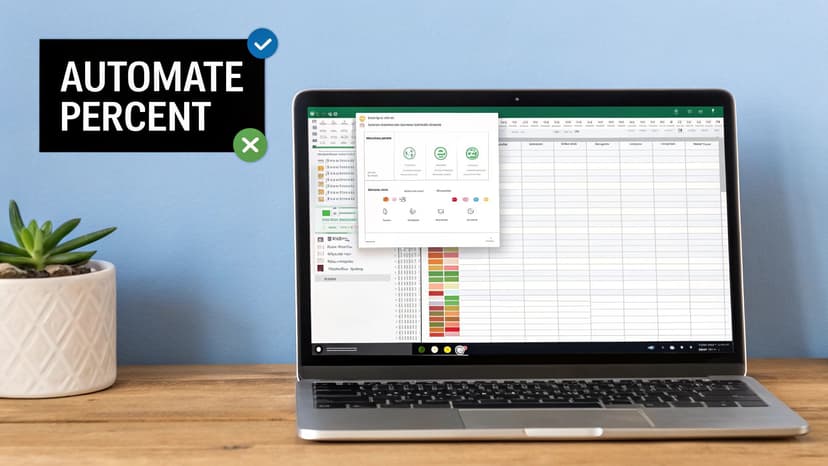
Modern AI tools are revolutionizing how we interact with spreadsheets, bridging the gap between user intent and the complex functions required to execute tasks. The image above illustrates an interface where you can simply describe the calculation you need, and an AI tool generates the perfect Excel formula for you.
Generate Formulas Instantly with AI
Memorizing complex syntax or searching for the right formula is no longer necessary. AI add-ins like Elyx.AI are changing the game by allowing you to generate the exact formula you need simply by describing your goal in plain English.
Instead of trying to recall the percentage change formula, you can just type a simple prompt:
- "Calculate the percentage increase from column B to column C"
- "Find what percentage of the total in cell G20 each value in column F is"
- "Create a formula to calculate year-over-year sales growth"
The AI interprets your request and provides the correct, ready-to-use formula instantly. This is a fantastic way to accelerate your work while learning how the formulas are constructed. It offers a faster, more intuitive method for handling any percentage calculation. To learn more about boosting your productivity, explore how to automate Excel tasks with AI.
Use PivotTables for Effortless Summaries
One of the most powerful built-in tools in Excel is the PivotTable. If you aren't using them, you're missing out on an opportunity to summarize massive datasets and calculate percentages without writing a single formula—ideal for finding the percentage of a total.
Let’s say you have a sales report with columns for Region, Product, and Sales Amount. Instead of manually filtering and summing, you can create a PivotTable in a few clicks.
- Select your data range.
- Go to the Insert tab and click PivotTable.
- Drag the 'Region' field into the Rows area and 'Sales Amount' into the Values area.
Now, for the magic. To see each region's contribution as a percentage:
- Right-click any value in the 'Sum of Sales Amount' column.
- Navigate to Show Values As > % of Grand Total.
Instantly, the PivotTable recalculates everything, showing you the exact percentage of total sales each region contributed. This approach is not only fast but also error-proof and incredibly flexible for reporting.
Expert Insight: PivotTables are dynamic. When your source data changes, there is no need to rebuild anything. Simply right-click the PivotTable and select "Refresh"—all your percentage calculations will update automatically.
Visualize Trends with Conditional Formatting
Automation extends beyond number crunching to data visualization. Conditional Formatting is an invaluable tool here, as it automatically applies visual cues—like colors, icons, or data bars—to your cells based on their values.
For example, you can set up rules to instantly highlight:
- Any sales growth below 10% in red.
- All projects that are over 80% complete in green.
- Tasks with a budget variance greater than +/-5%.
This simple technique transforms a static column of numbers into a dynamic visual report, allowing you to spot trends, outliers, and key performance indicators in seconds without manually scanning every cell.
Solving Common Percentage Problems in Excel
https://www.youtube.com/embed/SrW0B5eFgXg
Knowing the formulas is just the first step. The real challenge comes when working with messy, real-world data where things don't add up. This section addresses the common issues that can cause frustration and provides practical solutions to fix them quickly.
Understanding why these errors occur is the key to becoming a proficient Excel user.
Why Your Formulas Break When You Drag Them Down
We have all experienced this: a formula works perfectly in the first cell, but the moment you drag it down the column, it breaks. This is almost always caused by a missing absolute reference.
Imagine you are calculating sales commissions. Each salesperson's total is in column B, and the grand total is in a single cell, say C20. Your first formula, =B2/C20, works correctly. But when you drag it, Excel's relative referencing adjusts it to =B3/C21, then =B4/C22, and so on. It is trying to be helpful, but it ends up pulling from empty cells and causing errors.
The Fix: You need to lock the grand total in place. Use dollar signs to create an absolute reference:
=B2/$C$20. Now, when you copy the formula, the reference to$C$20remains fixed, ensuring accurate calculations for the entire column.
Handling the Dreaded #DIV/0! Error
The #DIV/0! error appears when your formula attempts to divide by zero or an empty cell. This is common in reports where a total might genuinely be zero, such as a month with no sales. This error makes your spreadsheet look unprofessional and can break dependent formulas.
A clean solution is to wrap your formula in the IFERROR function. This function tells Excel, "Try this calculation, but if it results in an error, do this instead."
So, instead of a simple =A2/B2, you would write:=IFERROR(A2/B2, 0)
This formula instructs Excel to attempt dividing A2 by B2. If it succeeds, the result is shown. If it produces an error, it displays 0 instead. You can also use "" in place of the zero to leave the cell blank, which often creates a cleaner report.
Troubleshooting Common Percentage Formula Errors
When you are deep in your work, Excel can present various challenges. Here is a quick guide to some of the most common percentage-related errors and how to resolve them efficiently.
| Error Code / Issue | Common Cause | How to Fix It |
|---|---|---|
| #DIV/0! | The formula is trying to divide by zero or a blank cell. | Wrap your formula in IFERROR. Example: =IFERROR(A2/B2, 0) |
| #VALUE! | You're trying to perform a math operation on a cell containing text. | Check your referenced cells to ensure they contain only numbers. |
| Formula breaks on drag | Relative references are shifting when they should be static. | Use absolute references ($A$1) for cells that should not change when copied. |
| Result shows as 0% | The underlying number is very small and rounded to zero by the format. | Increase the number of decimal places to see the actual value. |
| Result is a huge % | You multiplied by 100 in the formula and used the % format. | Remove the *100 from your formula and let Excel's formatting do the work. |
Understanding these common pitfalls is half the battle. Once you know what to look for, you can fix issues in seconds instead of getting stuck.
When Your Percentages Just Look Completely Wrong
Have you ever calculated a percentage and gotten a result like 2,500% when you expected 25%? This classic mistake occurs when you perform the math twice.
It's a common habit to write a formula as =(A2/B2)*100, since that is how we are taught to calculate percentages manually. The problem is that when you apply Excel's built-in Percentage format, Excel also multiplies the result by 100. Your number gets multiplied twice, leading to an inflated, incorrect figure.
The solution is simple: let Excel's formatting do the work. Your formula should just be =A2/B2. That’s it. Then, click the '%' button on the Home tab. Properly formatting numbers in Excel is a fundamental skill that keeps your data clean and accurate. Once you master these small fixes, you'll be able to handle any percentage calculation with confidence.
Frequently Asked Questions
Even with the right formulas, common questions often arise when working with percentages in Excel. Let's address some of the most frequent ones with clear, actionable answers.
How Do I Calculate the Percentage for a List of Items from One Total?
This is a classic scenario where the solution lies in using an absolute reference. Let’s say you have a list of product sales in cells B2, B3, and B4, and your grand total is in cell B10.
When you write the formula for the first item in cell C2, enter =B2/$B$10. The dollar signs ($) are crucial—they lock the reference to cell B10. Now, when you drag that formula down the column, the B2 part will correctly update to B3, B4, and so on, but the total in $B$10 will remain constant, serving as the anchor for all your calculations.
Why Is My Percentage Showing a Huge Number Like 2500%?
The 2500% problem is a common and easily fixable issue. It happens when you perform the multiplication by 100 in your formula and also apply Excel's Percentage format.
You've likely written a formula like =(B2/B10)*100. The Percentage format is designed to take a decimal (like 0.25) and automatically multiply it by 100 to display it as 25%. When your formula already includes *100, the number gets multiplied by 100 twice.
The Simple Fix: Remove the
*100from your formula. Let it be a simple division:=B2/B10. Then, apply the Percentage format and let Excel handle the display for you.
How Do I Avoid the #DIV/0! Error When a Total Is Zero?
The #DIV/0! error appears when the denominator in your division is zero or a blank cell. It not only looks unprofessional but can also break other formulas that depend on that cell's output. The cleanest way to manage this is with the IFERROR function.
Instead of a simple division, wrap your formula inside IFERROR to provide a backup plan.
=IFERROR(B2/B10, 0)
This tells Excel: "Try to calculate B2/B10. If it works, display the result. If you encounter any error, show a 0 instead." For a cleaner report, you can replace the 0 with empty quotes ("") to leave the cell blank.
Tired of wrestling with formulas? Elyx.AI can build the exact formula you need from a simple description, generate PivotTables in a flash, and even help you debug errors. See how much faster you can work in Excel by visiting https://getelyxai.com.
Reading Excel tutorials to save time?
What if an AI did the work for you?
Describe what you need, Elyx executes it in Excel.
Sign up