How to Calculate Days Between Dates in Excel Quickly and Accurately

Figuring out the number of days between two dates in Excel can be surprisingly straightforward. The quickest way is often simple subtraction. If you type =EndDate - StartDate into a cell, Excel will instantly tell you the total number of days between them. This works because Excel intelligently treats dates as serial numbers, making date math intuitive.
Your Quick Guide to Calculating Days in Excel
Whether you're managing a project timeline, analyzing financial reports, or tracking employee leave, calculating the time between two dates is a common task. While a simple subtraction formula is great for a quick count, sometimes you need something more specific to solve a real-world problem.
That's where Excel's more powerful functions come in. For instance, a project manager might need the total calendar days for a high-level schedule. On the other hand, an HR manager calculating paid time off almost certainly needs to exclude weekends and holidays. Knowing which tool to grab from your Excel toolbox is key to getting an accurate and useful result.
Spending too much time on Excel?
Elyx AI generates your formulas and automates your tasks in seconds.
Sign up →Choosing the Right Calculation Method
So, how do you pick the right formula? It all comes down to what you're trying to measure. Are you after the total, all-inclusive number of days? Or do you only care about the weekdays? Maybe you need to break it down into years, months, and days for a service anniversary report.
To help you decide, this flowchart lays out the options based on your specific needs.
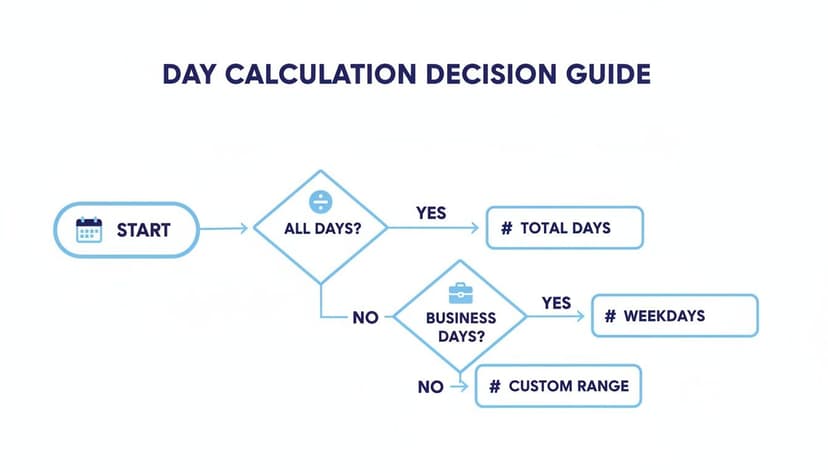
It’s a simple visual guide that points you to the right function depending on whether you're counting all days or just business days.
Getting the day count right is often just the first step. In the real world, these calculations feed into bigger tasks. For example, knowing how to calculate holiday entitlement is a critical part of managing employee leave, and it all starts with an accurate day count.
Key Takeaway: The "best" formula is always the one that fits your specific situation. Simple subtraction is perfect for a quick total day count. For business-centric timelines that need to account for weekends and holidays, you'll want to use dedicated functions like
NETWORKDAYS.
For a closer look at the different formulas available, our comprehensive guide on the DAYS function in Excel is a great resource.
Excel Date Calculation Methods at a Glance
To give you a quick overview, here's a breakdown of the most common methods for calculating days in Excel. Think of it as a cheat sheet for your next project.
| Method | Formula Example | Best For | Includes Weekends? |
|---|---|---|---|
| Simple Subtraction | =B2-A2 |
Getting a quick, total count of all days. | Yes |
| DAYS Function | =DAYS(B2, A2) |
A dedicated function for total calendar days. | Yes |
| NETWORKDAYS Function | =NETWORKDAYS(A2, B2, [holidays]) |
Calculating business days, excluding weekends. | No |
| DATEDIF Function | =DATEDIF(A2, B2, "d") |
Breaking down duration into days, months, or years. | Yes |
This table helps you see at a glance which tool is right for the job, making it easier to build accurate and reliable spreadsheets.
Using DATEDIF for More Detailed Calculations
Sometimes, just knowing the total number of days between two dates isn't enough. You need more nuance—a breakdown of the years, months, and days. For that, we turn to DATEDIF, one of Excel's most handy (and surprisingly, officially undocumented) functions for date calculations.
The syntax is straightforward: =DATEDIF(start_date, end_date, unit). The "unit" is where the magic happens; it tells Excel exactly how you want the time period measured.

Breaking Down the DATEDIF Units
This is where DATEDIF really shines. While a simple subtraction just gives you a single number, DATEDIF can tell a much more detailed story.
Here are the key units you'll use:
- "Y": Returns the number of complete years in the period.
- "M": Gives you the total number of complete months.
- "D": Calculates the total number of days (this will give you the same result as basic subtraction).
But what if you want to know the "leftovers"? That's where these specialized units come in:
- "YM": Finds the remaining months after accounting for the full years.
- "MD": Calculates the leftover days after accounting for the full years and months.
Using these together lets you build a complete picture, like finding someone's exact age or the precise length of a project. If you want to really get into the weeds, we have a complete guide covering the DATEDIF function in Excel.
A Practical HR Example
Let's put this into a real-world scenario. You're an HR manager and need to calculate an employee's exact tenure for their service award. Their start date, June 15, 2018, is in cell A2, and today's date, August 22, 2024, is in B2.
To create a clear, human-readable output, you can combine multiple DATEDIF formulas into a single cell using the ampersand (&) to join text and formula results.
Here is the complete formula you would enter into a cell:="Employee has been with the company for " & DATEDIF(A2, B2, "Y") & " years, " & DATEDIF(A2, B2, "YM") & " months, and " & DATEDIF(A2, B2, "MD") & " days."
Let's break down how this works:
DATEDIF(A2, B2, "Y")calculates the complete years.DATEDIF(A2, B2, "YM")calculates the remaining months after the years are accounted for.DATEDIF(A2, B2, "MD")calculates the remaining days.- The
&symbols and text in quotes (" ") combine everything into a polished sentence.
This single formula transforms raw dates into a clean, human-readable sentence for reports or employee records. It’s a level of detail that simple subtraction just can't provide.
Figuring Out Workdays and Skipping Holidays
In the business world, we don't work every day. Project deadlines, shipping estimates, and support agreements all hinge on business days, not just the total days on the calendar. A simple date subtraction won't cut it here. This is where Excel's NETWORKDAYS and NETWORKDAYS.INTL functions shine, giving you the precision you need for proper planning.

The go-to tool for this is the NETWORKDAYS function. Right out of the box, it calculates the number of workdays between two dates, automatically skipping Saturdays and Sundays. Better yet, it lets you feed it a list of holidays to exclude, which is crucial for getting a true picture of your working schedule.
Planning Around Public Holidays
Let's say you're mapping out a project. The start date is October 28, 2024 (in cell A2), and it needs to be done by November 15, 2024 (in cell B2). You also know there's a company holiday on November 11th, which you've noted in cell C2.
To get the actual number of working days, you'd use this formula:=NETWORKDAYS(A2, B2, C2)
Formula Breakdown:
A2: This is thestart_datefor your calculation.B2: This is theend_date.C2: This is the optional[holidays]argument. Excel will exclude this date from the count.
This little formula does a lot of work. It counts the days, ignores the weekends, and subtracts that holiday you pointed out. The result is a realistic timeline you can actually work with. If you want to get more familiar with all its features, check out our guide on the NETWORKDAYS function.
Pro Tip: You aren't limited to just one holiday. If you have a list of all your company holidays for the year in a range, say C2 through C10, you can just plug that range into the formula:
=NETWORKDAYS(A2, B2, C2:C10).
Dealing With Non-Standard Work Weeks
Of course, not everyone works Monday to Friday. Global teams, retail, and manufacturing often have different schedules. That's why Excel gives us the more powerful NETWORKDAYS.INTL function.
This version adds an extra argument where you can specify exactly which days of the week are considered weekends.
For instance:
- A code of
11tells Excel that only Sunday is a weekend. - A code of
"0000011"(as a text string) defines Saturday and Sunday as the weekend, which is the same as the defaultNETWORKDAYSsetting.
This flexibility is a lifesaver for any company with a non-standard calendar. It ensures your calculations are always spot on, no matter how your work week is structured.
How Excel Really Sees Dates
To get good at calculating dates in Excel, you first have to understand what’s happening under the hood. It’s a surprisingly simple concept that makes everything click. Excel doesn't actually see "August 22, 2024" as text; it sees it as a number. This is the secret to why subtracting one date from another is so easy.

Behind every date you type is a serial number. This number represents how many days have passed since Excel's starting point: January 1, 1900.
So, Excel stores January 1, 1900, as the number 1. January 2, 1900, is 2, and so on.
When you use a formula like =B2-A2, you're not actually subtracting words. You're just asking Excel to subtract one serial number from another. The result is simply the difference between them—the number of days.
Why This Serial Number System is So Powerful
This whole setup is what makes date math feel so natural in a spreadsheet. Adding a number to a date moves it forward that many days, and subtracting a number moves it backward. It just works.
The logic behind this has its roots in some pretty old math. Calculating days between dates is based on modular arithmetic, which is the same principle that allows calendars to predict future dates. For instance, a regular 365-day year advances the day of the week by one, because 365 divided by 7 leaves a remainder of 1. If you're curious, you can read more about the mathematical determination of the day of the week.
Key Insight: The moment you realize dates are just numbers in disguise is a game-changer. It suddenly makes sense why simple subtraction works. It also helps you troubleshoot common problems, like when a formula returns a random number instead of the date you were expecting.
You'll sometimes run into issues when you import data where dates are stored as plain text. Excel won't see them as serial numbers in this case, and your formulas will break. The fix is to convert that text into a proper date format that Excel understands. To learn how to do this, check out our guide on the DATEVALUE function in Excel.
Let AI Do the Heavy Lifting with Dates
Spreadsheets have gotten a whole lot smarter recently. Instead of wrestling with complex formulas just to figure out date calculations, you can now lean on AI tools right inside Excel. It’s all about using plain, simple language to get the job done, which allows you to focus on the problem instead of the syntax.
This shift feels just as big as when quantitative history took off back in the 1960s. Back then, historians went from poring over notes by hand to using computers to analyze huge sets of data. You can read more about how this shaped historical data analysis. Now, that same kind of leap in power and accessibility is happening right in our spreadsheets.
How to Use AI Prompts for Date Calculations
So, how does it actually work? Instead of trying to remember the exact syntax for a formula, you just tell an AI assistant what you need in plain English.
Let’s say you need to calculate project timelines. You could type something like this:
"Find the number of workdays between the dates in column A and column B, ignoring the holidays listed in column C."
The AI gets what you mean and provides the perfect NETWORKDAYS formula, tailored to your specific columns. This is a massive time-saver, and it practically eliminates frustrating errors from a misplaced comma or a typo. This approach is a lifesaver for those tricky, nested formulas that are a real headache to build from scratch. And it doesn't just stop with standard Excel functions; it's part of a bigger trend of harnessing Artificial Intelligence for various data tasks to make work more efficient.
If you're curious to see this in action, check out our full guide on using an AI Excel formula generator to get started.
Common Questions About Excel Date Calculations
Even with the right formulas in your toolkit, you can still get some head-scratching results when you're trying to calculate days between two dates in Excel. Let's walk through some of the most common snags people hit and how to fix them quickly.
Why Does My Date Calculation Show a Negative Number?
This is a classic. A negative number almost always means you've got your start and end dates swapped. Excel works by subtracting the earlier date from the later one. If you put them in the wrong order, you'll get a negative.
The fix is simple: just double-check that your formula is set up as =EndDate - StartDate.
How Do I Count Both the Start and End Dates?
When you use a basic formula like =B2-A2, Excel calculates the difference but doesn't count the starting day itself. But sometimes, you need a fully inclusive count—think about calculating the total length of a project or a hotel stay.
All you have to do is add one to the end of your formula: =B2-A2+1. This little tweak ensures both the first and last days are included in your total.
How Can I Fix Dates That Are Formatted as Text?
This one trips up a lot of people, especially when working with data imported from other systems. If your "dates" are actually just text strings, Excel can't do any math with them and will throw a #VALUE! error.
The best way around this is the DATEVALUE function. It tells Excel to convert that text into a real date serial number before doing the calculation. For example, if your dates in A2 and B2 are text, you would use: =DATEVALUE(B2) - DATEVALUE(A2).
Quick Tip: Need to calculate someone's current age in years? The
DATEDIFfunction is your best friend. Just use=DATEDIF(birth_date, TODAY(), "Y"). This handy formula calculates the number of full, completed years between their birthday and today's date.
Ready to stop wrestling with formulas and let an AI agent handle the work for you? With Elyx.AI, you can describe what you need in plain English, and our AI will execute complete workflows—from data cleaning to report generation—directly in your spreadsheet. Transform your Excel experience and save hours every week by visiting https://getelyxai.com.
Reading Excel tutorials to save time?
What if an AI did the work for you?
Describe what you need, Elyx executes it in Excel.
Sign up