10 Best Excel Automation Tools for 2026

Stop Wasting Hours on Repetitive Excel Tasks
It’s 4 PM. You’re still fixing column formats, merging exports from two systems that don’t agree with each other, rebuilding the same PivotTable, and checking whether someone broke a formula in the summary tab. The work isn’t hard. It’s repetitive, fragile, and a bad use of your attention.
That’s why excel automation tools matter. The best ones don’t just shave off a few clicks. They remove entire categories of manual work so you can spend more time reviewing results and less time babysitting spreadsheets. If you want a broader business view of why teams keep investing in automation, DataTeams' 2025 automation guide is a useful companion read.
Spending too much time on Excel?
Elyx AI generates your formulas and automates your tasks in seconds.
Sign up →I group these tools into three buckets because that’s how people choose them in practice. Some tools act like autonomous agents and do the task for you. Some are productivity toolkits that make manual work much faster. Others are workflow connectors that move data between Excel and the rest of your stack.
1. Elyx AI

Monday morning, you open a workbook with five tabs from three different systems, inconsistent headers, broken date formats, and a report due before lunch. Elyx AI is built for that kind of job. In this list’s framework, it belongs in the Autonomous Agents category. It does the work inside Excel instead of just suggesting formulas or helping you click faster.
That distinction matters in practice. Some automation tools are good at speeding up manual work. Elyx is aimed at multi-step spreadsheet tasks where the bottleneck is execution: cleaning raw exports, matching columns that do not line up cleanly, building a consolidated view, then producing something review-ready in the same workbook.
Why Elyx stands out in real use
The core strength is direct action in the sheet. Elyx reads across tabs, changes cells, builds outputs, and leaves a visible result you can inspect line by line. For analysts and finance teams, that is often more useful than a chatbot that explains what to do next but leaves the workbook untouched.
I would put it in the shortlist for month-end reporting, reconciliations, board pack prep, and recurring consolidations. Those jobs usually fail in the messy middle, not in the final formula. If you are weighing that agent-style approach against Microsoft’s native assistant, this comparison of Elyx AI vs Copilot for Excel is a useful reference.
Practical rule: If the process has several dependent steps in one workbook, an autonomous agent is often a better fit than a writing assistant for formulas.
Security is part of the evaluation too. Elyx describes a privacy-first setup with AES-256 encryption, TLS 1.3, European hosting, GDPR compliance, and a policy that files are not stored or used for model training. For finance, legal, and consulting teams, that can be the difference between testing a tool and getting approval to use it on live workbooks.
Best use case and trade-offs
Elyx offers a free trial, and its pricing starts at a level that is reasonable for individual analysts but worth justifying if usage is occasional. The cost makes sense when the tool replaces repetitive weekly work. It is harder to justify if your needs are limited to occasional formula help or light cleanup.
What works well:
- End-to-end execution: It can complete a workflow in one prompt instead of stopping at recommendations.
- Strong fit for finance-heavy work: It handles reporting, reconciliation, and consolidation tasks better than general-purpose AI tools usually do.
- Auditable output: Changes stay in the workbook, which makes review easier.
What to watch:
- Subscription cost: Lower-cost add-ins are enough for lighter use cases.
- Excel focus: It is a better fit for teams that live in Excel than for teams split across several spreadsheet platforms.
Use Elyx AI when the problem sits inside the workbook itself and the task has enough repetition to justify handing execution to an agent.
2. Microsoft Copilot for Excel
Copilot is the default choice for many Microsoft 365 organizations because it lives where people already work. You ask for a formula, summary, chart, PivotTable, or pattern analysis in natural language, and Excel responds inside the product.
That native feel is its biggest strength. You don’t have to introduce another vendor, another workspace, or another permission model if your company is already standardized on Microsoft 365.
Where Copilot is strong
Excel’s automation capabilities have advanced quickly since 2020, with major changes including Power Automate integration, newer formula capabilities like LAMBDA and LET in 2022, native AI and Copilot in 2023, and a centralized Automate tab by 2024, according to Sparkco’s 2025 comparison guide. That broader Microsoft push is why Copilot keeps getting more useful.
The same source notes that Copilot gained the ability in April 2024 to generate multiple formula columns from a single prompt and create complex formula columns across multiple tables. By August 2024, it could create custom charts, PivotTables, and summarize textual data.
If you’re deciding between Microsoft’s native assistant and a more specialized add-in, this comparison of Excel AI vs Copilot lays out the main differences in approach.
Where Copilot falls short
Copilot is best when you want governed AI help inside the Microsoft ecosystem. It’s less compelling when you need deep specialization or fully autonomous, multi-step execution.
A few common friction points show up in practice:
- File location matters: Some functions depend on OneDrive or SharePoint with AutoSave enabled.
- Licensing matters: Capabilities can vary based on tenant settings and license type.
- Generalist behavior: It’s broad, but not always sharp on niche financial workflows.
Copilot is a strong assistant. It isn’t automatically the best operator.
If your team wants native integration first and specialized execution second, Microsoft Copilot for Excel is a sensible place to start.
3. Microsoft Power Automate with Office Scripts
Power Automate is what I reach for when Excel is only one step in a bigger business process. It shines when a row added to a workbook should trigger an email, a Teams message, a SharePoint update, or a scheduled report refresh.
Paired with Office Scripts, it becomes much more useful. Office Scripts handles workbook actions. Power Automate handles triggers, scheduling, and orchestration.
The sweet spot for this combo
This stack is practical for teams that live in Microsoft 365 and need repeatable cloud workflows. Office Scripts has become especially relevant because it saves tech-savvy users and operations managers 4 to 10 hours per week by automating repetitive workbook tasks and enabling scheduling through integrations with Power Automate, Teams, Outlook, and SharePoint, according to ExcelXLS’s automation tools overview.
That’s the reason I don’t treat Office Scripts as just “new macros.” It’s better to think of it as scriptable workbook automation designed for shared cloud workflows. For a practical angle on that setup, see this guide to automation of Excel.
What works and what breaks
Power Automate is excellent for event-driven processes. “When file arrives, run script, update table, notify team” is exactly the sort of pattern it handles well.
Its limits are also predictable:
- Cloud-first constraints: Files usually need to live in OneDrive or SharePoint.
- Workbook contention: Multiple simultaneous writers can create headaches.
- Build complexity: Flows start simple, then become hard to maintain if you keep piling on exceptions.
A good dividing line is this. If the main problem is process orchestration, use Power Automate. If the main problem is workbook intelligence and direct analysis work, use something more Excel-native.
You can explore Microsoft Power Automate if your spreadsheet sits inside a broader workflow rather than acting as the final destination.
4. Ablebits Ultimate Suite for Excel
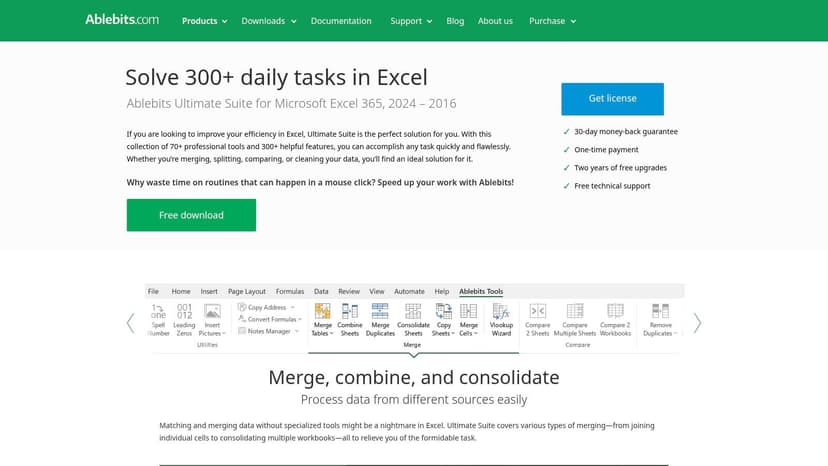
Ablebits is a classic productivity toolkit. It doesn’t pretend to be AI-first, and that’s part of its appeal. If your day is full of cleaning lists, deduplicating records, splitting text, comparing sheets, and fixing date or lookup problems, it saves a lot of effort without much setup.
This is the kind of add-in analysts adopt and then refuse to work without. It turns repetitive prep work into menu-driven actions instead of formula gymnastics.
Best for data prep people
Ablebits works well for desktop-heavy users who need fast wins. Accountants, operations analysts, and reporting teams usually get the most value because they deal with recurring file cleanup and reconciliation jobs.
What I like about it:
- Breadth: Merge, compare, dedupe, text cleanup, and lookup helpers are all in one suite.
- Low friction: You don’t need to write code or design flows.
- Reliable desktop workflow: It suits users who still do serious work in local Excel files.
What I don’t like:
- Windows desktop only: That rules it out for mixed-device teams.
- Feature overlap: Some tools duplicate features you may already know in native Excel.
When not to use it
Ablebits isn’t the answer for cross-app workflows or AI-led analysis. It won’t replace process automation or an autonomous agent. It’s a manual productivity amplifier, not a workflow brain.
That’s still valuable. A lot of Excel work is messy prep work, and dedicated cleanup tools often beat flashy AI for those jobs.
Use Ablebits Ultimate Suite for Excel if your pain is repetitive sheet manipulation on Windows and you want speed without code.
5. Kutools for Excel
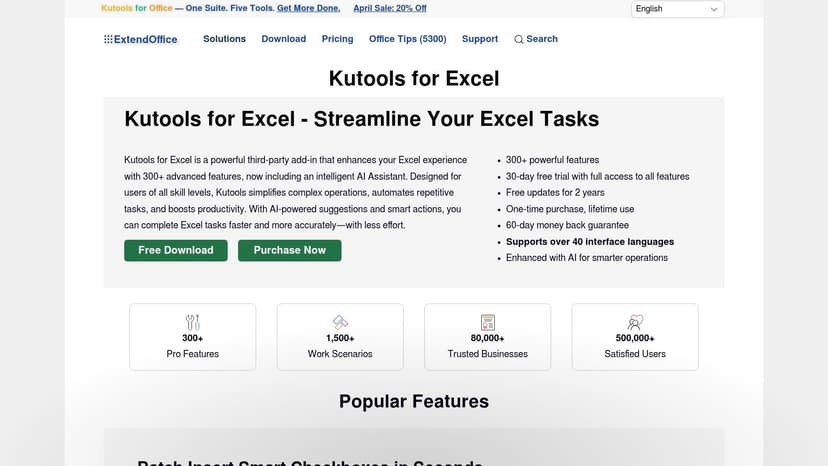
Kutools is the Swiss Army knife option. If you like having a large grab bag of Excel shortcuts, helpers, converters, navigation tools, and formatting aids in one ribbon, Kutools delivers that style better than most.
It’s broad to the point of excess, which is both the value and the risk. Power users love that. Newer users can get lost in it.
Why some users swear by it
Kutools is useful when you don’t have one giant workflow to automate, but dozens of small annoyances to remove. Navigation Pane, Super Lookup, formula helpers, text tools, date transforms, and chart utilities all reduce friction in day-to-day workbook work.
Recent releases also add AI-flavored features, which makes the package feel more current. Still, I’d buy Kutools for the utility layer first and treat AI as a bonus.
The best productivity suite isn’t the one with the most buttons. It’s the one that removes the clicks you repeat every day.
Real trade-offs
Kutools makes sense for solo users and desktop-heavy teams that want a one-time purchase instead of another monthly subscription. It’s especially handy for people who often inherit ugly spreadsheets and need fast repair tools.
The downsides are straightforward:
- Windows focus: Like many legacy add-ins, it’s strongest on desktop Windows.
- Too much stuff: Some features won’t get used, and the ribbon can feel crowded.
- Overlap with Excel: Experienced users may already know native alternatives for some tasks.
If that trade-off works for you, Kutools for Excel is one of the more mature excel automation tools in the productivity category.
6. ASAP Utilities for Excel

ASAP Utilities is old-school in a good way. It focuses on practical desktop acceleration, not trend-chasing. You install it, open the menus, and start cutting down repetitive work almost immediately.
This is one of those tools that tends to spread inside companies because one person installs it, becomes noticeably faster, and everyone else follows.
Where it earns its place
The suite covers hundreds of routine actions around cleaning, selecting, formatting, and manipulating spreadsheet data. It’s especially useful for users who want speed and predictability more than AI experimentation.
ASAP Utilities also has a long adoption tail. The vendor says it’s used by 28,000+ organizations, which at least signals that this isn’t some fragile niche add-in.
Who should skip it
Beginners can find it dense. If you don’t already understand Excel workflows, an enormous menu of utilities can feel like a toolbox without labels.
It’s also a Windows-only choice, so it won’t help if your team splits work across Mac, web, and desktop environments. In that case, cloud-oriented tools are usually a better investment.
For desktop Excel users who value mature utilities over novelty, ASAP Utilities for Excel remains a strong option.
7. UiPath Excel Activities
UiPath sits in a different league from add-ins like Ablebits or Kutools. This is enterprise RPA. You use it when Excel is part of a rule-based business process that needs to run repeatedly, reliably, and often at scale.
That might sound heavy for spreadsheet work, but plenty of finance, operations, and shared-service teams still run core tasks through Excel files. UiPath can standardize those routines.
What UiPath does well
Its Excel activities let bots read and write cells, manipulate ranges, build pivots, remove duplicates, call macros, and process multiple files. You can run some workbook actions without Excel being installed, which is useful in unattended automation environments.
That’s why UiPath belongs in the workflow connector camp more than the productivity toolkit camp. If you’re mapping larger business processes, this overview of what workflow automation is gives useful context.
Where the overhead shows up
UiPath is powerful, but it’s not light. You’ll usually need someone who understands automation design, exception handling, and maintenance. For a single analyst trying to speed up one monthly workbook, that’s overkill.
Use UiPath when:
- The process is rules-based: Bots do well with stable steps and defined inputs.
- The workflow crosses files or systems: That’s where RPA earns its keep.
- Governance matters: Enterprise teams usually need audit trails and centralized control.
Skip it when the need is simple worksheet cleanup or ad hoc analysis. In those cases, UiPath is more machine than you need.
8. Alteryx Designer
Alteryx is what people bring in when Excel automation starts turning into data pipeline work. It isn’t really trying to be “better Excel.” It’s trying to automate governed data preparation and analytics workflows that happen to read from and write back to Excel.
That distinction matters. If your workbook is the final report but the actual pain lives upstream in data blending, enrichment, and repeatable prep, Alteryx is often a smarter fix than adding more formulas.
Best fit for larger reporting pipelines
Alteryx can create repeatable workflows that ingest files and databases, transform data, and output clean Excel reports. That makes it useful for analytics teams that need consistency and governance, especially when many reports rely on the same preparation logic.
The office automation market is projected to grow from USD 122.72B in 2026 to USD 166.93B by 2030 at an 8% CAGR, according to the Research and Markets office automation report. That broader market growth reflects why tools that automate office workflows, including Excel-centered reporting chains, keep getting more strategic budget attention.
Why Alteryx isn’t for everyone
Alteryx is rarely the first answer for a single workbook problem. It’s more expensive, more structured, and more professionalized than an add-in or assistant.
Use it if:
- You need governed repeatability: The same transformation has to run consistently.
- Your data lives beyond Excel: Databases and multiple systems are in the mix.
- Excel is the output, not the whole process: That’s Alteryx territory.
If your world still revolves around one workbook at a time, Alteryx Designer is probably too much. If your reporting chain is bigger than Excel, it starts making sense fast.
9. Coefficient for Excel
Coefficient solves a specific problem well. You’re tired of exporting CSVs from business systems, pasting them into Excel, fixing headers, refreshing formulas, and doing it all again tomorrow.
Instead of treating Excel as an isolated file, Coefficient turns it into a reporting surface connected to outside systems. That makes it especially useful for revenue teams, operations, and finance users pulling recurring data from SaaS tools.
What it’s best at
Coefficient focuses on live imports, scheduled refreshes, exports, and connected reporting. It’s good for operational dashboards and recurring update jobs where the spreadsheet should reflect source data with less manual intervention.
This kind of repetitive work is exactly why automation matters. The demand backdrop is strong too. The office automation market is projected from USD 103.62B in 2024 to USD 161.08B by 2029 at a 9.1% CAGR, according to the ERIC market analysis reference, driven by AI integration and RPA.
For users trying to eliminate repeated spreadsheet busywork, this guide on how to automate repetitive tasks is a useful companion.
Limits to understand before buying
Coefficient is not a deep workbook automation engine. It’s a connector product first. That means it’s strongest when the pain is data refresh and sync, not complex analysis logic.
A few practical caveats:
- Best with cloud storage: Scheduled refreshes typically rely on OneDrive-based workflows.
- Feature parity varies: Some capabilities may be stronger in one spreadsheet environment than another.
- Not a substitute for modeling skill: Clean imports help, but they don’t build your analysis for you.
If your current process starts with “export CSV,” Coefficient for Excel deserves a close look.
10. Zapier for Microsoft Excel
Zapier is the easiest way on this list to connect Excel to a huge app ecosystem without getting deep into Microsoft tooling or enterprise RPA. If a CRM event, form submission, support ticket, or marketing action should create or update something in Excel, Zapier handles that pattern well.
It’s not an Excel power tool. It’s an app-to-app glue layer with Excel as one endpoint.
Good use cases for Zapier
Zapier works well when business users need quick automations without waiting for IT. New row triggers, row updates, notifications, and cross-app syncs are where it feels natural.
A few examples:
- CRM to Excel: Add new deal data to a workbook automatically.
- Forms to Excel: Push submissions into a tracking sheet.
- Excel to alerts: Trigger downstream notifications when records change.
Where it gets expensive or awkward
The main friction is pricing and workbook constraints. Zapier charges by tasks, so high-volume automations can become costly. Its Excel integration also depends on files stored in OneDrive for Business or SharePoint, which can be limiting if your current process still relies on local files.
Use Zapier when the automation starts outside Excel. Use an Excel-native tool when the real work happens inside the workbook.
For fast cross-app workflows, Zapier for Microsoft Excel is still one of the simplest options available.
Top 10 Excel Automation Tools Comparison
| Product | Core features ✨ | UX & Quality ★ | Price & Value 💰 | Target audience 👥 | Unique selling points ✨🏆 |
|---|---|---|---|---|---|
| Elyx AI 🏆 | Autonomous NL workflows: clean, join, pivots, charts, format directly in workbook | ★★★★☆ Traceable cell edits, fast install, finance‑aware | 💰 Free 7‑day; Pro ~€89/mo; Team/Enterprise plans, strong ROI | 👥 Financial analysts, controllers, consultants, power Excel users | ✨ Finance‑specialized execution agent; cell‑level auditability; GDPR + AES‑256; installs via AppSource 🏆 |
| Microsoft Copilot for Excel | NL analysis, formula help, COPILOT() function, pivots/charts | ★★★★☆ Native Excel UI, consistent M365 experience | 💰 Included in select M365 Copilot licenses (enterprise pricing) | 👥 M365 organizations, IT‑governed enterprises | ✨ Deep Microsoft integration and admin controls; seamless web/desktop use |
| Microsoft Power Automate | Low‑code flows, Excel Online actions, Office Scripts, scheduled triggers | ★★★☆☆ Powerful orchestration but setup & limits to manage | 💰 Tiered per‑flow/user; scales to enterprise | 👥 IT, automation engineers, ops teams | ✨ Cross‑app workflows & enterprise RPA; scheduled & event triggers |
| Ablebits Ultimate Suite | 70+ desktop tools: dedupe, merge, text/date clean, formula builders | ★★★★☆ Fast, reliable desktop utilities for large workbooks | 💰 One‑time license; 14‑day trial & money‑back | 👥 Analysts & accountants on Windows desktop | ✨ Rich, task‑specific tools for data prep; offline use, stable performance |
| Kutools for Excel | 300+ utilities: navigation, lookup, text/date transforms, AI helpers | ★★★☆☆ Very broad feature set; can be overwhelming | 💰 One‑time purchase + 2 yrs upgrades; 30‑day trial | 👥 Power users who want a Swiss‑army add‑in (Windows) | ✨ Massive toolkit with frequent updates; many niche utilities |
| ASAP Utilities | Hundreds of quick tools for cleaning, selecting, formatting | ★★★★☆ Fast, widely adopted; excellent documentation | 💰 Lifetime license; volume discounts; trial available | 👥 Organizations & power users (Windows) | ✨ Established library, strong docs, multi‑install licensing |
| UiPath (Excel Activities) | RPA Excel pack: read/write, pivots, macros, unattended robots | ★★★☆☆ Enterprise‑grade power; steeper learning curve | 💰 Enterprise RPA pricing; scalable per deployment | 👥 RPA teams, enterprises automating complex rules | ✨ Orchestrated robots, runs with/without Excel installed; robust automation |
| Alteryx Designer | Code‑free data prep, governed workflows, Excel read/write outputs | ★★★★☆ Powerful analytics; enterprise focus | 💰 High‑cost enterprise licensing | 👥 Data engineers, analytics teams, enterprise reporting | ✨ Governed data blending and repeatable pipelines beyond Excel |
| Coefficient for Excel | Live connectors (100+ systems), scheduling, refresh & permissions | ★★★★☆ Fast connector setup for operational reporting | 💰 Subscription tiers; some features require OneDrive | 👥 Finance ops, revenue ops, analysts needing live data | ✨ Extensive connectors + scheduled live refreshes into Excel |
| Zapier for Microsoft Excel | No‑code triggers/actions; connects Excel to 8,000+ apps | ★★★☆☆ Easy setup; limited to OneDrive/SharePoint files | 💰 Tiered task‑based pricing; can be costly at scale | 👥 SMBs, marketing/sales ops, non‑IT teams | ✨ Massive app ecosystem for rapid cross‑app automations |
How to Choose Your Ideal Excel Automation Tool
It usually starts the same way. A team has one ugly monthly workbook, five manual steps nobody enjoys, and a vague plan to “automate Excel.” Then they buy the wrong kind of tool. Six weeks later, the workbook is still manual, or the automation works only for the one person who built it.
The fix is simpler than it sounds. Choose the tool based on where the work happens.
This list makes more sense if you group the options into three buckets. Autonomous agents handle multi-step work inside Excel for you. Productivity toolkits speed up manual workbook tasks. Workflow connectors move data and trigger actions between Excel and other systems. Once you sort tools that way, the buying decision gets much clearer.
Pick autonomous agents for multi-step workbook work
Choose an autonomous agent when the bottleneck is repeated workbook execution. That means reconciliation, report assembly, formula repair, sheet updates, and other tasks where you already know the steps but do not want to keep doing them by hand.
Elyx AI fits that category. Its role is straightforward: carry out work inside the workbook, then show what changed so the user can review the output. That is a different job from a chatbot that suggests formulas or a connector that passes files between apps.
This category matters most for teams handling sensitive data. Architecture affects whether a tool can be used in finance, operations, or regulated environments. If security review is part of your buying process, check data handling, retention, and deployment constraints before you test features. A tool that saves time but creates compliance friction usually stalls in procurement.
Pick productivity toolkits for fast desktop wins
Ablebits, Kutools, and ASAP Utilities are the right fit when the pain is repetitive sheet-level work and the team wants faster execution without building flows or bots.
They are a good choice when:
- Work stays in desktop Excel: These add-ins are strongest in Windows-heavy environments.
- Tasks are tactical and repetitive: Cleaning text, deduping lists, merging ranges, fixing dates, splitting columns, or applying repeated formatting.
- Setup time needs to stay low: Install the add-in, train the team quickly, and start saving time the same day.
These tools will not orchestrate a broader business process, and they are not meant to. They reduce friction for analysts, accountants, and operations staff who spend large parts of the day inside spreadsheets.
Power Query also belongs in this discussion, even though it is not one of the ten products in the list. As noted earlier, it remains one of the strongest built-in options for repeatable imports, cleanup, and reshaping. I often recommend starting there before buying another tool, especially if the problem is messy source data rather than execution inside the workbook.
Pick workflow connectors when Excel is one step in a larger process
Use Power Automate, Coefficient, Zapier, or UiPath when the process begins outside Excel, ends outside Excel, or needs approvals, notifications, scheduled refreshes, or cross-system handoffs.
A simple rule helps here. Use Zapier when the automation starts outside Excel. Use an Excel-native tool when the primary work happens inside the workbook.
These products solve a different problem from workbook agents and add-ins. They move files, refresh data, trigger downstream actions, and connect Excel to the rest of the stack. If your reporting pack depends on CRM updates, form submissions, ERP exports, or inbox attachments, connector tools usually provide more value than another workbook feature.
They also fit how businesses still use spreadsheets. Excel often remains the reporting layer, even when the source systems live elsewhere. In that setup, the best automation is often the one that feeds Excel cleanly, routes outputs to the right place, and removes the manual handoff points around the workbook.
One more trade-off matters. VBA still has a place in desktop-heavy teams with custom logic and legacy files. I still see it work well in controlled environments. But for shared processes, cloud files, and teams that need supportable automations, newer tools are usually easier to maintain and easier to hand off.
Start with the workflow your team repeats most often and resents most. Then match it to the right category. If the job needs execution inside Excel, look at autonomous agents. If the job is manual workbook cleanup, use a productivity toolkit. If Excel is one stop in a broader process, choose a workflow connector.
Reading Excel tutorials to save time?
What if an AI did the work for you?
Describe what you need, Elyx executes it in Excel.
Sign up