7 Essential AI in Excel Tools to Master Your Data

If you spend countless hours in Excel cleaning data, building reports, and wrestling with complex formulas, you're not alone. It's a powerful tool, but the repetitive, manual work can be a significant drain on productivity. What if you could tell Excel what you wanted in plain English and have it execute an entire workflow instantly, from data cleansing to charting?
This is no longer a futuristic concept; it's the new reality of AI in Excel. This guide will walk you through the 7 best AI tools and resources that are transforming spreadsheets from static grids into intelligent, automated workspaces. We'll explore everything from built-in features like Microsoft Copilot to powerful third-party add-ins that act as your personal data analyst.
Our goal is to help you find the right solution to automate your most tedious tasks, reduce errors, and reclaim your time for strategic thinking. By the end of this article, you will understand how to leverage AI in Excel to save hours of work, streamline your analysis, and focus on the insights that truly matter.
Spending too much time on Excel?
Elyx AI generates your formulas and automates your tasks in seconds.
Sign up →1. Elyx AI
Elyx AI stands out as a powerful autonomous agent for Excel, designed to handle complete, multi-step workflows from a single, natural-language command. Instead of simply generating formulas or suggesting steps, this ai in excel add-in functions as a "hands-on" partner. You describe the end result you need in a chat panel, and Elyx AI autonomously executes every task required to get there, from initial data cleaning to final chart creation and formatting.
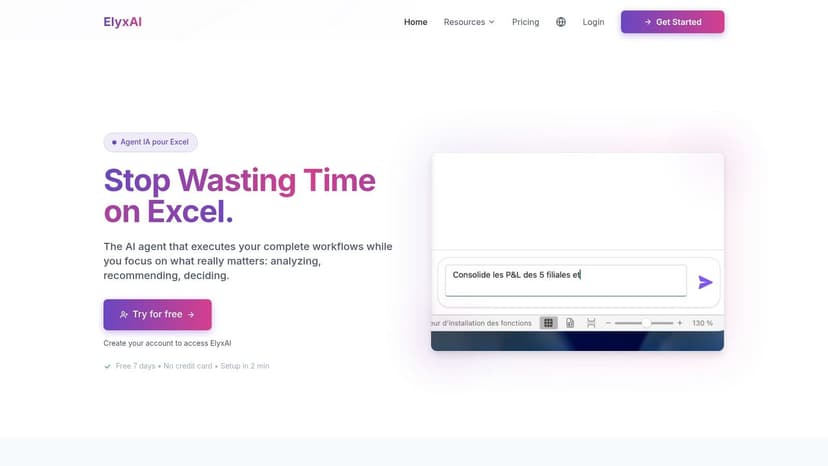
This end-to-end automation is its key differentiator. For example, a project manager could type, “Clean this project data by removing duplicates, create a PivotTable summarizing task status by team, generate a bar chart showing completed tasks, and apply our standard company branding.” Elyx AI reads the file, plans the sequence of actions, and performs them directly in your sheet, saving professionals an average of over three hours per week on repetitive tasks.
Key Features and Strengths
Elyx AI is engineered for professionals who need both performance and security. It leverages Anthropic’s advanced Claude 3.5 Sonnet model for sophisticated reasoning, allowing it to interpret complex requests accurately.
-
Autonomous Workflow Execution: Its ability to chain multiple actions (e.g., cleaning → analysis → visualization → formatting) from one prompt is a significant advantage over tools that handle only single tasks.
-
Robust Security & Privacy: Elyx AI processes files locally. Only your instructions are sent to the AI, not your sensitive data. It employs enterprise-grade AES-256 and TLS 1.3 encryption, and your data is never used for model training.
-
Seamless Integration: As an official Microsoft Partner add-in, it installs directly from Microsoft AppSource in about two minutes. It is compatible with Excel 2021 and newer versions, including Microsoft 365.
-
Verified Credibility: The tool boasts a 4.9/5 customer rating and is trusted by over 700 professionals. Its development was led by a recognized Excel expert with a massive online following.
Practical Tip: To get the best results, be specific in your requests. Instead of saying "make a report," try "create a monthly sales report showing revenue by product category, include a line chart for trends, and highlight the top 3 products."
Pricing and Access
Elyx AI offers a transparent and accessible pricing structure:
-
Free Trial: A 7-day trial is available with 50 credits, no credit card required.
-
Solo Plan: Priced at €19/month for 600 credits.
-
Pro Plan: Priced at €69/month for 2,000 credits and priority support.
-
Enterprise: Custom plans with unlimited requests, dedicated support, and SLA guarantees are available for larger teams.
All plans come with a 14-day satisfaction guarantee and a simple cancellation policy. While the credit system on Solo and Pro plans may be a consideration for extremely high-volume users, it ensures you only pay for what you use. The need for an internet connection and a modern version of Excel (2021+ or Microsoft 365) are the primary requirements. For those interested in a deeper dive, you can explore more about how this tool enhances Excel capabilities and get additional insights on their blog.
Website: https://getelyxai.com
2. Microsoft Copilot (Microsoft 365 Copilot plans)
Microsoft Copilot represents the deepest and most official integration of AI in Excel. As Microsoft's native AI assistant, it is embedded directly within the Excel interface across desktop, web, and mobile platforms for Microsoft 365 subscribers. This approach eliminates the need for third-party add-ins, offering a seamless user experience for those already invested in the Microsoft ecosystem. It's the ideal choice if you prioritize official support, continuous updates, and a single-vendor solution.

With Copilot, you can use natural language prompts to perform complex tasks. For example, you can ask it to "highlight all sales figures below the quarterly average in red" or "generate a pivot table summarizing sales by region and product category." The AI interprets your request and executes the necessary steps, from applying conditional formatting to creating complex data visualizations.
Key Features and User Experience
Copilot excels at transforming raw data into actionable insights without manual effort. A key feature is its ability to generate formulas from plain English. For instance, if you have a sales table and need to sum amounts for a specific date range, you might ask Copilot: "Create a formula to sum the total sales in the 'Amount' column for dates after January 1, 2024." Copilot would then generate the appropriate formula:
=SUMIFS(Sales[Amount], Sales[Date], ">="&DATE(2024,1,1))
Formula Breakdown:
-
=SUMIFS(...): This function sums a range based on one or more criteria. -
Sales[Amount]: This is the range of cells you want to add up. -
Sales[Date]: This is the range of cells where the criteria will be checked. -
">="&DATE(2024,1,1): This is the criterion. It finds dates that are greater than or equal to January 1, 2024.DATE(2024,1,1)creates a valid Excel date.
This functionality saves you from having to remember complex syntax, making advanced analysis more accessible.
-
Native Integration: Access Copilot directly from the Excel ribbon.
-
Data Analysis: Request charts, pivot tables, and insights on the spot.
-
Workflow Automation: Copilot helps you learn more about automating repetitive Excel tasks, speeding up your daily work.
Access and Pricing
Access to Copilot in Excel requires a Microsoft 365 subscription, with specific plans like Copilot Pro for individuals or Copilot for Microsoft 365 for businesses. Pricing is typically a monthly add-on to your existing subscription. A key requirement is that your Excel files must be saved in OneDrive or SharePoint for Copilot to access and analyze the data, which is a consideration for data security and workflow habits.
Pros:
-
Deepest, officially supported integration within Excel.
-
Consistent experience across desktop, web, and mobile.
-
Receives regular updates and new features directly from Microsoft.
Cons:
-
Requires files to be stored on OneDrive/SharePoint.
-
Features and usage limits can vary by subscription plan.
-
The technology is still evolving, with some features in preview.
Visit Microsoft's Copilot Pricing Page
3. ChatGPT for Excel (Apps Do Wonders) — Microsoft AppSource listing
For users seeking powerful AI in Excel without committing to a new Microsoft 365 plan, the "ChatGPT for Excel" add-in from Apps Do Wonders is a top-tier choice. Available directly from the official Microsoft AppSource marketplace, this tool integrates AI capabilities through a versatile sidebar and a set of custom Excel functions. This approach is ideal for individuals or teams who want to add AI features to their existing Excel setup across multiple platforms, including Windows, Mac, and the web version.
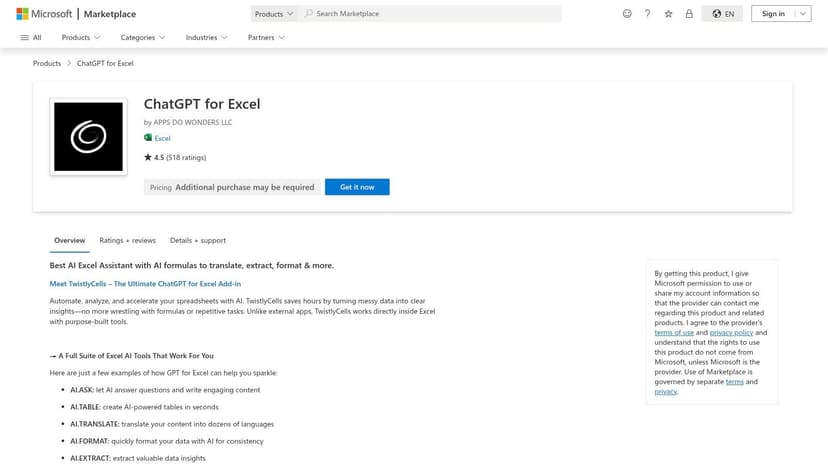
This add-in allows you to leverage AI directly within your spreadsheet cells using simple, prompt-based functions. For example, to find the email address within a block of text in cell C2, you could use a custom function:
=AI.EXTRACT(C2, "email address")
Formula Breakdown:
-
=AI.EXTRACT(...): This is a custom function provided by the add-in. -
C2: The cell containing the text you want to analyze. -
"email address": The specific piece of information you are instructing the AI to find and return.
This makes tasks like data extraction and content generation incredibly efficient. It effectively brings the conversational power of models like GPT-4 and Claude 3 into your workbook.
Key Features and User Experience
The add-in offers a dual interface: a task pane sidebar for conversational queries and custom functions for in-cell operations. This flexibility allows users to choose the best way to interact with the AI for any given task, from cleaning data and generating text to extracting specific information from unstructured content. The experience feels intuitive, extending Excel's native functionality rather than replacing it.
-
Custom AI Functions: Use functions like
AI.ASK,AI.FORMAT, andAI.TRANSLATEdirectly in cells. -
Sidebar Interface: A chat-like pane for more complex requests and interactions.
-
Multi-Model Support: Access to leading AI models from OpenAI (GPT-4, GPT-4o) and Anthropic (Claude 3, Claude 3.5).
-
Cross-Platform: Works consistently across Excel for Windows, Mac, and on the web.
Access and Pricing
You can install the add-in directly from Microsoft AppSource, and it offers a free trial to test its capabilities. Following the trial, various subscription plans are available, including Starter, Pro, and Team options, with enterprise billing also offered. As a third-party add-in, it's important to note that it sends data to external AI services for processing, which may require a security review depending on your organization's data governance policies.
Pros:
-
Strong user ratings and certified presence on Microsoft AppSource.
-
Flexible integration with both custom functions and a sidebar.
-
Works across different Excel versions (desktop and web).
Cons:
-
Requires sending worksheet data over the internet to an external service.
-
Usage limits may apply based on the chosen subscription plan.
-
Relies on a third-party provider for support and updates.
Visit the ChatGPT for Excel AppSource Page
4. Ajelix
Ajelix positions itself as a comprehensive AI workspace for spreadsheets, offering a versatile Excel add-in alongside a suite of web-based tools. It appeals to users who need a broad set of AI-powered features that extend beyond Excel into Google Sheets and other common data-related tasks. This makes it an excellent choice for individuals or teams who work across different spreadsheet platforms and want a single, unified solution for formula generation, data analysis, and document management.

With the Ajelix add-in, you can use natural language to generate complex formulas, explain existing ones, or even translate entire spreadsheet files into different languages. For example, a user could ask, "Create a formula that finds the second-highest sales value in column B for the 'North' region in column A," and Ajelix would generate the appropriate LARGE and IF combination. Its scope goes beyond native Excel, providing tools for tasks like converting PDFs to Excel sheets.
Key Features and User Experience
Ajelix focuses on providing a wide range of practical tools that address common spreadsheet pain points. Its platform is divided between an integrated Excel add-in and a web application, offering flexibility in how you work. The experience is designed to be straightforward, allowing users to quickly access the specific tool they need for a given task.
-
Broad Toolset: Includes formula generation, template creation, and file translation directly within Excel and Google Sheets.
-
Web-Based Utilities: Offers tools for data visualization, script generation, and converting files like PDFs into Excel format.
-
Cross-Platform Support: Works seamlessly with both Microsoft Excel and Google Sheets, a key differentiator from Excel-only solutions.
-
Data Preparation: The platform’s tools assist in the crucial first steps of analysis, aligning with effective data cleaning best practices.
Access and Pricing
Ajelix operates on a freemium model, making its AI in Excel capabilities highly accessible. There is a free tier that provides a limited number of monthly requests, which is perfect for casual users or for testing the platform's features. For more intensive use, Ajelix offers paid subscription plans that provide higher usage limits and access to all tools. This pricing structure offers a low-risk entry point for users to evaluate the service.
Pros:
-
Offers a free plan, making it easy to get started.
-
Wide range of tools covering many common spreadsheet tasks.
-
Supports both Microsoft Excel and Google Sheets.
Cons:
-
As a third-party add-in, it is not as deeply integrated as a native tool like Copilot.
-
The free plan has strict monthly limits, requiring an upgrade for regular use.
5. Formula Bot
Formula Bot is a versatile AI platform that extends beyond simple formula generation, offering a suite of tools for both Excel and Google Sheets. It positions itself as a comprehensive analysis assistant, focusing on natural-language data interaction, file conversions, and workflow automation. This makes it an excellent choice for power users whose tasks involve not just spreadsheet manipulation but also bringing external data into their Excel environment, such as converting PDFs or scraping web content.
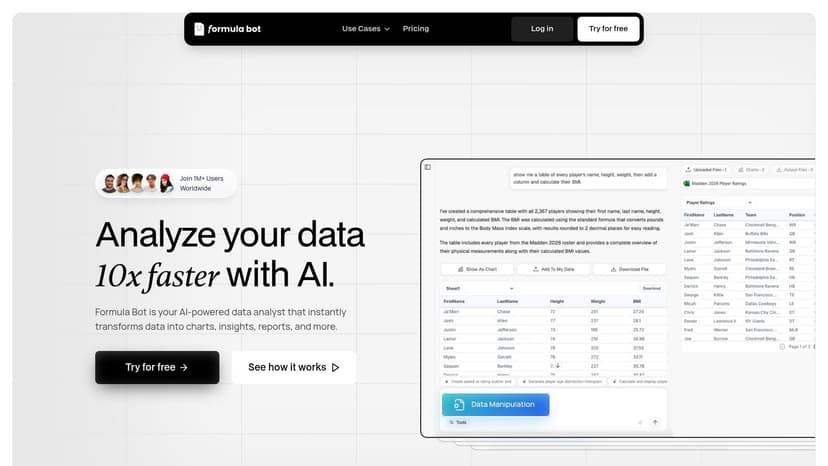
The platform operates through add-ins, allowing you to ask questions like "Summarize monthly revenue and calculate the year-over-year growth rate" directly within your worksheet. It interprets these commands to generate formulas, create summaries, or even build entire automations. Its unique value lies in bundling these spreadsheet-native features with external data tools, creating a centralized hub for data-related tasks.
Key Features and User Experience
Formula Bot is designed for users who need a multi-functional AI in Excel tool. Its add-in integrates a chat-like interface where you can submit requests and get instant results. The platform's "Playbooks" feature allows users to create and save reusable automation sequences, streamlining repetitive tasks.
-
Multi-Platform Support: Offers dedicated add-ins for both Excel and Google Sheets.
-
Advanced Formula Generation: Creates complex formulas from natural language, a key feature for any AI Excel formula generator.
-
Data Conversion Tools: Includes specialized tools to convert PDF files into clean Excel tables.
-
Automation Playbooks: Build, save, and reuse multi-step automations to handle recurring data processing workflows.
Access and Pricing
Formula Bot uses a freemium model with clear pricing tiers. A free plan is available, offering a limited number of requests per month, which is ideal for testing the platform. Paid plans provide significantly more requests and introduce "tool credits" used for premium features like PDF conversions and web scraping. This credit-based system offers flexibility but requires users to manage their usage to avoid unexpected costs.
Pros:
-
Offers a free tier to get started and evaluate the tools.
-
Useful for mixed workflows that involve files, scraping, and enrichment.
-
Supports both Excel and Google Sheets, providing cross-platform utility.
Cons:
-
The credit and message limit system can be complex for budgeting.
-
As a third-party platform, data handling policies should be reviewed for compliance.
-
Requires installing an add-in, unlike native solutions.
6. LinkedIn Learning — Copilot in Excel courses
While AI tools automate tasks, mastering them requires structured learning. LinkedIn Learning offers a dedicated path for users who want to deeply understand and leverage AI in Excel, specifically focusing on Microsoft Copilot. Instead of being an AI tool itself, it's a platform that teaches you how to master the official tool. This makes it an ideal choice for individuals seeking certifications or enterprises looking to standardize team training and ensure everyone can effectively use Copilot for data analysis and reporting.

The platform hosts multiple courses from recognized instructors and analytics firms like Maven Analytics. These courses guide you through practical, real-world scenarios, such as using natural language prompts to create complex financial models or generate insightful data visualizations automatically. By providing hands-on exercise files, learners can practice directly within Excel, bridging the gap between theory and practical application.
Key Features and User Experience
LinkedIn Learning provides a structured, self-paced environment for mastering Copilot. The courses range from short primers for beginners to comprehensive deep dives for advanced users, ensuring there is relevant content for every skill level. The user experience is straightforward, with progress tracking and mobile access.
-
Expert-Led Courses: Learn from reputable instructors who specialize in data analytics and Microsoft products.
-
Hands-On Practice: Downloadable exercise files allow you to follow along and apply concepts in real Excel workbooks.
-
Certificates of Completion: Earn shareable certificates to showcase your new AI skills on your professional profile.
-
Team and Enterprise Options: Companies can license content to train entire departments on using AI in their Excel workflows.
Access and Pricing
LinkedIn Learning operates on a subscription model, which can be purchased monthly or annually. A one-month free trial is often available for new users, providing a risk-free way to explore the courses. Access is granted to the entire library of courses, not just those related to Excel, offering significant additional value. Enterprise pricing is available for organizations looking to deploy the training at scale.
Pros:
-
Structured curriculum ideal for mastering Copilot from the ground up.
-
Reputable instructors and high-quality production value.
-
Excellent for enterprise-wide training and standardization.
-
One-month free trial for new subscribers.
Cons:
-
Course content can sometimes lag behind the newest Copilot features.
-
The quality and depth of courses may vary between different instructors.
-
Requires a subscription, which is an ongoing cost.
7. Microsoft Learn — Free Copilot in Excel modules
For those looking to master the official AI in Excel tool, Microsoft Learn offers the most authoritative and up-to-date training. Instead of being an add-in, it's a free educational platform directly from Microsoft. These task-based modules are designed to give users hands-on experience with Copilot, providing step-by-step guidance on real-world scenarios. It is the best starting point for anyone who wants to ensure they are using Copilot correctly and efficiently, straight from the source.
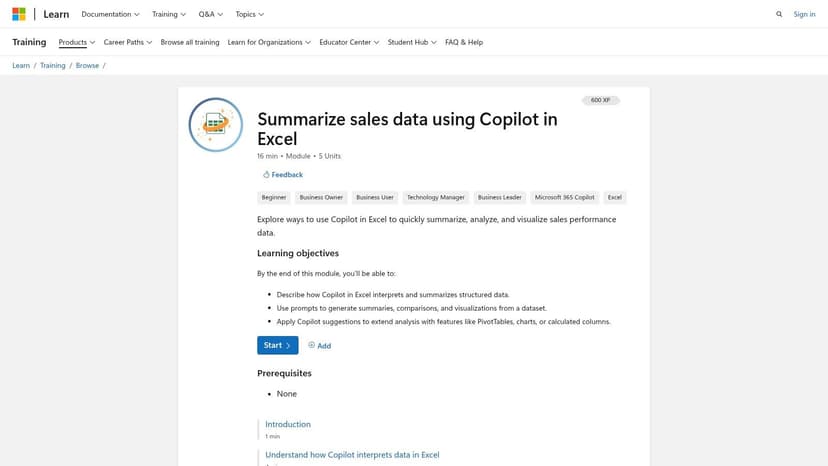
Microsoft Learn focuses on practical application, showing you exactly how to prompt Copilot to summarize data, generate visualizations, or use the Copilot Chat feature for more complex queries. Each module breaks down a specific use case, like analyzing sales data, and guides you through the process. This approach is perfect for building confidence and understanding the full potential of Microsoft's native AI.
Key Features and User Experience
The user experience on Microsoft Learn is clean, structured, and goal-oriented. Each module clearly outlines its learning objectives and prerequisites, allowing you to choose the topics most relevant to your needs. The content includes both text-based explanations and practical exercises to reinforce learning.
-
Task-Based Modules: Learn by doing with focused tutorials like "Summarize sales data using Copilot in Excel" and "Work smarter in Excel with Copilot Chat."
-
Step-by-Step Exercises: Follow clear, actionable instructions that mirror real tasks you would perform in your daily work.
-
Knowledge Checks: Test your understanding with short quizzes at the end of each module to ensure you've grasped the concepts.
-
Official Guidance: The content is created and maintained by Microsoft, guaranteeing it is accurate and reflects the latest Copilot features. This is a great resource if you want to learn Excel faster with AI.
Access and Pricing
All training modules on Microsoft Learn related to Copilot and other Microsoft products are completely free. You only need a Microsoft account to sign in, track your progress, and earn achievements. There are no hidden costs or subscriptions required to access the educational content, making it an incredibly valuable and accessible resource for individuals and teams alike.
Pros:
-
Completely free and authoritative content directly from Microsoft.
-
Short, practical modules that map to real-world Excel tasks.
-
Self-paced learning with progress tracking and knowledge checks.
Cons:
-
Purely educational content; it teaches you how to use Copilot but is not a tool itself.
-
Does not provide access to third-party tools or alternative add-ins.
-
Requires a Copilot subscription to practice the exercises in your own Excel app.
Visit Microsoft Learn's Copilot in Excel Module
AI in Excel — Top 7 Tools Compared
| Tool | Implementation Complexity 🔄 | Resource Requirements ⚡ | Expected Outcomes ⭐📊 | Ideal Use Cases 💡 | Key Advantages ⭐ |
|---|---|---|---|---|---|
| Elyx AI | Low: Install Elyx AI just by search "Elyx" in the add-in search bar within Excel. Compatible with : 2021+/M365 | Internet, supported Excel, credit-based plans or subscriptions (trial/Solo/Pro/Enterprise) | Autonomous multi‑step workflows (cleaning → Pivot → charts → formatting); reported time savings | Finance, accounting, analysts, consultants, repeatable reporting/cleanup | Autonomous end‑to‑end execution; strong local-file security; Claude 3.5 Sonnet; transparent pricing |
| Microsoft Copilot (Microsoft 365) | Low: native rollout via Microsoft 365 licensing | Microsoft 365 subscription; some features require OneDrive | Native AI features across desktop/web/mobile; capabilities evolving with updates | Organizations wanting Microsoft‑native AI and official support | Deep integration with Excel; official Microsoft support and bundled services |
| ChatGPT for Excel (Apps Do Wonders) | Low: AppSource add‑in with sidebar and in‑cell functions | Internet, subscription/plan; supports multiple AI models (OpenAI, Anthropic) | Prompt‑based functions (AI.ASK, AI.FORMAT, AI.EXTRACT) and sidebar assistance | Users wanting in‑cell AI functions without changing M365 plan | Cross‑platform add‑in; multiple model options; AppSource listing |
| Ajelix | Low: add‑in + web tools; supports Excel and Google Sheets | Free tier available; paid plans for higher usage | Formula generation, templates, translations, file analysis and visualization | Users needing a broad spreadsheet toolkit across platforms (Excel & Sheets) | Wide tool coverage beyond chat; Google Sheets support; simple pricing |
| Formula Bot | Medium: add‑ons plus connectors, Playbooks and enrichment flows | Credits model for conversions/enrichments; tiered pricing | Natural‑language analysis, formula generation, PDF→Excel, automations | Power users combining scraping, conversions and enrichment feeding into sheets | Mixed‑workflow support (conversions, enrichment, automations); clear tiers |
| LinkedIn Learning — Copilot in Excel courses | Very Low: enroll and follow structured courses | LinkedIn Learning subscription (one‑month trial available) | Instructor‑led, hands‑on training with exercise files and certificates | Teams or individuals standardizing Copilot skills and workflows | Structured courses, exercise files, certificates; enterprise training options |
| Microsoft Learn — Free Copilot modules | Very Low: free task‑based modules and labs | Free; Microsoft account | Bite‑sized, authoritative task modules covering Copilot scenarios | Self‑learners and IT pros seeking official guidance and quick learning | Free, official, up‑to‑date Microsoft guidance and exercises |
From Manual Tasks to Strategic Impact: Your Next Step with AI
Navigating the world of AI in Excel can feel like stepping into a new era of data management, and in many ways, it is. We've journeyed through a landscape of powerful tools, from Microsoft's built-in Copilot and specialized add-ins like ChatGPT for Excel to dedicated autonomous agents like Elyx AI. The common thread among them all is a fundamental shift in how we interact with our spreadsheets. The days of painstakingly writing nested formulas or manually cleaning thousands of rows are quickly being replaced by a more collaborative, conversational approach to data analysis.
The key takeaway is that the true power of AI in Excel isn't just about generating a single formula or chart on command. It's about automating entire workflows. Think about the difference between asking an assistant for a single calculation versus handing them a raw dataset and saying, "Clean this, create a sales summary pivot table, visualize the quarterly trends, and format it for a presentation." The latter delivers exponentially more value and saves significantly more time. This workflow-centric automation is the benchmark for a truly transformative tool.
Choosing the Right AI Tool for Your Needs
As you consider which tool to integrate into your daily tasks, your choice will depend on your specific goals.
-
For learning and foundational skills: Resources from Microsoft Learn and LinkedIn Learning are excellent starting points to understand the capabilities of native tools like Copilot. They provide a structured path to build confidence.
-
For formula generation and quick fixes: Tools like Formula Bot and Ajelix excel at translating natural language into complex Excel formulas, serving as powerful assistants for specific, isolated tasks.
-
For comprehensive, multi-step automation: If your goal is to delegate entire processes from start to finish, an autonomous agent like Elyx AI is designed for that purpose. It connects the dots between cleaning, analysis, and reporting without requiring step-by-step instructions for each action.
When implementing any AI in Excel solution, always consider your organization's security and privacy policies. Review how each tool handles your data, especially if you work with sensitive information. Beyond general data analysis, AI also plays a crucial role in managing and transforming complex regulatory data, turning what were once manual tasks into strategic insights. For example, specialized applications are emerging for complex reporting needs, as seen with AI in CSRD ESG Data Collection, showcasing the broad impact of this technology.
Ultimately, the goal is to transform your role from a data manipulator into a data strategist. By offloading the repetitive, mechanical work to an AI partner, you free up your cognitive resources to focus on what truly matters: interpreting the results, uncovering insights, and making informed decisions that drive your business forward. The future of productivity isn't about working harder; it's about working smarter, and the right AI tool is your key to unlocking that potential.
Ready to stop managing spreadsheets and start driving strategy? Elyx AI acts as your autonomous data analyst, handling complex, multi-step Excel workflows so you can focus on high-impact decisions. Experience the future of spreadsheet automation by starting your free trial of Elyx AI today.
Reading Excel tutorials to save time?
What if an AI did the work for you?
Describe what you need, Elyx executes it in Excel.
Sign up