11 Practical Ways to Use AI for Excel to Automate Your Work

Think of AI for Excel as having a smart assistant built right into your spreadsheet. It’s a tool that understands plain English, letting you ask it to clean data, build reports, or create complex formulas just by describing what you need. The goal? To finally get rid of the soul-crushing manual work.
What Are the 3 Core Functions of AI for Excel?
Imagine having a data analyst on call, ready to jump in and handle the most tedious parts of your job. That's really the heart of what AI for Excel brings to the table. It turns your familiar grid of cells from a passive tool—one that needs you to manually input every command—into an active partner that understands your objectives.
Instead of spending an afternoon wrestling with VLOOKUPs, painstakingly cleaning up messy datasets, or building charts one element at a time, you just tell the AI what you're trying to accomplish. Most of these tools use a simple chat-like window where you type your request, and the AI translates it into the exact actions needed within your spreadsheet.
Spending too much time on Excel?
Elyx AI generates your formulas and automates your tasks in seconds.
Sign up →1. From Manual Clicks to Intelligent Commands
For decades, getting good at Excel meant memorizing the right functions and the precise sequence of clicks to get a result. AI tools flip that script entirely. Now, you can hand off the "how" and just focus on the "what."
This is a massive shift, especially when you consider that over 203,913 verified companies rely on Excel for everything from financial modeling to inventory tracking. Professionals at massive firms like Walmart and Apple are in spreadsheets all day, so any tool that cuts down on manual effort makes a huge difference.
Here’s a glimpse of what an AI-powered workspace looks like inside Excel.

As you can see, the interface doesn't take over your screen. It sits right alongside your data, letting you give commands while the AI works directly on your sheet.
2. A New Way of Working With Data
Not all AI for Excel is created equal. The tools range from simple helpers to truly autonomous agents. To see how things have changed, let's compare the different ways you can get work done.
To illustrate this shift, the table below breaks down how a common task is handled with and without AI.
3. The Evolution of Excel Workflows: A 3-Way Comparison
| Task | Traditional Excel (Manual) | Simple AI Assistant (e.g., Formula Generators) | Autonomous AI Agent (e.g., Elyx.AI) |
|---|---|---|---|
| Data Cleaning | Manually find and replace errors, remove duplicates, and reformat columns. | Ask for a formula to fix a specific issue (e.g., "formula to remove extra spaces"). | "Clean this entire dataset by removing duplicates, standardizing formats, and filling in missing values." |
| Report Building | Create PivotTables, write SUMIFS, and manually structure the layout. | Ask for a PivotTable suggestion or a complex formula, then implement it yourself. | "Create a Q3 sales report summarizing revenue by product and region, then visualize it." |
| Data Analysis | Write formulas to calculate trends, then build charts to visualize them. | "Give me a formula to calculate month-over-month growth." | "Analyze sales trends for the last year and highlight the top 3 performing products in a chart." |
The difference is clear. While simple assistants help with one-off tasks, autonomous agents can take a high-level goal and execute the entire project from start to finish.
Key Takeaway: The whole point of AI in Excel is to close the gap between what you want to do and the technical steps required to do it. By understanding your intent, these tools let you achieve sophisticated results without needing to be a formula guru.
This new way of working doesn't just save time—it makes powerful data analysis accessible to everyone, not just the experts. You can see more about how a dedicated Excel AI add-in can automate your workflow.
5 Ways AI Automates Data Cleaning and Preparation
Ask anyone who works with data what their biggest time-waster is, and you'll likely hear the same answer: cleaning the data. It's not a secret that data scientists can spend a staggering 80% of their time just preparing and tidying up datasets before any real analysis can even begin. This work is tedious, but it’s absolutely essential for getting accurate results.
This is where AI for Excel completely changes the game. Instead of fighting with complicated formulas or fixing errors one by one, you can now just tell an AI agent what you need, and it handles the cleanup for you.
This means you can jump straight to the valuable part of your job—finding insights and making decisions—way faster than before. Let’s walk through five real-world examples of how AI automates this drudgery with simple, conversational commands.
1. Removing Duplicate Entries Instantly
Duplicate records are a classic problem. They throw off your totals, skew reports, and generally make a mess of your data. Trying to hunt them down manually in a massive spreadsheet is a recipe for a headache.
- Before AI: You’d have to use Excel's built-in "Remove Duplicates" tool. It works, but it involves carefully selecting the right columns and clicking through several steps, which can really drag on large files.
- With AI: You just type, "Find and remove all duplicate rows in this sheet." That’s it. The AI scans everything, identifies rows that are perfect matches, and gets rid of them in seconds, leaving you with a clean, unique dataset.
2. Standardizing Inconsistent Text
Here’s another all-too-common issue: a column of country names that has "USA," "U.S.," "United States," and "America" all mixed together. They all mean the same thing, but to a spreadsheet, they're all different.
Trying to fix this by hand usually means tangled IF statements or endless find-and-replace sessions. A formula to fix just two of those variations would look something like this:=IF(ISNUMBER(SEARCH("USA",C2)),"United States",IF(ISNUMBER(SEARCH("U.S.",C2)),"United States",C2))
Explanation of the Formula:
SEARCH("USA",C2): This function looks for the text "USA" inside cell C2.ISNUMBER(...): This checks ifSEARCHfound a match (it returns a number) or not.IF(...): The firstIFstatement checks for "USA". If it's found, it returns "United States". If not, it moves to the nextIFstatement, which does the same thing for "U.S.". If neither is found, it returns the original value from cell C2.
Now, imagine doing that for dozens of different spellings. No thank you.
- With AI: Your command is simple: "Standardize all country names in column C to the official full name." The AI gets what you mean and intelligently unifies all the different versions into one consistent format. You can see more about how this works in our guide to AI-powered data cleaning.
3. Intelligently Filling Missing Values
Blank cells are trouble. They can break your formulas and throw off your entire analysis. How you fill them—with a zero, the column average, or the most common value—really depends on what the data represents.
- Before AI: This was a multi-step process. First, filter to find the blank cells. Then, calculate the average or mode in another cell. Finally, copy and paste that value into all the empty spots.
- With AI: You can give a much smarter command, like "Fill any missing sales figures in column F with the average for that product category." The AI doesn’t just see a blank cell; it understands the context and fills it in based on the relationships in your data.
4. Correctly Splitting and Merging Columns
Sometimes your data just isn't organized the way you need it. You might get a "Full Name" column when what you really need is "First Name" and "Last Name" separately.
Excel's "Text to Columns" feature can sort of do this, but it gets easily confused by things like middle names, initials, or suffixes.
- With AI: A straightforward request like "Split the 'Full Name' column into separate 'First' and 'Last' name columns" is all it takes. The AI is smart enough to handle the tricky variations. It works just as well the other way around, too, easily merging separate columns into one.
5. Reformatting Data for Consistency
Inconsistent formatting can stop you dead in your tracks. If dates in a single column show up as "10/05/2024," "May 10, 2024," and plain text, you won't be able to sort or perform calculations correctly.
The Power of AI: Instead of manually reformatting each cell or wrestling with confusing date functions, an AI agent can understand and standardize all these different formats from a single, simple instruction.
- With AI: You just tell it what you want: "Convert all dates in column B to the YYYY-MM-DD format." The tool recognizes all the different styles and automatically aligns them into one uniform structure. Just like that, your data is clean, consistent, and ready for analysis.
6 Steps to Build Automated Reports and Dashboards with AI
Let's be honest, building a professional-looking report or dashboard in Excel has always been a bit of a project. You’d block off your calendar for a few hours, meticulously clean up your data, wrestle with pivot tables, and then spend what felt like forever designing charts to make it all look presentable.
With a capable AI agent plugged into Excel, that entire workflow gets compressed from hours into just a few minutes.

The real magic here is the AI's ability to understand a high-level goal and then execute all the little steps needed to get there. You don't have to guide it through every click. You just describe the finished product you have in your head.
Let's walk through how you can take a messy dataset and turn it into a polished, ready-to-share dashboard with a few simple prompts.
1. Describe Your Desired Report in Plain English
It all starts with your goal, not a formula. Forget about Excel jargon for a moment. Just open the AI chat and explain what you want to see, as if you were asking a colleague for help.
For instance, you might type:
"Analyze this sales data. I need a report that shows total revenue by product category and region for the last quarter."
That one sentence is enough to kick things off. The AI reads your request, quickly gets the lay of the land by scanning your data, and figures out the best way to build what you asked for.
2. Let the AI Automatically Create Pivot Tables
Pivot tables are the engine behind most Excel reports, but getting them right can be fiddly. All that dragging and dropping fields into the right boxes takes time and can be frustrating. With AI, you just skip this step entirely.
Based on your initial request, the AI will generate the exact pivot tables needed to summarize your information. It automatically figures out that "Product" is a category, "Region" is a location, and "Revenue" is the number you want to add up. No manual work required.
3. Prompt the AI to Generate Relevant Charts
A wall of numbers rarely tells a story. Visuals are what bring data to life. Instead of manually highlighting data and fumbling through the chart menu, you can just tell the AI what you want to see next.
You could follow up with prompts like:
- "Create a bar chart showing the revenue for the top 5 product categories."
- "Add a line chart to visualize the monthly sales trend over the last quarter."
The AI will instantly create the charts and place them on your sheet, intelligently picking the right chart type for the job. For a closer look at how AI helps with this, check out our guide on AI-powered data analysis.
4. Instruct the AI to Apply Professional Formatting
A report that looks thrown together doesn't inspire much confidence. Usually, this is where you’d start the tedious process of adjusting fonts, applying brand colors, and adding borders. With AI for Excel, you can hand off this entire design job.
Just give it a simple command:
"Format this report professionally. Use our company colors, bold the headers, and add clear borders to all tables and charts."
Think of the AI as your personal graphic designer. It will clean up the layout, apply consistent formatting, and make sure the whole dashboard looks polished and ready for a presentation. This step alone is a huge time-saver.
5. Ask the AI to Highlight Key Metrics
A good dashboard does more than just display data—it focuses attention on what’s important. You can have the AI calculate and call out the key performance indicators (KPIs) that really matter.
For example, you could ask it to:
- "Calculate the year-over-year growth for each product category and highlight any that are below 5% in red."
- "Add a summary box at the top showing total quarterly revenue and the overall profit margin."
Suddenly, your static report becomes a dynamic tool that shows critical business insights at a glance.
6. Have the AI Generate Trend Analysis and Insights
The final step is moving from what happened to why it happened. This is where an advanced AI really proves its worth. You can ask open-ended questions to find patterns you might have otherwise missed.
You could try something like:
"Analyze the sales data and provide a short summary of the key trends. What were the main drivers of growth last quarter?"
The AI will comb through the numbers and give you a written summary right there in your spreadsheet, turning raw data into a clear, actionable story.
This kind of rapid reporting is quickly becoming a must-have. The AI Data Management market is projected to explode from $26.03 billion in 2025 to $124.6 billion by 2034, according to research from Precedence Research. This massive growth underscores just how critical intelligent data tools are becoming for businesses everywhere.
A Look at the 3 Main Types of AI Tools for Excel
Dipping your toes into AI for Excel can feel like trying to choose from a thousand-item menu. New tools pop up all the time, and it’s tough to tell what separates one from another. The truth is, not all AI tools are created equal. They generally fall into three distinct camps, each built to solve a different kind of problem.
Figuring out these differences is the key to picking the right one for what you actually need to get done. You wouldn't bring a hammer to a job that needs a screwdriver. Let's break down the three main flavors of AI assistants you'll come across.
1. Formula Generators and Explainers
This is the most common entry point into AI for Excel. Think of these tools as a hyper-intelligent translator that converts your everyday language into the specific syntax of Excel formulas. You just describe what you want to do, and it spits out the exact formula to make it happen.
- What they do: You can ask, "How do I add up all the sales from the 'East' region?" and it will give you the right
SUMIFSformula. They also work in reverse, taking a confusing, nested formula someone else wrote and explaining what on earth it’s actually doing. - Best for: Quick, one-off tasks and learning new functions. They’re perfect for getting past a specific roadblock without having to dig through old forums.
- Limitations: They don't actually do the work for you. You still have to copy the formula, paste it into the right cell, and drag it down. They’re helpers, not doers.
2. Basic Task Automators
The next step up involves tools that handle simple, single-step actions directly in your worksheet. Microsoft Copilot is probably the most famous example here, as it’s being built into the entire Office ecosystem. These assistants can understand slightly broader commands and execute them for you.
You might tell one of these tools, "Create a pivot table from this data," or "Sort this sheet by the 'Profit' column from highest to lowest." They’re fantastic for speeding up common actions you already know how to do but would rather not click through yourself.
The Big Difference: Basic automators are great at executing one clear command. Where they stumble is with multi-step projects. They can't really grasp a high-level goal that requires a sequence of different actions to achieve.
When looking at automation, it's also worth knowing about broader ecosystems like the Microsoft Power Platform, which provides much deeper, low-code automation that can hook into Excel and other apps.
3. Autonomous End-to-End Agents
This is where things get really interesting. An autonomous agent, like Elyx.AI, is designed to act less like a tool and more like a junior data analyst sitting next to you. Instead of feeding it a series of small commands, you give it a high-level project goal, and it manages the entire workflow on its own.
For example, you could give it a prompt like this:
"Take this messy sales data, clean it up, build a report summarizing revenue by product and region, create charts for the top 5 products, and format the final dashboard so it looks professional."
An autonomous agent understands that this is a multi-step request. It figures out the logical order of operations and just gets it done—no hand-holding required. This is the difference between asking for a formula and delegating the entire project. You can see how different tools stack up by checking out this list of the best AI tools for Excel.
To make it even clearer, the table below gives you a side-by-side look at how these three types of tools stack up against each other.
Comparison of 3 AI Tool Categories for Excel
This table breaks down the key differences between the three main categories of AI tools for Excel, showing what each is best suited for.
| Feature | Formula Generators | Basic Task Automators | Autonomous Agents |
|---|---|---|---|
| Primary Function | Translates text to formulas | Executes single commands | Manages entire projects |
| Example Task | "Give me a VLOOKUP formula" | "Create a bar chart" | "Analyze this data for trends" |
| User Interaction | One-off questions | Single, direct instructions | High-level objectives |
| Workflow | User must copy/paste & apply | Performs one action at a time | Executes a full sequence of tasks |
| Best For | Learning formulas, quick fixes | Speeding up repetitive tasks | Complex analysis, reporting |
| Technical Skill | User needs to know where to use it | User directs each step | User provides the goal |
As you can see, the right tool really depends on the complexity of the job. For a quick calculation, a formula generator is perfect. For a full-blown analysis, only an autonomous agent can handle the entire process from start to finish.
3 Critical Factors for Data Security and Privacy with AI
When you're dealing with financial projections, customer lists, or any other sensitive business data, the last thing you want is for it to end up somewhere it shouldn't. This is a huge, and completely valid, concern for anyone thinking about using an AI for Excel tool. Before you even consider installing one, you need to understand how it handles your information.
The security of your data really boils down to how the tool is built. Many early AI tools work on a simple but risky model: they upload your entire spreadsheet, or at least a big chunk of it, to a cloud server where the AI does its thing. While that sounds efficient, it opens up a massive security hole by sending your raw, sensitive data across the internet.
1. Keeping Your Data on Your Machine
Thankfully, there's a much safer way to do things, often called a privacy-first architecture. This approach completely changes the game for data security. Instead of uploading your spreadsheet, these tools are designed to keep all your data right where it belongs: on your local computer.
The only thing that ever gets sent to the AI is your instruction—the plain-English request you type in. The AI processes that anonymized command, figures out the steps needed to get the job done, and sends those instructions back. All the work is then carried out locally, right inside your Excel file.
Key Takeaway: With a privacy-first model, your sensitive data never leaves your machine. The AI gets the instructions, not the information, which all but eliminates the risk of a data breach.
This decision tree can help you think about which tool fits your needs, and security should always be part of that calculation.
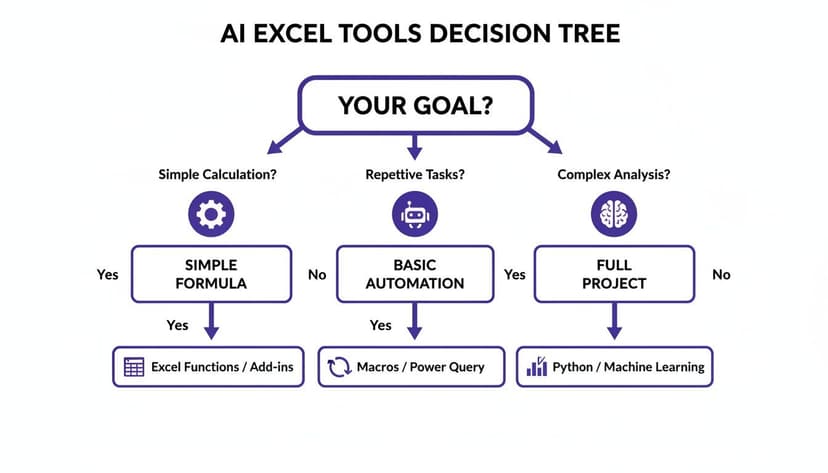
As you can see, whether you need a simple formula or a full-blown project analysis, the security of the tool you choose is fundamental.
2. What to Look for in a Secure AI Tool
So, how can you tell if an AI tool was actually built with your privacy in mind? A few key signals and technical standards can help you separate the professionally vetted tools from the ones that might put your data at risk.
Here’s a quick checklist of what I consider non-negotiable security features:
- Official Microsoft AppSource Verification: This is your first and most important checkpoint. An add-in listed on the official Microsoft AppSource has been reviewed by Microsoft for security and compliance. It’s a huge vote of confidence that the tool is legitimate and safe.
- A Strict No-Data-Storage Policy: Dig into the privacy policy. It should state, in no uncertain terms, that it does not store your data or use it to train AI models. Your information should be processed and then immediately forgotten.
- Enterprise-Grade Encryption: Any communication between the Excel add-in and the AI model has to be locked down with strong encryption. Look for standards like AES-256 and TLS 1.3, which make sure your instructions are unreadable to anyone trying to snoop.
By making these criteria your priority, you can bring AI into your workflow without ever having to worry about compromising the confidentiality of your most important information.
How to Start Using AI in Your Excel Workflow in 3 Steps
Getting started with AI in Excel is a lot faster and easier than most people think. You don't need to be a tech wizard or sit through a long setup process. In fact, you can have a powerful AI assistant running right inside your spreadsheet in about two minutes and start automating your work right away.
This isn't just a neat trick; it's a real opportunity to get ahead. Generative AI is hitting a tipping point—a staggering 92% of Fortune 500 companies are already using it. With 71% of organizations now deploying intelligent systems, the pressure is on to work smarter. This wave of intelligent automation is expected to create $300 billion in annual value for industries by 2035, and it’s fueled by the exact kind of productivity boosts you get from AI in Excel.
Your First 3 Steps with AI Integration
The best tools are designed to be completely frictionless. Most top-tier AI add-ins are available directly from the official Microsoft AppSource, which means they've already been checked for security and reliability.
Here’s a simple three-step plan to go from curious to productive in just a few minutes:
- Install from Microsoft AppSource: In Excel, head to the "Insert" tab and click "Get Add-ins." Search for an AI tool like Elyx.AI and install it with a couple of clicks.
- Activate a Free Trial: Secure tools like Elyx.AI offer a no-strings-attached free trial. You can start it instantly without pulling out your credit card, so there's nothing holding you back.
- Run Your First Command: Once the AI panel is open, select your data and give it a real task. Don't start small—see what it can do with a genuine piece of your work.
That’s all it takes to get up and running. Of course, to keep your data safe, it's always a good idea to be familiar with solid application security best practices.
3 Powerful First Tasks to Try
To see a real impact right away, give the AI a multi-step task that would normally take you at least 30 minutes. The goal here is to see how an autonomous agent can handle an entire workflow from just one instruction.
Pro Tip: Think big. Instead of giving it a series of tiny commands, state your high-level goal and let the AI figure out the steps.
Here are a few great starter prompts to try:
- "Analyze this sales data. Create a summary report showing revenue by product and region, then add charts to visualize the top 5 products."
- "Clean this entire dataset. Remove all duplicate rows, standardize the country names in column D, and fill any blank cells in the 'Sales' column with the average."
- "Build a project dashboard. Summarize task status from column F and create a pie chart showing the percentage of tasks that are 'Completed,' 'In Progress,' and 'Not Started.'"
Starting with a meaningful, real-world task will immediately show you how an AI for Excel can free up hours in your week. You can learn more about how an Excel AI add-in streamlines these processes on our site.
4 Frequently Asked Questions About AI in Excel
Jumping into any new technology brings up a lot of questions. If you're wondering how AI tools really work inside Excel and what they mean for your data, you've come to the right place. Here are straightforward answers to the questions we hear most often.
1. Is My Data Safe When I Use an AI Add-in?
This is usually the first question on everyone's mind, and for good reason. The short answer is: it depends entirely on the tool’s design. The most secure AI add-ins are built using a privacy-first model.
What does that mean? It means your actual spreadsheet data—the numbers, names, and all the specifics—never leaves your computer. The only thing sent out for processing is your text instruction, like "create a pivot table from this data."
To be sure your information is safe, always look for tools officially verified on the Microsoft AppSource. A quick scan of their privacy policy should also confirm they use enterprise-grade encryption and have a clear policy of not storing your data.
2. How Is an Autonomous Agent Different from Microsoft Copilot?
This is a great question that gets to the heart of how these tools operate. While Microsoft Copilot is fantastic for tackling one-off tasks, an autonomous agent is built to handle an entire project from start to finish.
Here's a simple way to think about it:
- Copilot: You’d ask it to "sort this table by sales." It’s perfect for that single, specific action.
- Autonomous Agent: You could give it a much bigger goal, like, "Clean this messy data, build a sales report by region, chart the top 5 products, and give it a professional format." The agent then executes all those steps in order, on its own.
One is about getting help with a specific step; the other is about delegating the entire workflow.
3. Do I Need to Be an Excel Guru to Use These Tools?
Not at all—and that’s really the whole point. These tools are designed to close the skill gap, putting high-level data analysis within everyone's reach.
Instead of wrestling with complex functions like VLOOKUP or INDEX/MATCH, you just describe what you want to achieve in plain English. The AI takes care of all the technical heavy lifting behind the scenes. This allows anyone on your team to create expert-level reports and find insights, which saves a ton of time.
This simple shift lets you focus on the 'what'—your strategic goals—instead of getting stuck on the 'how' of tricky Excel formulas. It truly opens up data analysis for your entire team.
4. Can AI Actually Help Me Find Insights in My Data?
Absolutely. This is where modern AI really shines. It goes way beyond just cleaning up cells and formatting tables. The more advanced AI agents are brilliant at finding the story hidden in your numbers.
You can ask them to run a trend analysis, spot weird outliers that you might have missed, or even summarize the key takeaways from a huge dataset. For instance, you could pose a broad question like, "What are the most important trends in this quarterly sales data?" The AI will dig in and come back with a text summary of what it found, helping you turn raw data into smart business decisions in a fraction of the time.
Ready to stop wrestling with manual Excel tasks and start automating your work? Discover how Elyx AI can save you 3+ hours every week by taking on your data cleaning, reporting, and analysis from a single command. Start your free trial today and see what the future of spreadsheets feels like.
Reading Excel tutorials to save time?
What if an AI did the work for you?
Describe what you need, Elyx executes it in Excel.
Sign up