How to Add Up a Column in Excel: A Practical Guide

Let's get straight to it. If you need to add up a column in Excel and want the answer now, click the first empty cell under your numbers and hit Alt + = on your keyboard. On a Mac, it's Command + Shift + T. That’s it. Excel will instantly drop in a SUM formula for you.
Your Quickest Ways to Sum a Column in Excel

Tallying up numbers is one of the first things anyone learns in a spreadsheet. It’s the bedrock of everything from a simple budget to detailed financial reports. With Excel being used by an estimated 1.1 billion people worldwide, knowing how to do this quickly isn't just a nice-to-have; it's a fundamental skill. You can dig into more of these numbers in this Microsoft Excel statistics report.
Spending too much time on Excel?
Elyx AI generates your formulas and automates your tasks in seconds.
Sign up →Before we get into fancy conditional sums and filtered lists, let’s nail down the two core methods you'll use 90% of the time. These are the workhorses for getting a quick total.
The AutoSum Shortcut
AutoSum is your best friend when speed is the priority. It's built for exactly this purpose: getting a total in a flash.
Just click the cell right below the column of numbers you need to add. Then, look for the Σ (Sigma) symbol on the Home tab and give it a click. Excel is smart enough to look at the data directly above and write the SUM formula for you.
Pro Tip: Forget the mouse. The real power move is the keyboard shortcut. Click that cell below your data and press
Alt + =(orCmd + Shift + Ton a Mac). You’ll get the same result in a fraction of a second.
The Foundational SUM Function
Sometimes you need a bit more control, and that's where manually typing the SUM function comes in. It's the most flexible way to add things up.
Click the cell where you want your total, and just start typing =SUM(. From there, you can either type the cell range (like C2:C100) or—even easier—click and drag your mouse over the cells you want to include. Once you've selected your range, just type a closing parenthesis ) and hit Enter.
Your formula will look something like =SUM(C2:C100), which is easy to read and adjust later. This direct approach is perfect when you need to sum columns that aren't next to each other or when you're building a more complicated formula from scratch.
When you're ready to move beyond simple sums and into deeper data analysis, our guide on how to use Pivot Tables in Excel is a great next step.
For a quick reference, here's a breakdown of the fastest methods we just covered.
Quick Methods for Summing a Column
| Method | Best For | Example Formula/Shortcut |
|---|---|---|
| AutoSum Shortcut | Getting an instant total of an adjacent range. | Alt + = or Cmd + Shift + T |
| SUM Function | Maximum control, summing non-adjacent ranges. | =SUM(C2:C100) |
| Status Bar | A quick, non-formula check of a selected range. | Highlight cells and look at the bottom-right corner. |
These simple techniques will handle most of your daily summation tasks, saving you valuable time and clicks.
Mastering the SUM Function for Accurate Totals
While shortcuts are fantastic for a quick total, you’ll want to get comfortable with the most fundamental building block for adding things up in Excel: the SUM function. This is the engine behind most of your calculations, and it gives you a level of flexibility and precision that shortcuts just can't offer.
It's a skill worth mastering. Office workers spend over one-third of their day in Excel, with spreadsheet work making up a whopping 37% of their daily tasks. That's a huge chunk of the workday, as highlighted in this in-depth analysis on how people use Excel. Getting the SUM function right isn't just a "nice to have"—it's essential.
Breaking Down the SUM Formula
At its heart, the SUM function has a very straightforward structure, what we call its syntax:
=SUM(number1, [number2], ...)
Let's quickly break that down:
=: This is the command that tells Excel to start adding. Remember, every formula in Excel kicks off with an equals sign (=).SUM(): This is the function name. It tells Excel what operation to perform—in this case, addition.number1: This is the first thing you want to add, and it's required. It can be a single number (like10), a cell reference (likeC2), or a whole range of cells (likeC2:C100).[number2]: This part is optional. You can keep adding up to 255 different numbers, cells, or ranges just by separating them with commas.
So, if you wanted to add up project expenses listed in cells D2 all the way down to D50, your formula would be =SUM(D2:D50). You can type that range in by hand, but it’s usually faster to type =SUM( and then just click and drag your mouse over the cells you want to include.
Practical Applications of SUM
The real magic of the SUM function is how adaptable it is. You're not stuck with just adding up one single, continuous column.
Let's say you need to find the total sales for January and March, but February's numbers are in a different part of your worksheet. No problem. If January's sales are in the range B2:B31 and March's are in D2:D31, you can sum them both in one go:
=SUM(B2:B31, D2:D31)
This ability to cherry-pick different data sets is what makes the SUM function so powerful for building custom reports and summaries. If you'd like to explore its full potential, read our comprehensive guide on the SUM function.
Pro-Tip: The Formula-Free Spot Check
Need a quick total without actually adding a formula to your sheet? Just highlight the column of numbers. Now, look down at the Status Bar in the bottom-right corner of your Excel window. Excel instantly shows you the Sum, Count, and Average of whatever you've selected. It's my go-to trick for verifying data on the fly.
Getting Totals Based on Specific Conditions
A simple grand total is often just the starting point. The real insights come when you start asking more specific questions about your data. What if you need to add up a column, but only for rows that meet certain criteria?
For instance, instead of just summing all your sales, you probably need to know the total for a specific product line, from a particular sales region, or within a certain date range. This is a daily task in business reporting, and thankfully, Excel has powerful functions designed just for this.
This is where we move from a basic sum to a conditional sum. Knowing which tool to grab for the job is half the battle.
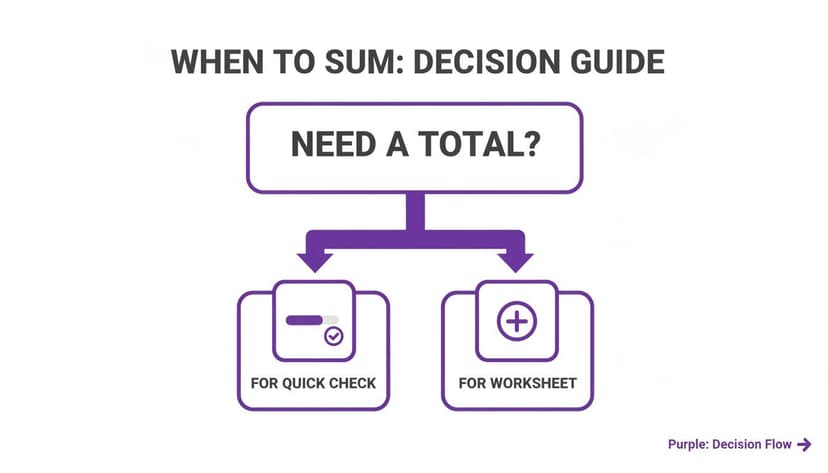
As the guide shows, when you need precise totals baked into your worksheet, dedicated functions are the answer. Let's dive into the two most important ones: SUMIF and SUMIFS.
Using SUMIF for a Single Condition
When you need to sum values based on just one rule, the SUMIF function is your go-to solution.
Imagine you have a list of product names in column A and their sales in column B. You don't care about the grand total; you just want to see the total sales for "Laptops." This is a perfect job for SUMIF.
The SUMIF function is structured like this:
=SUMIF(range, criteria, [sum_range])
Here's a detailed explanation of each part:
range: This is where Excel should look for your condition. In our example, it's the column of product names (A2:A100).criteria: This is the rule itself. It could be text like"Laptops", a number, or a logical comparison like">500".[sum_range]: This optional argument is the column of numbers Excel will actually add up when it finds a match. For our scenario, this would be the sales figures inB2:B100.
So, for our example, the complete formula would be:=SUMIF(A2:A100, "Laptops", B2:B100)
Excel goes down column A, and every time it sees the word "Laptops," it grabs the number from the same row in column B and adds it to the total. If you want to master this, our full guide on using the SUMIF formula in Excel is a great next step.
Handling Multiple Conditions with SUMIFS
What happens when your questions get more complex? You might need to find the total sales for "Laptops" (your first condition) but only from the "North" region (your second condition). This is a job for SUMIFS—notice the 'S' on the end.
The SUMIFS function is built to handle multiple criteria across several columns. Its syntax is a little different, with the range you want to sum placed right at the beginning:
=SUMIFS(sum_range, criteria_range1, criteria1, [criteria_range2, criteria2], ...)
Let's break that down with a real-world example:
sum_range: The column of numbers to add (e.g., Sales inC2:C100).criteria_range1: The first column to check for a rule (e.g., Products inA2:A100).criteria1: The rule for that first column (e.g.,"Laptops").criteria_range2: The second column to check (e.g., Region inB2:B100).criteria2: The rule for that second column (e.g.,"North").
Putting it all together, the formula is:=SUMIFS(C2:C100, A2:A100, "Laptops", B2:B100, "North")
This formula is much stricter. It will only add a number from column C if the corresponding row has "Laptops" in column A and "North" in column B. This kind of precise filtering is the backbone of any good dashboard or report.
Think about the scale of this. With over 1.3 million companies in the US alone using Excel, countless business-critical decisions rely on formulas like these being built correctly. Getting conditional sums right isn't just a spreadsheet trick; it's a fundamental business skill.
To help you decide which function to use and when, here’s a quick comparison of the most common summing functions in Excel.
Choosing the Right Function for Your Summation Task
| Function | Primary Use Case | Handles Filtered Data? | Handles Errors? | Example Scenario |
|---|---|---|---|---|
| SUM | Simple, straightforward addition of all values | No | No | Getting the grand total of all sales for the month. |
| AutoSum | A quick, one-click shortcut for the SUM function | No | No | Instantly adding a column or row of numbers without typing a formula. |
| SUBTOTAL | Summing only the visible cells in a filtered list | Yes | No | Calculating total sales for a specific region after filtering the data table. |
| SUMIF | Summing values that meet a single condition | No | No | Finding the total revenue generated from a single product, like "Laptops." |
| SUMIFS | Summing values that meet multiple conditions | No | No | Calculating sales for "Laptops" sold in the "North" region during Q4. |
| AGGREGATE | Advanced summing that can ignore hidden rows and errors | Yes | Yes | Summing a column of sales data that contains #N/A errors and has been filtered. |
Choosing the right function from the start saves a ton of headaches later. If you just need a quick total, SUM is fine. But if you know you'll be filtering or have messy data, reaching for SUBTOTAL or AGGREGATE is a much smarter move. For conditional analysis, it's all about SUMIF and SUMIFS.
Troubleshooting Common Summation Problems

We've all been there. You try to add up a column in Excel, and instead of a simple total, you’re staring at a zero, a wildly incorrect number, or a big, ugly error like #VALUE!. It's a classic Excel headache, but the good news is, the problem is almost never the formula itself. It’s usually something hiding in your data.
These little issues love to pop up when you import data from another program or copy and paste it from a website or email. What your eyes see as a number, Excel might see as something else entirely, which throws a wrench in your calculations. Luckily, once you know what to look for, these problems are surprisingly easy to fix.
The Problem: Numbers Stored as Text
By far, the most common reason a SUM formula comes back with a big fat zero is that Excel thinks your numbers are just text. And Excel, quite logically, won't try to do math on text.
You can often spot these masquerading numbers at a glance. They might be aligned to the left side of the cell instead of the right, or you'll see a tiny green triangle in the top-left corner of the cell. That little triangle is your clue.
When you see it, Excel is trying to give you a hint.
- Just click on the cell, and a small warning icon will pop up.
- Click the dropdown arrow next to the icon.
- Choose Convert to Number from the list.
Boom. Excel immediately flips the format, and your SUM formula will spring to life with the correct total. If you have a whole column of these, just select all the affected cells at once and follow the same steps. This one simple trick solves the vast majority of summation issues.
Getting your data types right from the get-go is a cornerstone of good data preparation. It saves you from chasing down formula errors later. For a deeper dive into making your data reliable, check out our guide on data cleaning best practices.
Handling Errors Within Your Sum Range
So, what happens if your column has genuine error values scattered throughout it, like #N/A, #DIV/0!, or #VALUE!? A standard SUM formula hits one of those and just gives up, returning an error for the entire total. You need a way to tell Excel, "Hey, just add up the good numbers and ignore the junk."
This is the perfect job for the AGGREGATE function. It's a seriously powerful tool that can perform all sorts of calculations while strategically ignoring things like hidden rows or, in this case, error values.
To get a sum while sidestepping errors, the formula looks like this:
=AGGREGATE(9, 6, YourRange)
Let's quickly break that down:
9: This first argument tellsAGGREGATEwhich operation to perform. The number 9 corresponds to theSUMfunction.6: This is the magic number. It's the option that tellsAGGREGATEto ignore error values within the range.YourRange: This is simply the column you want to add up, likeC2:C100.
Using a formula like =AGGREGATE(9, 6, C2:C100) gives you a clean, accurate total, even if your data is messy. It makes your spreadsheets more robust and saves you the tedious task of manually hunting down and fixing every single error just to get a sum.
Using AI to Generate Sum Formulas Instantly
While knowing how to write formulas by hand is a fantastic skill, the way we work with data is evolving. The goal isn't just about memorizing syntax anymore; it's about getting from a question to a clear answer as fast as possible. This is where AI comes in, acting like an expert assistant right inside your spreadsheet.
Let's say you need to add up a column in Excel, but only for sales that happened in the "West" region during Q1. Instead of puzzling out a SUMIFS formula from scratch, you can just type that request in plain English. AI tools built for Excel can take your instructions and instantly turn them into the exact formula you need.
This completely removes the friction of looking up functions and remembering where all the commas and brackets go. You get to stay focused on the "what" and let the AI handle the "how."
Let AI Handle the Complex Formulas
This is where having an AI assistant really pays off. When your calculations get tricky, you can ask for some pretty sophisticated sums without ever clicking the formula bar.
Just think about these real-world scenarios:
- "Sum the revenue in column F for every row where column B says 'Completed' and the date in column A is within the last 30 days." An AI can build the right
SUMIFSor even aFILTERandSUMcombo in a snap. - "Give me the total expenses for the 'Logistics' category, but make sure to ignore any cells with errors." The AI knows to use an
AGGREGATEformula to handle that perfectly.
This shift toward a conversational way of creating formulas is a huge deal. It makes powerful data analysis accessible to everyone, not just the formula wizards. You can perform complex calculations with total confidence.
If you're curious about how this technology works, our guide on the AI Excel formula generator dives into the details.
Beyond Formulas: AI-Powered Data Cleaning
Let’s be honest: one of the biggest reasons a SUM doesn't work is because the data is a mess. Numbers stored as text, extra spaces you can't see, and other random quirks can throw everything off. Here again, AI can be a massive help.
AI add-ins like Elyx.AI are designed to scan your data for these exact problems. It doesn't just point them out; it suggests fixes and can clean up the entire column for you. This kind of proactive data hygiene means your formulas will actually work the first time you try them.
It's all about working smarter. Let the tech handle the tedious cleanup so you can get straight to the analysis. For more on how AI is changing data work, the aitoolsbrief Blog is a great resource for discovering helpful tools.
Frequently Asked Questions About Summing in Excel
You've got the basics down, but that's when the real-world problems start to creep in. Let's tackle some of the most common questions that pop up when you're trying to add up columns in Excel.
Why Is My SUM Formula Returning Zero?
This is a classic, and it's almost always because your "numbers" are secretly stored as text. Excel won't add up text values, so it correctly—but frustratingly—gives you a big fat zero. A dead giveaway is when numbers hug the left side of the cell instead of the right.
The quickest fix is to look for the small yellow warning icon that appears when you select the column. Click it and choose Convert to Number.
If that doesn't work, here's a little trick I've used for years: the "Multiply by 1" method.
- Type the number 1 into any empty cell and copy it.
- Highlight the entire column of text-formatted numbers.
- Right-click, find Paste Special, choose the Multiply option, and hit OK.
This simple math forces Excel to re-evaluate every cell as a number, making your SUM formula spring back to life.
How Do I Add Up a Column from a Different Worksheet?
Pulling numbers from other sheets is something you'll do all the time, especially when building dashboards or summary reports. The trick is getting the syntax right: 'SheetName'!Range. Don't forget the single quotes if your sheet name contains spaces.
For instance, to add up cells A1 through A100 from a sheet named "Q1 Sales Data," you’d use this formula:
=SUM('Q1 Sales Data'!A1:A100)
But here’s a pro tip: don't type that out by hand. Just start your formula with =SUM(, then click over to the other worksheet and select the range you need. Excel will write the reference perfectly for you, saving you from any typos.
What Is the Best Way to Sum a Column in an Excel Table?
If you're not using Excel Tables (created with Ctrl + T), you're missing out. When your data is in a proper Table, you get to use structured references, which are far more robust than standard cell ranges.
Instead of a formula like =SUM(C2:C100), which you have to update constantly, it becomes dynamic. For a table named "Sales" with a column called "TotalRevenue," the formula is simply:
=SUM(Sales[TotalRevenue])
The real magic here is that the formula automatically includes any new rows you add. You’ll never have to manually adjust the range again, which makes your reports more reliable and so much easier to manage. For an even faster total, just go to the "Table Design" tab and check the "Total Row" box.
Ready to stop wrestling with formulas and let an expert handle the work? Elyx.AI is an AI agent that executes entire workflows for you, from data cleaning and formula generation to creating full reports and charts. Describe what you need in plain English, and watch it get done in seconds. Experience the future of spreadsheets with Elyx.AI.
Reading Excel tutorials to save time?
What if an AI did the work for you?
Describe what you need, Elyx executes it in Excel.
Sign up