Add Formula to a Pivot Table: A Practical Guide for Accurate Analysis

Working with formulas outside your pivot table is a common trap. It feels like a quick fix, but it's a risky workaround that almost always ends in frustration. The real solution is to build your formulas directly inside the pivot table itself. This keeps your calculations dynamic, accurate, and reliable, no matter how your data changes or your report evolves.
Why Manual Calculations Don't Work
If you’ve ever set up a pivot table and then tacked on a new column next to it for a quick calculation, you know the pain. It seems simple at first, but this approach is incredibly fragile because the formula is completely disconnected from the pivot table's logic.
Let's use a practical example. Imagine you're a sales manager analyzing quarterly performance. You have a pivot table showing total sales by employee, but you need to calculate a 7.5% commission for each person. The knee-jerk reaction is to create a new column right next to the sales totals and pop in a formula like =B2*0.075, then drag it down.
Spending too much time on Excel?
Elyx AI generates your formulas and automates your tasks in seconds.
Sign up →
The Inevitable Breakdown
This setup seems fine… until it isn't. The minute you refresh your data or tweak the pivot table's layout, those manual formulas fall apart.
Here’s how it usually goes wrong:
- Data Refresh: New sales data comes in, so you hit "Refresh." The pivot table might grow or shrink. A new employee appears, or someone who left is removed from the list. Your external formulas won't adapt, leading to skewed calculations or the dreaded
#REF!error. - Restructuring: What if you decide to filter by "Region"? The entire pivot table layout shifts. Suddenly, your commission formulas are pointing to the wrong cells, grabbing incorrect data, or referencing blank spaces.
This gap between a dynamic pivot table and static external formulas is one of the biggest causes of reporting errors. It turns your report into a high-maintenance headache that you can never fully trust.
Ultimately, this manual approach defeats the purpose of using a pivot table for flexible, automated summaries. Before diving into complex analysis, it's always smart to follow solid data cleaning best practices to make sure your source data is sound. The goal is to create a self-contained, reliable report that updates seamlessly—and that's exactly what internal pivot table formulas are for.
Using Calculated Fields for Quick Column Math
If you need to create a new column in your pivot table by performing a calculation on existing fields, the Calculated Field is your go-to tool. It's a fantastic feature because it lets you build a new, virtual column right inside the pivot table itself. This means you don't have to modify your original source data, keeping it clean and untouched.
Let's take a common business scenario: you're analyzing sales data with columns for "Sales" and "COGS" (Cost of Goods Sold). You want to calculate the profit margin for each product line, but there's no "Profit Margin" column in your dataset. This is the perfect job for a Calculated Field.
Creating Your First Calculated Field
Getting started is simple. Just click anywhere inside your pivot table, which will make the PivotTable Analyze tab appear on the Excel ribbon. From there, look for the Fields, Items, & Sets dropdown and select Calculated Field.
This opens the "Insert Calculated Field" dialog box, which is where you'll define your new calculation.
Here’s the dialog box where we'll build the formula for our 'Profit Margin' calculation:
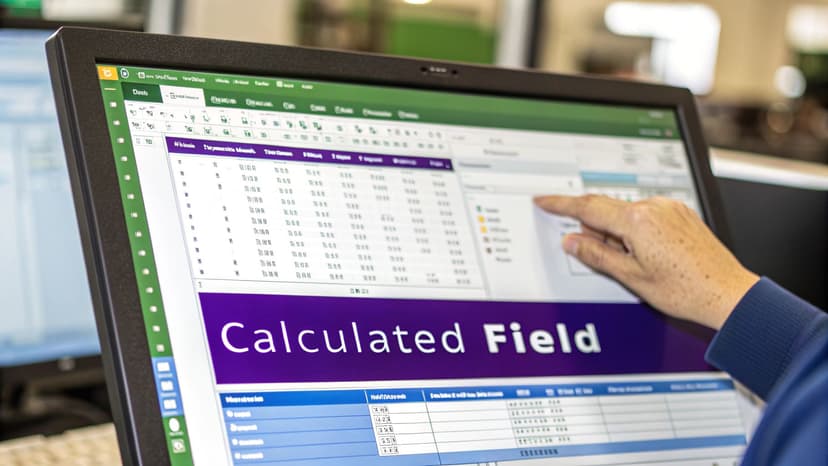
First, give your new field a clear name, like "Profit Margin." Then, you construct the formula using your existing fields, which are listed in the dialog box.
For our profit margin example, the formula is =(Sales - COGS) / Sales. You can either type the field names directly into the formula bar or double-click them from the list below. Click "OK," and Excel instantly adds "Profit Margin" to your PivotTable Fields list, ready to be dropped into your report.
And if you're ever stuck on a more complex calculation, an AI-powered formula builder can be a real lifesaver, generating the right syntax in seconds.
Knowing the Limitations
Calculated Fields are incredibly useful, but they come with one major caveat. They perform calculations on the aggregated totals (the sum) of your fields, not on each individual row of your source data before aggregation.
For a formula like our profit margin, this works out just fine. The result of (SUM(Sales) - SUM(COGS)) / SUM(Sales) is exactly what we want.
But consider a different scenario. If you need a calculation that must happen on a row-by-row basis before aggregation, a Calculated Field will produce an incorrect result, especially in the Grand Totals. This is a classic pitfall. For most business analysts, though, they're essential for quickly creating metrics like percentages and ratios. You can dig into Microsoft's official guidance on calculating values in a PivotTable for more examples.
Key Takeaway: Stick with Calculated Fields for formulas that make sense when applied to aggregated data (like sums and counts). If your logic demands row-level calculations first, you'll need to step up to a more powerful tool like Power Pivot.
Creating Custom Rows with Calculated Items
While Calculated Fields are perfect for adding new columns, Calculated Items offer a different kind of power—they let you create entirely new rows within an existing field. This is an excellent technique for running comparisons or building custom groups right inside your pivot table without altering your source data.
Let’s say you have a pivot table showing sales data broken down by 'North', 'South', 'East', and 'West' regions. Your manager now wants to see a combined total for all coastal regions. Instead of messing with your source data or doing manual calculations on the side, you can add a formula to your pivot table to create a brand new 'Coastal' item on the fly.
How to Build a Calculated Item
The process is straightforward. You'll head back to the same menu we used for Calculated Fields.
First, click on one of the row labels in the field you want to modify—in our scenario, you'd click on 'North' or 'South'. Then, navigate to the PivotTable Analyze tab, find the Fields, Items, & Sets button, and select Calculated Item.
A dialog box will pop up. Let's create our 'Coastal' region:
- Name: Type
Coastalinto the "Name" box. - Formula: In the "Formula" box, enter
=North + South. The easiest way to do this is to double-click the item names from the list below to add them to your formula.
Click "OK," and Excel instantly adds a 'Coastal' row to your region field, summing the values from North and South automatically. This new item acts just like any other row in your pivot table and will update dynamically whenever your data changes.
A Calculated Item is essentially a formula that operates on other items (rows) within the same pivot field. It's perfect for creating quick groupings or comparing specific data points, like calculating the difference between two products with a formula like
= 'Product A' - 'Product B'.
Knowing the Trade-Offs
Calculated Items can be a real lifesaver, but they come with significant limitations you must be aware of. Once you add one to a pivot table, certain Excel features may become disabled for that field.
- Filtering and Grouping: You often lose the ability to apply certain filters or create custom groups for the field containing the calculated item.
- Moving Fields: You won't be able to move that field into the "Filters" area of the pivot table.
- Grand Totals: Keep an eye on your Grand Totals. They can sometimes display misleading results when Calculated Items are present, as they might double-count the underlying data.
Because of these restrictions, Calculated Items are best used for final reports or specific analyses where you know you won't need further filtering on that particular field. They provide a quick and powerful way to add a formula to pivot table rows, but it's always a trade-off between flexibility and custom calculations.
Stepping Up to Power Pivot and DAX Measures
So, you've pushed Calculated Fields and Items to their limits. What's next? If you're ready for some serious analytical horsepower, it's time to meet Power Pivot and its formula language, DAX (Data Analysis Expressions). This is where Excel transcends its spreadsheet origins to become a powerful data modeling engine.
Think of Power Pivot as a sophisticated layer within Excel designed for heavy-duty data work. At its core are Measures—formulas created in Excel’s Data Model. They're like Calculated Fields on steroids. While a Calculated Field is confined to a single pivot table, a DAX Measure lives in the Data Model itself. This means you can create it once and reuse it across multiple pivot tables and charts, ensuring consistency.
If you're new to this concept, understanding what data modeling is will make the transition much smoother.
This flowchart is a great mental model for deciding which tool to use for the job.
As you can see, when your questions get more complex than simply adding a new row or column, the path usually leads straight to Power Pivot.
So, How Do DAX Measures Actually Work?
Let's start with a simple DAX measure. To calculate total sales, you'd write:
Total Sales := SUM(Sales[Revenue])
This looks like a standard formula, but its power lies in where it lives. Because this formula is part of the Data Model, the "Total Sales" measure becomes a reusable calculation you can drop into any pivot table. No more re-creating the same logic over and over.
Now for a task that makes standard pivot tables struggle: calculating Year-over-Year (YoY) growth. This is a classic business metric, but it’s a nightmare for traditional pivot formulas because it requires comparing different time periods. With DAX, it's straightforward. A simplified version of the measure looks like this:
YoY Sales Growth % :=DIVIDE( [Total Sales] - CALCULATE([Total Sales], SAMEPERIODLASTYEAR('Date'[Date])), CALCULATE([Total Sales], SAMEPERIODLASTYEAR('Date'[Date])))
Let’s break down this formula:
[Total Sales]: This is our previously created measure for total sales in the current period.CALCULATE([Total Sales], SAMEPERIODLASTYEAR('Date'[Date])): This is the DAX magic.CALCULATEmodifies the context, andSAMEPERIODLASTYEARshifts the date range back by one year to calculate last year's total sales.DIVIDE(...): This function safely divides the difference (current sales minus last year's sales) by last year's sales to get the growth percentage, avoiding errors if the denominator is zero.
You simply cannot perform this level of time-based analysis with a standard Calculated Field.
Key Takeaway: For any analysis involving time intelligence (like YoY or quarter-over-quarter), complex filtering, or calculations you need to reuse, DAX Measures are the superior choice. They offer a level of flexibility and accuracy that standard pivot tools cannot match.
Learning Power Pivot and DAX is a significant step in building more dynamic, insightful reports. It's a cornerstone of modern data analysis and a key skill if you're interested in understanding What is Business Intelligence. You'll start seeing Excel not just as a tool for creating tables, but for building powerful, interactive dashboards.
Let AI Handle Your Pivot Table Formulas
What if you could create complex pivot table calculations without ever opening a formula dialog box? AI tools are revolutionizing how we work with Excel, and pivot tables are a prime example. Instead of wrestling with menus and trying to remember the right syntax, you can now use plain English to get the job done.

This shift lets you concentrate on what you need to find in your data, not how to build the report. Think of tools like Elyx.AI as a smart assistant living right inside your spreadsheet. It takes your business questions and translates them into the technical steps, turning a clunky process into a simple conversation.
From Plain English to Powerful Insights
Let’s look at a practical example. Normally, you'd have to build a pivot table piece by piece and then navigate through several menus to add a calculated field. With an AI tool, you can just type a prompt.
"Create a pivot table from my sales data, group it by region, and add a calculated field named 'Commission' that is 5% of the total sales."
The AI understands the request. It finds your data, builds the pivot table, and creates the new field with the correct formula (='Sales' * 0.05) in just a few seconds. This completely sidesteps the manual work and the risk of syntax errors, making it a ridiculously efficient way to add formula to pivot table reports.
This is a lifesaver for more advanced calculations, too. You could ask for a year-over-year growth calculation, and a sophisticated AI would be smart enough to generate the right DAX measure and even set up the Data Model for you. This opens up complex analysis to everyone, not just DAX experts.
It's About More Than Just Saving Time
The real value here goes beyond speed. By automating formula creation, you dramatically reduce the chance of human error. We've all been there—a single misplaced parenthesis or a typo in a field name can send you on a wild goose chase. An AI assistant gets it right.
This reliability gives you more confidence in your numbers and encourages you to explore your data more freely. When you can test a new idea with a single sentence, you're far more likely to ask those deeper "what if" questions. If you're curious about the tech that makes this possible, you can learn more about how an AI Excel formula generator turns simple language into working code.
Here's why letting an AI agent handle this is a game-changer:
- Fewer Errors: The AI manages all the technical syntax, so you can forget about typos and incorrect field references.
- Easier for Everyone: Complex features like DAX measures are no longer just for experts.
- Get More Done: A task that used to take minutes of clicking and typing is now done in seconds with one command.
Ultimately, integrating AI into your Excel workflow isn't just about doing things faster. It's about making data analysis more intuitive, accurate, and accessible. It lets you step away from the keyboard and focus on what really matters: finding the story your data is trying to tell you.
Common Questions About Pivot Table Formulas
Even with the basics down, you're bound to run into some head-scratchers when working with pivot table formulas. Let's walk through a few of the most common questions.
Can I Use an IF Statement in a Calculated Field?
Yes, you absolutely can! In fact, using an IF statement in a Calculated Field is one of the best ways to add custom logic directly into your pivot table. It's fantastic for segmenting data or creating new categories on the fly.
For example, imagine you want to calculate a sales bonus. The rule is a 10% bonus, but only on sales totals over $5,000. Your formula would be:=IF(Sales > 5000, Sales * 0.10, 0)
Let's break it down:
IF(Sales > 5000, ...): This is the logical test. It checks if the sum ofSalesfor a given row in the pivot table is greater than 5000.... Sales * 0.10, ...): This is the value if the test is TRUE. It calculates the 10% bonus.... 0): This is the value if the test is FALSE. No bonus is applied.
This tells Excel to apply the bonus calculation only where the condition is met, otherwise returning zero.
Why Is My Grand Total Incorrect?
This is probably the most frequent "gotcha" with Calculated Fields. The problem isn't your math; it's how the pivot table calculates. A Calculated Field operates on the sum of your data, not on the individual rows that make up that sum.
A perfect example is trying to find an average price. Let's say you have Sales and Quantity fields. A Calculated Field using the formula =Sales / Quantity works perfectly for each individual product line. But the Grand Total will calculate SUM(Sales) / SUM(Quantity), which is a weighted average of all transactions, not the simple sum of the individual averages in the column above it. This often leads to confusion.
For more reliable totals, especially with averages and percentages, a DAX Measure in Power Pivot is usually the better solution.
Key Takeaway: If your Grand Totals look strange, remember the formula is being applied to the aggregated totals. For anything more complex than simple ratios, DAX Measures provide far more control and accuracy over how totals are calculated.
Can I Refer to a Cell Outside the Pivot Table?
No, you can't. A formula within a Calculated Field or Calculated Item is self-contained and can only "see" other pivot fields. It cannot directly reference an external cell, like =Sales * $A$1.
However, you have several effective workarounds:
- Add it to your source data: The simplest solution is often to add a new column in your original data table that contains the value you need. Refresh the pivot, and the new field will be available.
- Use Power Pivot: You can create a small, separate "parameter" table in the Data Model that holds your external value (e.g., a commission rate). Then, you can write a DAX measure to link it to your main data.
- Use
GETPIVOTDATA: This function works in reverse. It's designed to pull a specific value out of a pivot table so you can use it in regular worksheet formulas, allowing you to build dynamic reports outside the pivot table itself. You can learn more about how to use theGETPIVOTDATAfunction to create flexible dashboards.
Ready to stop wrestling with pivot table menus and let AI do the heavy lifting? Elyx.AI is an autonomous agent that builds your pivot tables, adds complex formulas, and formats your reports from a single instruction. Get started with a free trial and see how much time you can save.
Start Your Free 7-Day Trial with Elyx.AI
Reading Excel tutorials to save time?
What if an AI did the work for you?
Describe what you need, Elyx executes it in Excel.
Sign up